
Purpose
Add a certificate to the Cantara Administration Console.
Before you begin
-
You must have permissions to manage certificates.
-
A tenant must already exist.
-
You should have a PKCS12 certificate file ready.
-
You must know the file password used to encrypt the PKCS12 file.
-
If the file contains multiple certificates, you should know the alias (optional).
Procedure
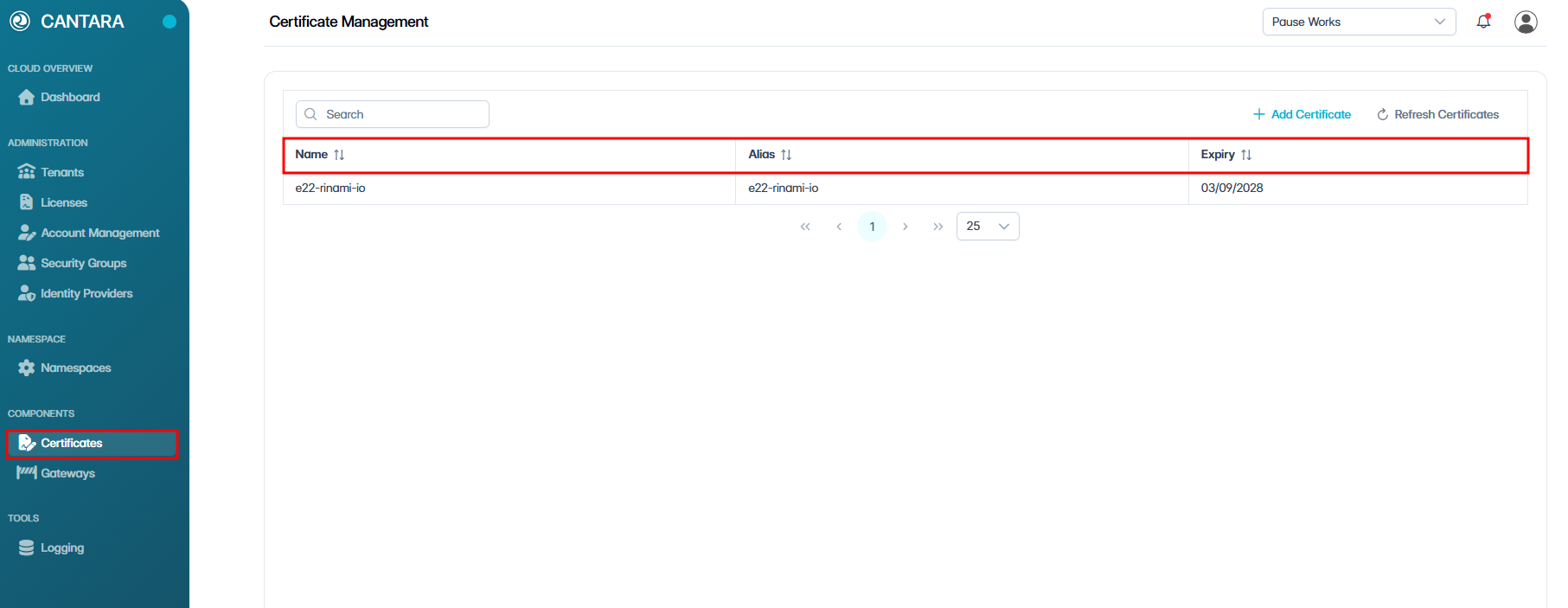
To add a certificate:
-
Navigate to Certificates.
The Certificates Management screen opens, showing a list of all existing certificates along with their details, such as Name, Alias and Expiry.
-
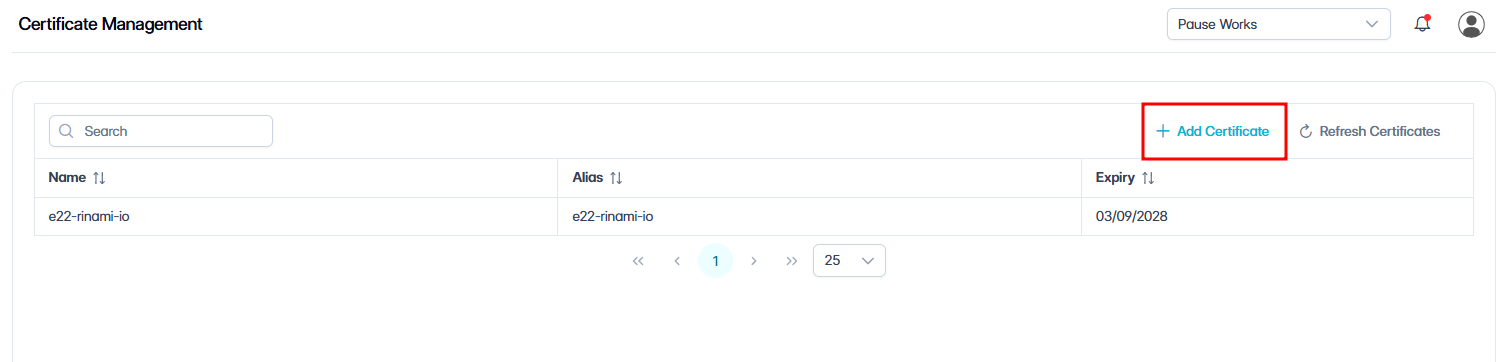
Click + Add Certificate in the top right of the Certificates list.
-
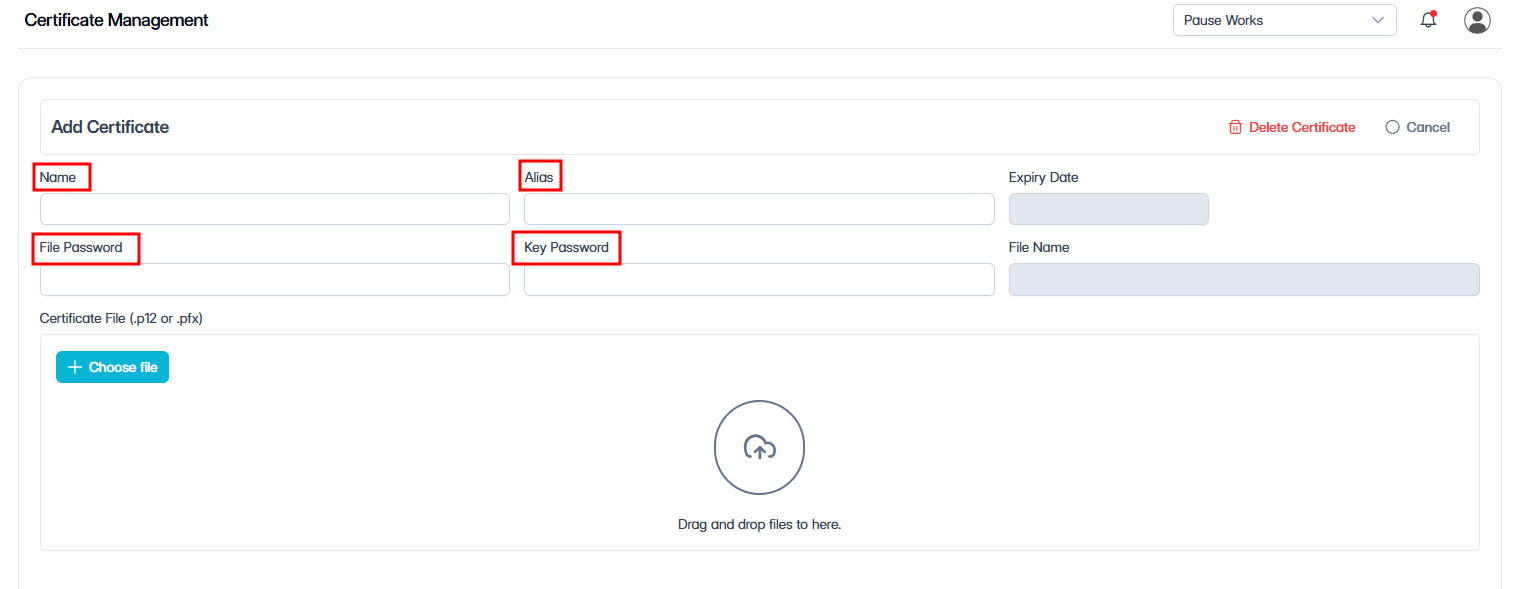
Enter a Name for the certificate.
-
The name must be unique.
-
The name must follow naming rules:
-
Allowed: Letters, numbers, underscores
_, dashes- -
Not allowed: Spaces or other special characters
-
-
-
(Optional) Enter an Alias.
-
Required only if the PKCS12 file contains multiple certificates.
-
If left blank, the system uses the first certificate in the file.
-
-
Enter the File Password.
-
This is mandatory to read the PKCS12 file.
-
-
(Optional) If the PKCS12 file has a key password, enter it.
Note: Use a PKCS12 keystore (JKS is not supported). If your private key and certificate are separate, merge them into a single file first. Then create the keystore with the following command:
openssl pkcs12 -export -in mykeycertificate.pem.txt -out mykeystore.pkcs12 \ -name myAlias -noiter -nomaciter
A File Password is required. The Key Password is only needed if the key is encrypted.
-
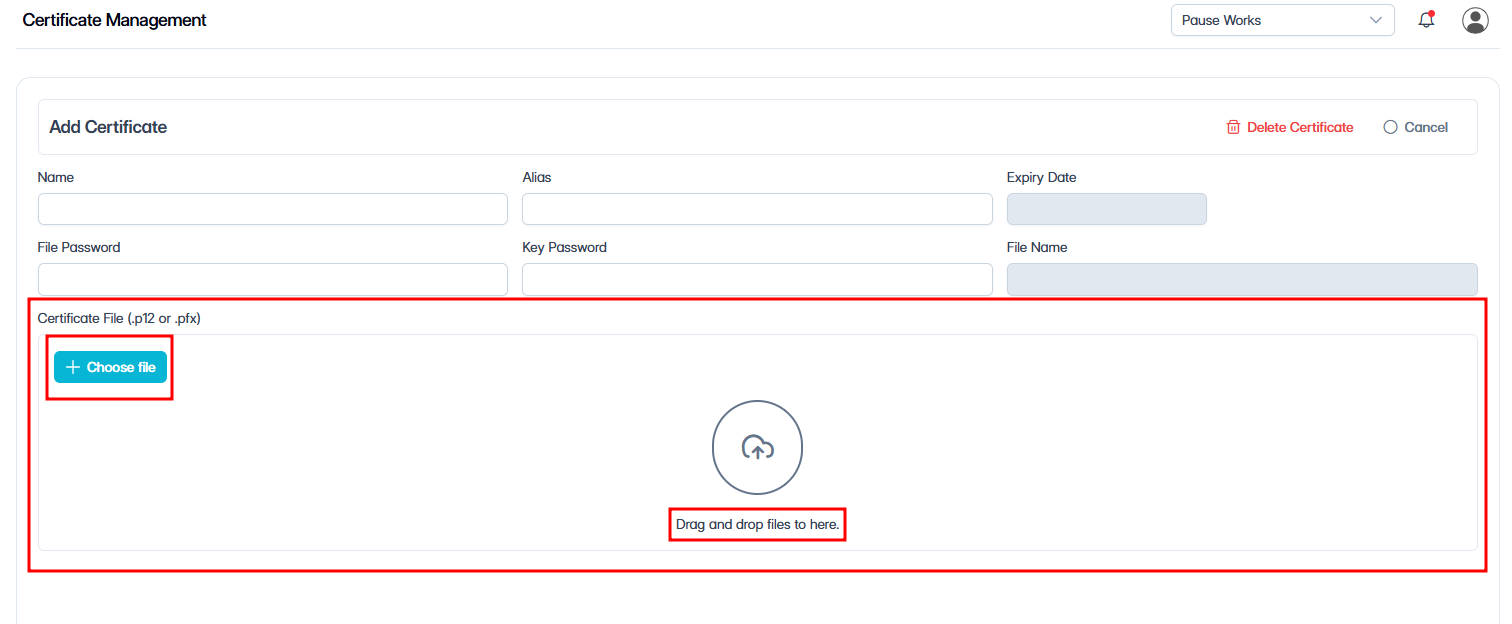
Select the certificate file.
-
Drag and drop the PKCS12 file or browse to select it.
-
Supported file format: PKCS12.
-
Note: JKS format is not supported.
-
-
Click Save.
The system validates the PKCS12 file and loads the certificate. If successful, the expiry date is displayed. If the file cannot be read, an error or warning is shown.