
Purpose
Set up SCIM provisioning to automatically sync users and groups from your identity provider (IdP) to Cantara. This procedure covers generating a provisioning token in Cantara and linking to the IdP configuration steps in the Get Started Guide.
Note: Use this procedure when you are setting up SCIM provisioning for the first time. If you have already configured SCIM provisioning and need to replace an expired token, see Generate a Provisioning Token.
Before you begin
-
You have access to the Cantara Administration Console.
-
You have permission to manage tenants and provisioning tokens.
-
An IdP is configured for your tenant.
Procedure
Step 1: Generate a SCIM provisioning token in Cantara
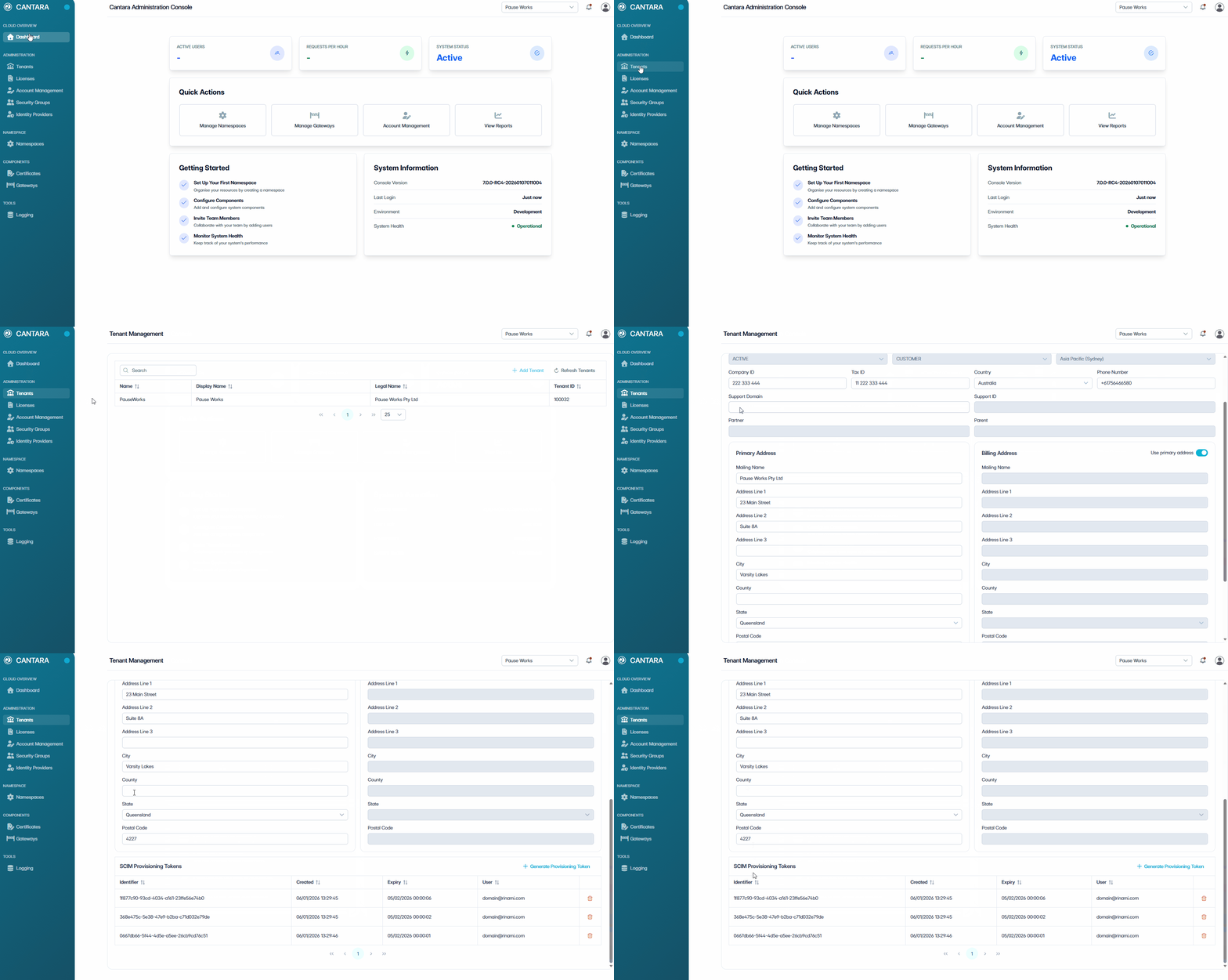
To generate a SCIM provisioning token:
-
In Cantara, navigate to Tenants.
The Tenant Management screen displays a list of all existing Tenants.
-
Select the tenant you want to edit.
-
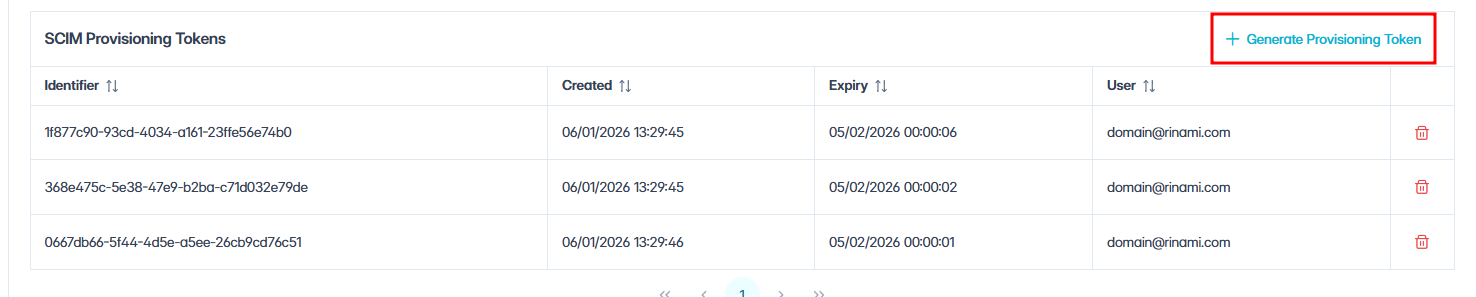
Scroll to the Provisioning Tokens section at the bottom of the Tenant Management screen.
-
Click + Generate Provisioning Token.
-
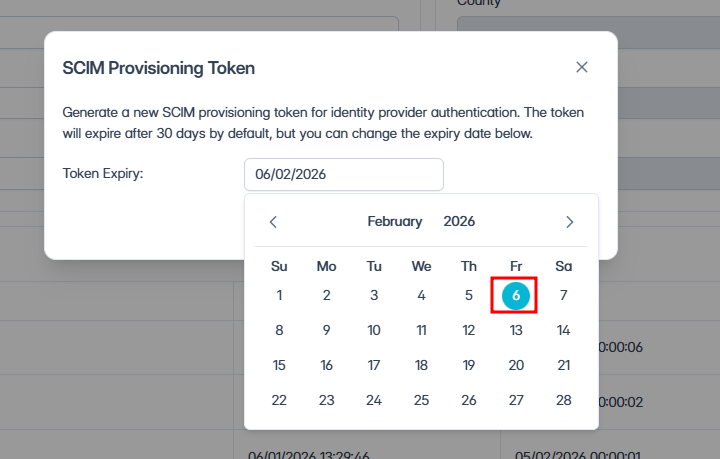
In the dialog box, select an expiry date.
Note: By default, tokens expire after 30 days. This can be adjusted using the date selector. Tokens function like passwords and expire after a configurable period. Once expired or deleted, a new token must be generated.
-
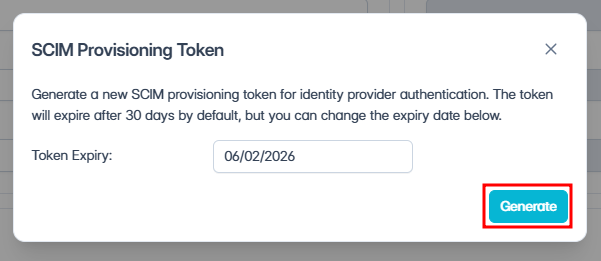
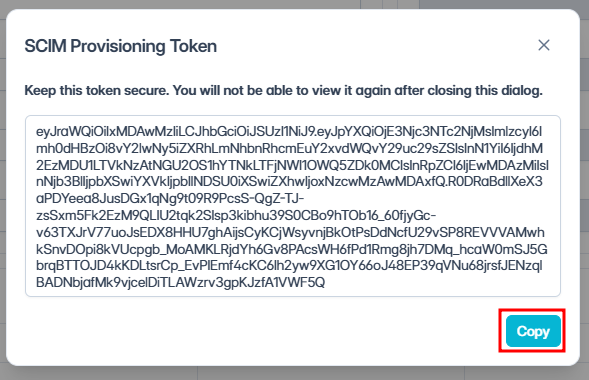
Click Generate.
-
Copy the token.
Note: Securely store the newly generated token immediately, it cannot be retrieved later.
Step 2: Configure SCIM in your IdP
-
Configure SCIM provisioning using the following details:
Tenant URL:
https://cip7.cantara.cloud/scim/v2/<TenantID>
Authentication method:
-
Bearer Token (use the token generated above)
Recommended user attributes:
|
Attribute |
Required |
|---|---|
|
|
Yes |
|
|
Yes |
|
|
Yes |
|
|
Yes |
|
|
Yes |
|
|
Yes |
|
|
Yes |
|
|
Yes |
|
|
Optional |
Note: Some IdPs provide extra attributes by default. Remove any unnecessary fields to keep provisioning focused and efficient.
-
Enable provisioning in your IdP.
User accounts and group memberships will be automatically provisioned into Cantara from the IdP.
What to expect
Once SCIM provisioning is enabled, accounts provisioned from the IdP will appear in Cantara with the following behaviour:
-
Account Source — Displays as SCIM (rather than Local).
-
Account fields — Read-only in Cantara. Changes must be made in the IdP.
-
User updates — Changes made in the IdP (e.g., name, email, phone) are automatically synced to Cantara.
-
Deactivation — When a user is deactivated or removed in the IdP, the account is automatically deactivated in Cantara.