
Purpose
Assign an unallocated work order directly to a resource on the planning board.
Before you begin
Confirm that the work order appears in the Unallocated Work Orders panel and that the target resource is visible on the planning board.
Procedure
To assign an unallocated work order to a resource:
-
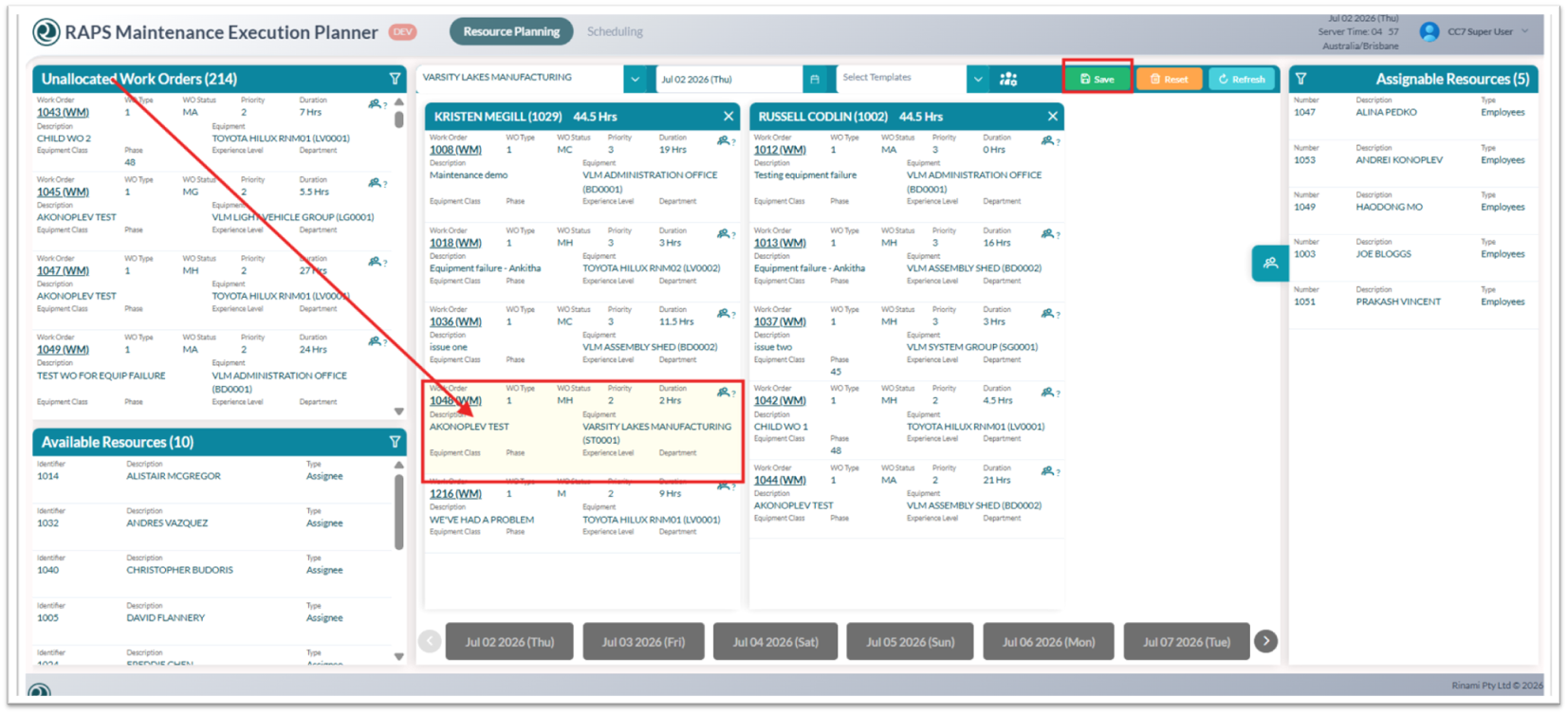
Select the work order from the Unallocated Work Orders panel.
-
Drag the work order to the target resource on the planning board.
-
Drop the work order onto the resource to assign it.
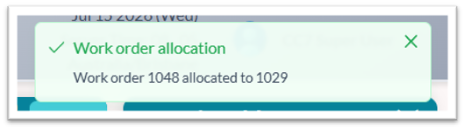
A confirmation message appears after the work order is assigned to the resource.
-
Review the assignment and make any needed scheduling adjustments.
-
Click Save to commit the change to JD Edwards.
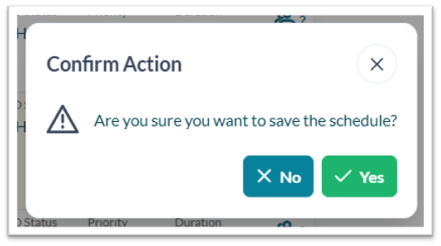
A Confirm Action dialogue appears. Click Yes to confirm and continue saving the schedule, or click No to cancel the action.

When processing is complete, a Saving Finite Schedule dialogue appears displaying the work order number and status. The status should display as SUCCESS, confirming that JD Edwards has been updated.
Outcome
The work order is assigned to the selected resource, and the updated schedule is saved to JD Edwards.