
Purpose
Open a license to review details and update editable properties.
Before you begin
-
You have access to the Cantara Administration Console.
-
You have permission to manage licenses.
Procedure
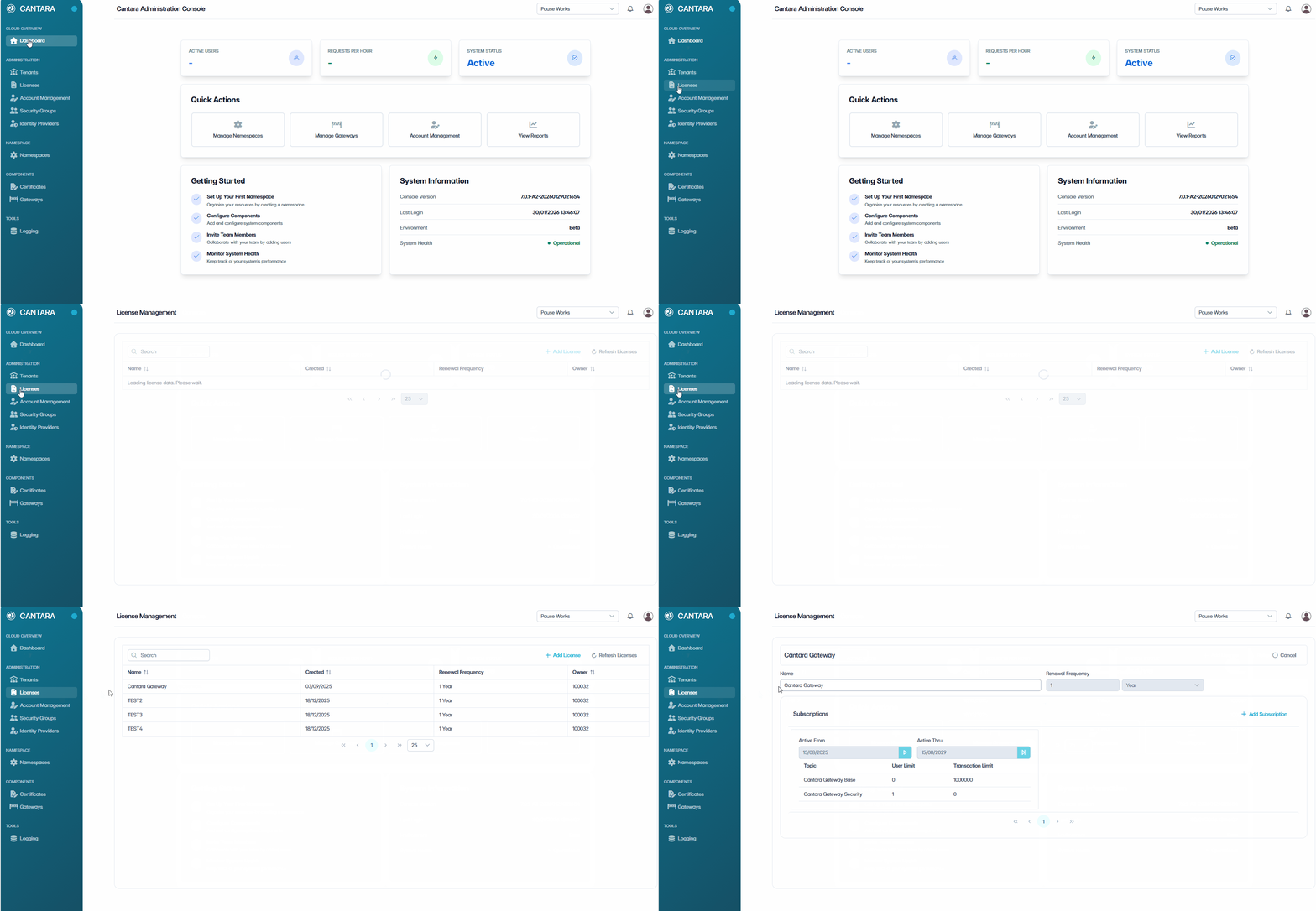
To view or edit a license:
-
Navigate to Licenses.
The License Management screen opens, showing a list of all licenses available to your account. The list includes the Name, Created, Renewal Frequency, and Owner columns.
-
Select the license you want to view or edit.
The selected license details are displayed.
License
|
Field |
Description |
|---|---|
|
Name |
The name of the registered license. |
|
Renewal Frequency |
Frequency at which the license is renewed. (Read only) |
Subscriptions
|
Field |
Description |
|---|---|
|
Subscription # |
System-generated subscription identifier. (Read only) |
|
Active From |
Start date of the subscription. (Read only) |
|
Active Thru |
End date of the subscription. (Read only) |
|
Auto Renew |
Indicates whether the subscription renews automatically. Toggle to Enable or Disable. |
|
Topic |
Product associated with the subscription. (Read only) |
|
User Limit |
Maximum number of users allowed. (Read only) |
|
Transaction Limit |
Maximum number of transactions allowed. (Read only) |
To add a subscription to a license, see Add a License and Subscription.
-
Select one of the following options:
-
Save License — Apply and save any updates made.
-
Undo Changes — Revert any unsaved changes back to the last saved state.
-
Cancel — Exit without saving.
-