
Purpose
Tools provide the actionable capabilities that an AI agent can invoke through the MCP Server. While Resources provide information and Prompts provide reusable instructions, Tools allow the agent to perform operations using Cantara components and interact with JD Edwards EnterpriseOne.
Tools can be used to provide capabilities such as:
-
Querying JD Edwards data
-
Executing JD Edwards business functions
-
Running orchestrations
-
Submitting or retrieving reports
-
Reading and adding media attachments
-
Returning the content of an MCP Resource
Before you begin
-
An MCP Server has been created.
-
If adding a Function, Query, Report, or Orchestration tool, the component has been created in Cantara.
-
If adding a Resource tool, the resource has been added to the MCP Server.
Procedure
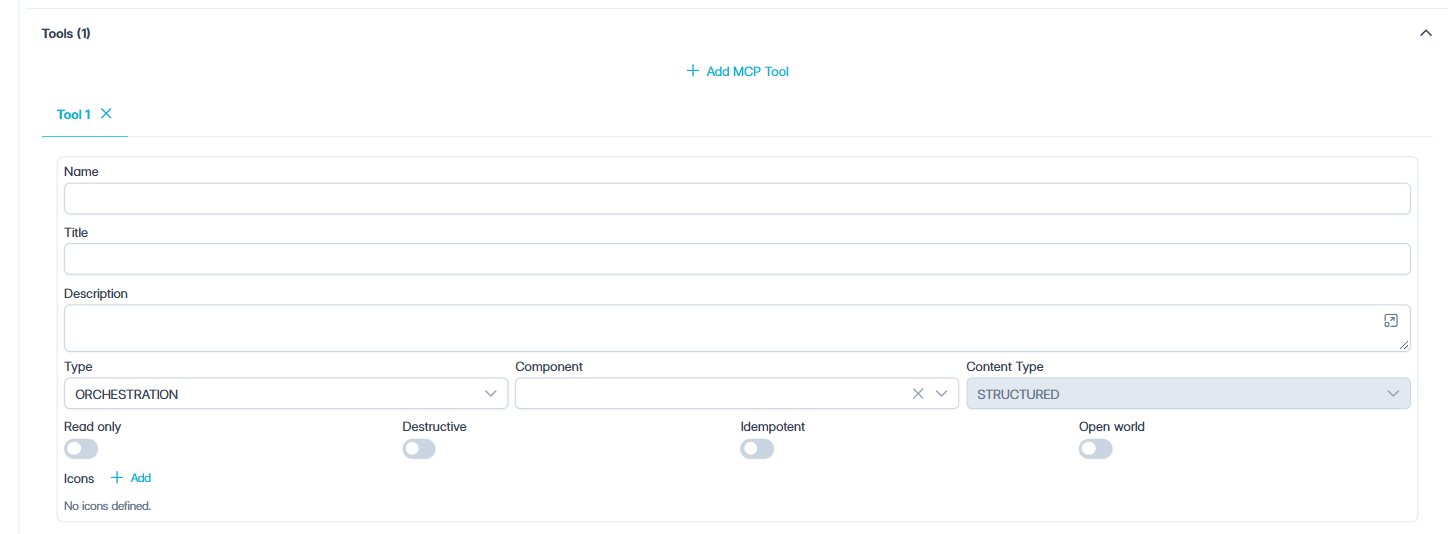
To add a Tool to the MCP Server:
-
Navigate to MCP Servers.
A list of configured MCP Servers is displayed.
-
Open the appropriate MCP Server.
-
Expand the Tools section.
-
Click + Add MCP Tool.
A new Tool tab is added.
-
Complete the following MCP Tool fields:
|
Field |
Required |
Description |
|---|---|---|
|
Name |
Yes |
A unique name that identifies the tool to AI agents: 2 to 64 letters, numbers, underscores (_), or hyphens (-), with no spaces. |
|
Title |
Yes |
A user-friendly title that describes the tool, such as Get version info. |
|
Description |
No |
What the tool does and when it should be used. AI agents rely on the description to decide when to use the tool. |
|
Type |
Yes |
The kind of component the tool runs. See Tool Types. |
|
Component |
Yes |
The specific component the tool runs. The list depends on the selected Type. For the RESOURCE type, this field is labelled Resource. |
|
Content Type |
– |
Set automatically from the Type and cannot be changed: RESOURCE_LINK for the RESOURCE type and STRUCTURED for all other types. |
Tool Types
|
Type |
Component to Select |
Purpose |
|---|---|---|
|
FUNCTION |
A Cantara Function |
Runs JDE business logic. |
|
QUERY |
A Cantara Query |
Retrieves JDE data. |
|
REPORT |
A Cantara Report |
Submits a JDE batch report or retrieves its results. |
|
ORCHESTRATION |
A Cantara Orchestration |
Runs a multi-step JDE orchestration. |
|
MEDIA |
A media command |
Reads, adds, or updates JDE media attachments, depending on the command selected. |
|
RESOURCE |
An MCP Resource on this server |
Returns the content of the selected resource to the AI agent. Add the resource to the MCP Server first. |
Function, Query, Report, and Orchestration components are created in Cantara before they can be selected. See JDE Components Used as MCP Tools.
-
Review the Tool Behavior settings.
The Read only, Destructive, Idempotent, and Open world settings tell AI agents how the tool behaves. They are set automatically when the Type is selected.
Note: Changing the Type resets these settings, so review them after selecting the Type.
-
Optionally, add Icons.
Icons are optional images that some MCP clients display for the tool. They do not affect how the tool runs.
-
From the Actions menu, select Save MCP Server.
Outcome
The tool is now available for discovery and use by AI agents and other MCP clients connected to the MCP Server.