
Purpose
Prompts provide reusable instructions, context, and guidance that can be made available to an AI agent through the MCP Server. They define how a particular task should be performed and can accept input values that are inserted into the instructions.
Prompts can be used to define information such as:
-
What task should be performed
-
What information or inputs are required
-
What a successful result should look like
-
What validations should be performed
-
What tools or resources should be used
-
What assumptions or actions should be avoided
Before you begin
-
An MCP Server has been created.
-
The instructions, context, guidance, and any input values needed for the prompt are ready to add.
Procedure
To add a Prompt to the MCP Server:
-
Navigate to MCP Servers.
A list of configured MCP Servers is displayed.
-
Open the appropriate MCP Server.
-
Expand the Prompts section.
-
Select + Add MCP Prompt.
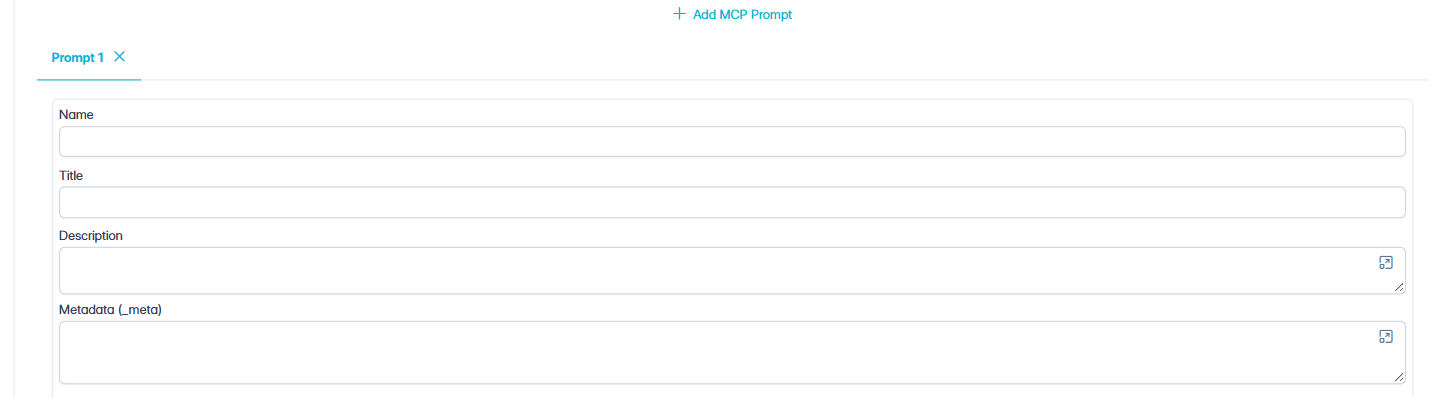
A new Prompt tab is added.
-
Complete the following prompt fields:
|
Field |
Required |
Description |
|---|---|---|
|
Name |
Yes |
A unique name that identifies the prompt: 2 to 64 letters, numbers, underscores (_), or hyphens (-), with no spaces. |
|
Title |
No |
A user-friendly title that describes the purpose of the prompt. |
|
Description |
No |
What the prompt is intended to accomplish and when it should be used. |

-
Next to Arguments, click + Add for each input value.
Arguments define input values that are supplied when the prompt is used. Arguments allow the same prompt to be reused with different values.
|
Field |
Description |
|---|---|
|
Name |
The name used to reference the argument in message text. The name must start with a letter, followed by letters, numbers, or underscores, for example userName or item_number. Hyphens and spaces are not allowed. |
|
Description |
The information that should be supplied for the argument. |
|
Required |
Enable when a value must be supplied to use the prompt. |

-
Next to Messages, click + Add, choose a Role, and enter the message Text.
Messages define the content provided to the AI agent when the prompt is used.
|
Role |
Use for |
|---|---|
|
user |
Instructions or requests to the AI agent |
|
assistant |
Example responses |
Inserting argument values: To insert an argument value into the message text, enter the argument name between double braces:
Please greet {{userName}} politely and confirm their request.
When the prompt is used, each placeholder is replaced with the value supplied for that argument. If an optional argument is not supplied, its placeholder is replaced with blank text.
Note: Every placeholder must match an argument defined on the prompt, and the argument name must follow the naming rule above. Otherwise, the MCP Server cannot be saved and a "message template is invalid" message is briefly displayed.

-
Optionally, add Icons.
Icons are optional images that some MCP clients display for the prompt. They do not affect how the prompt behaves.
-
From the Actions menu, select Save MCP Server.
Outcome
The prompt is now available to AI agents and other MCP clients connected to the MCP Server that support prompts.