
Overview
In Cantara, an Application is a client application, mobile app, web solution, or external integration that connects to JD Edwards through Cantara.
Only the name is required. Platform, Package Name, and Bundle Identifier are needed only if the application uses push notifications, such as Firebase notifications.
Before you begin
-
You have chosen a name for the application that reflects the integration it is for. Application names cannot contain spaces.
-
If the application uses push notifications, you know its platform and its package name (Android and web) or bundle identifier (Apple).
Procedure
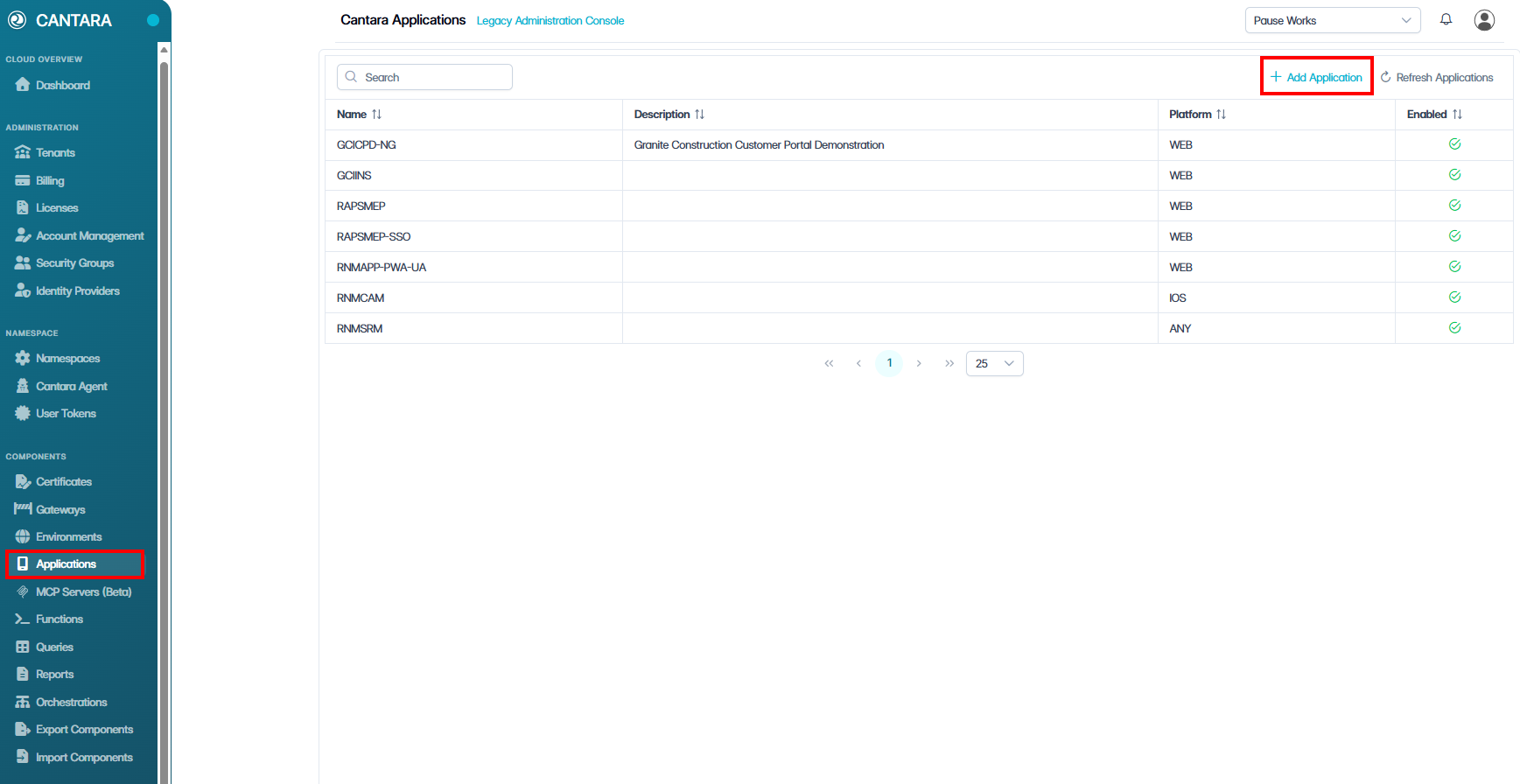
To add an application:
-
Navigate to Applications.
-
Click + Add Application.
-
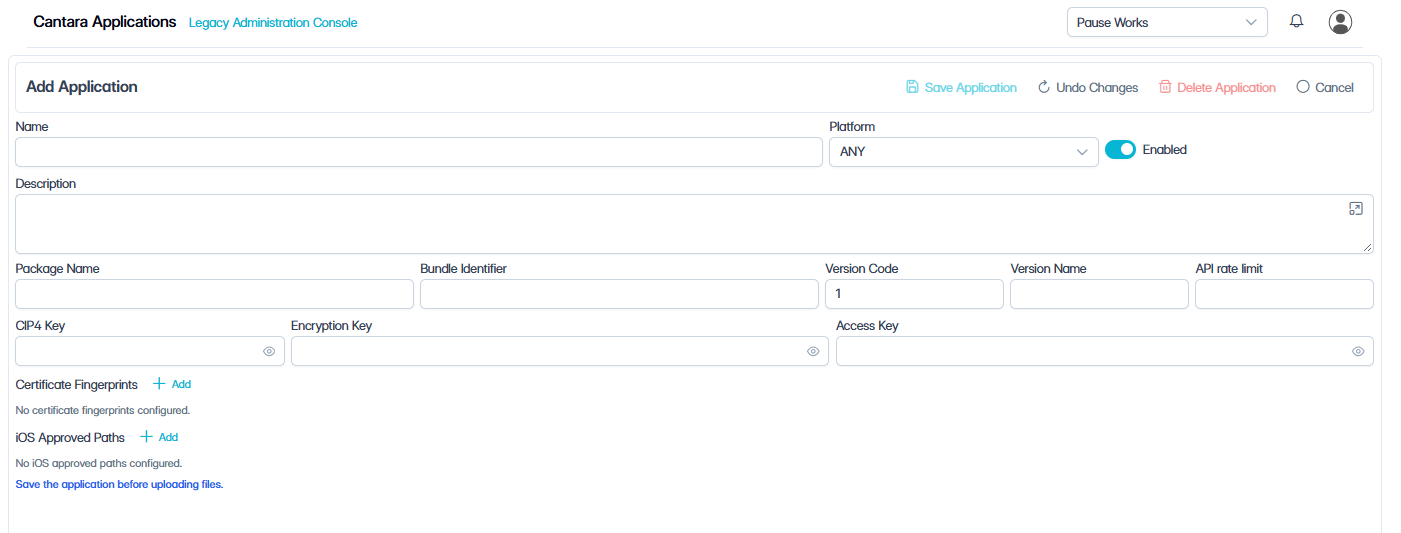
Enter the application Name. Complete any optional fields if required for your integration.
|
Field |
Description |
|---|---|
|
Name |
Enter a name that uniquely identifies the application. Note: The name is required to create the application. Application names cannot contain spaces. Use uppercase for consistency where appropriate. |
|
Enabled |
Enabled by default. Leave the toggle on to allow the application to be used, or turn it off to disable the application without deleting it. |
|
Platform |
(Optional) Select the app platform. Only needed if the application uses push notifications, such as Firebase notifications. Notifications are supported for Android and iOS only. |
|
Description |
(Optional) Enter a short description of the application. |
|
Package Name |
(Optional) Enter the package name that uniquely identifies Android and web applications. Only needed if the application uses push notifications, such as Firebase notifications. |
|
Bundle Identifier |
(Optional) Enter the Apple bundle identifier for Apple applications, including iOS, iPadOS, and macOS. Only needed if the application uses push notifications, such as Firebase notifications. |
|
Version Code |
(Optional) Enter the application version code. |
|
Version Name |
(Optional) Enter the application version name. |
|
API rate limit |
(Optional) Enter an application-specific API rate limit, if required. Leave blank if no application-specific rate limit is required. |
-
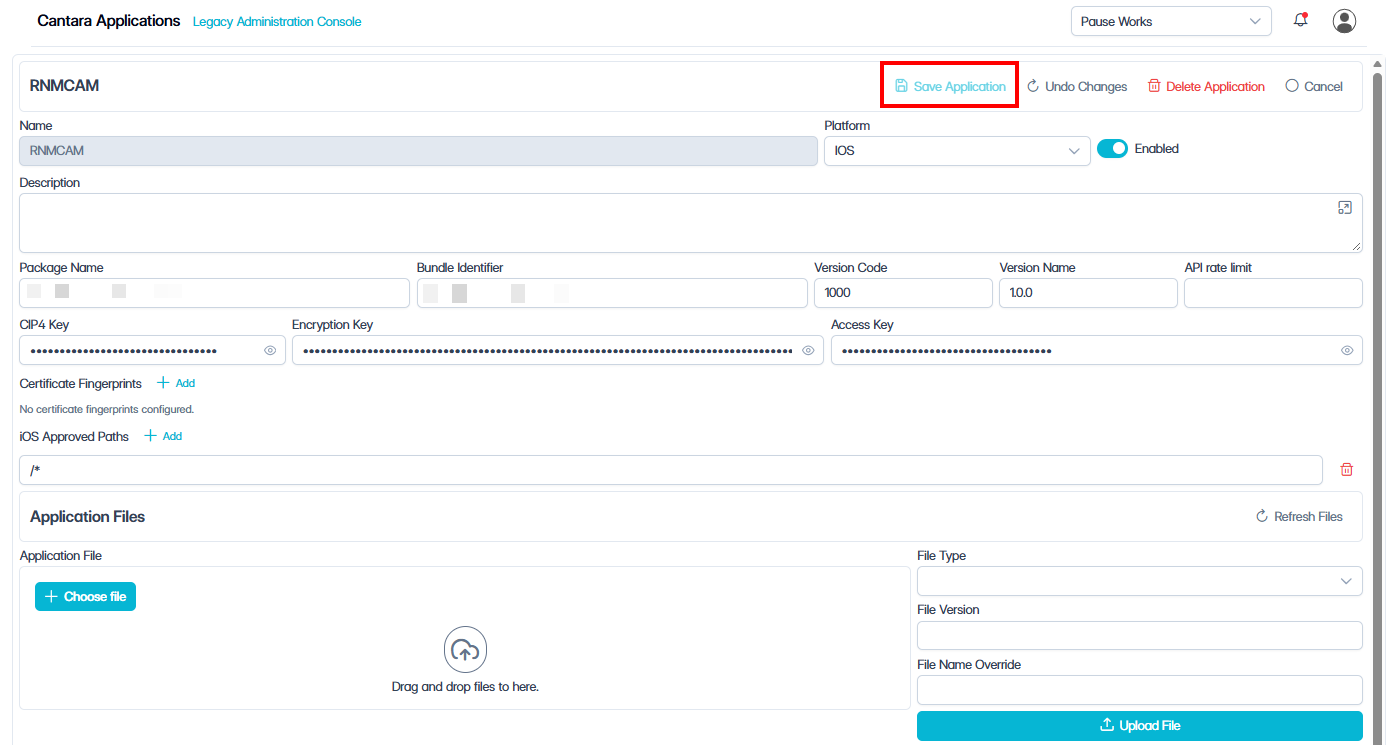
Click Save Application.
Outcome
The application is saved. Cantara automatically generates the Encryption Key and Access Key and displays them on the application screen.
|
Field |
Description |
|---|---|
|
Encryption Key |
(Optional) Use this key if the client application needs to encrypt the password in login requests. Cantara uses the same key to decrypt the password before authenticating to JDE. |
|
Access Key |
Used to upload application files to Cantara and download them from Cantara. |
Optional application settings
Complete these fields only if your implementation requires them.
Single sign-on verification
Configure these settings only if you are deploying native mobile apps that use Single Sign-On (SSO) redirects. Cantara uses these details to publish verification files so mobile devices trust login redirects from your identity provider.
If your application does not use mobile SSO redirects, leave these fields blank.
|
Field |
Platform |
Description |
|---|---|---|
|
Certificate Fingerprints |
Android |
Enter the SHA-256 certificate fingerprints used to verify the Android application. |
|
iOS Approved Paths |
iOS |
Enter the approved Universal Link URL paths used to verify the iOS application. |
Application files
Use application files to store files associated with the application, such as runtime configuration files, app packages, images, or other deployable files.
For configuration files, the application can fetch the file at runtime. This lets you update configuration from Cantara without changing the application code. For app packages, such as APK or IPA files, Cantara can be used as the download location for application releases.
To upload application files to Cantara or download them from Cantara, use the application's Access Key, which is generated when you save the application.
When adding a file, select the file type that best describes the file. The file type identifies the purpose of the file; it is not the same as the file extension.
-
APK – Android application package.
-
BIN – Binary file.
-
CONFIG – Runtime configuration file.
-
EXECUTABLE – Executable file.
-
IMAGE – Image or application icon.
-
IPA – iOS application package.
-
JSON – JSON file, such as a request mapping file.