
Overview
Before creating an MCP Server, a Cantara Environment must be configured to provide the connection between Cantara and the JD Edwards EnterpriseOne environment. The Cantara Environment defines the JDE AIS endpoint and authentication settings that will be used by the MCP Server.
If an appropriate Cantara Environment has already been configured, you can use the existing environment and proceed to creating the MCP Server.
Before you begin
-
Before creating an environment for an MCP Server, make sure you have the required JDE AIS endpoint and authentication details available.
-
You must also have permission to create and manage environments in the Cantara Administration Console.
Procedure
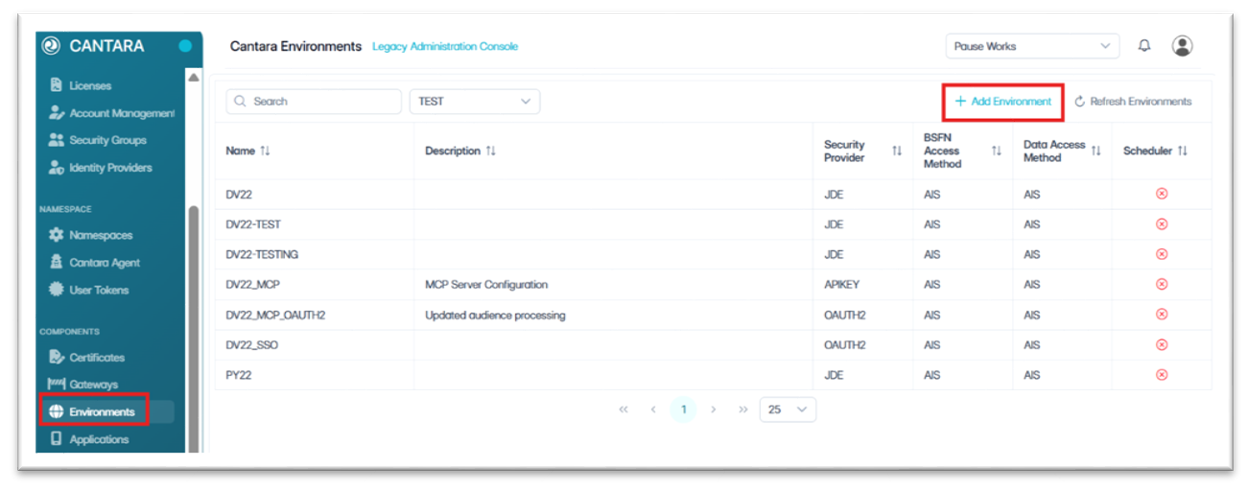
To create an environment:
-
Navigate to Environments.
-
Click + Add Environment.
-
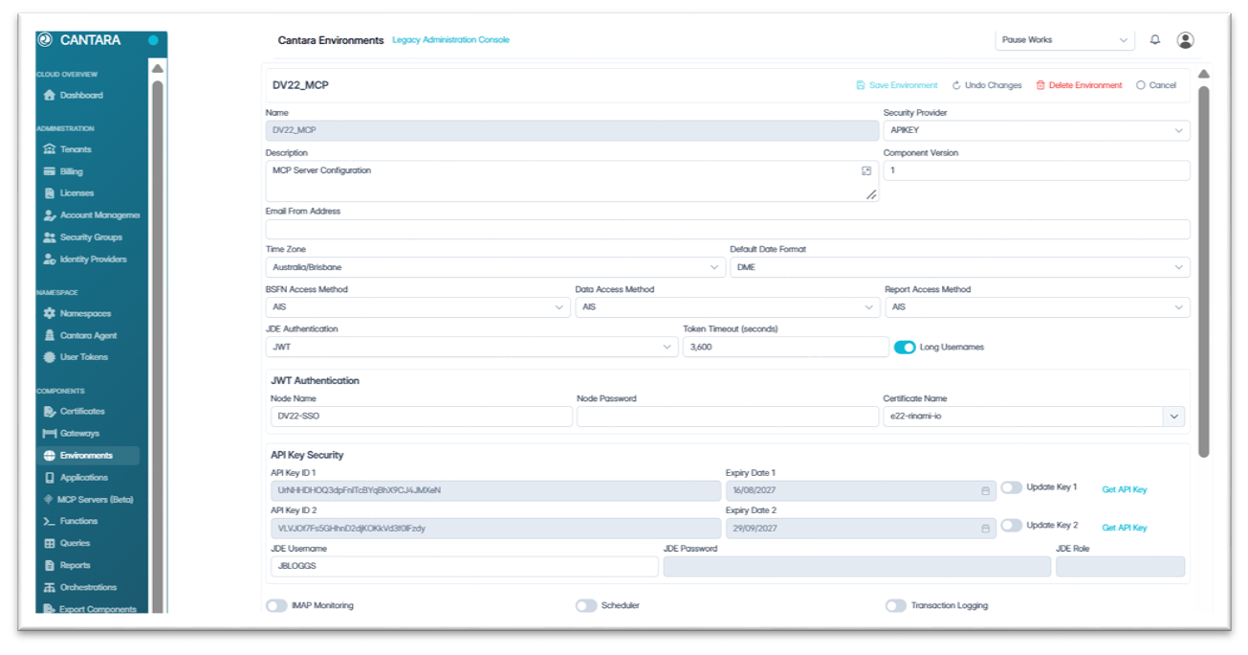
Enter the required environment details. Configure the environment with the appropriate JDE AIS endpoint and authentication information.
Typical configuration includes:
-
Name – Enter a name that identifies the JDE environment, such as INT, PY, or PROD.
-
AIS URL – Enter the URL for the JDE AIS Server. If applicable, configure any load-balanced endpoints used by the environment.
-
Authentication – Configure the authentication method required for the environment, such as JWT, OAuth2, or API key.
-
-
Click + Add Instance and enter the required instance information for the JDE environment.
-
Review the environment configuration and click Save Environment.
Outcome
Once the Cantara Environment has been configured and saved, it can be selected when creating the MCP Server.