
Purpose
Use Filter Management to create, update, and maintain saved filters for work orders and resources. Filters help users narrow Resource Planning and Scheduling views to the records required for the current planning task.
Before you begin
-
Identify the MEP view that requires filtering, such as Resource Planning or Scheduling.
-
Confirm the filter type you need to manage, such as Work Orders, Available Resources, or Assignable Resources.
Procedure
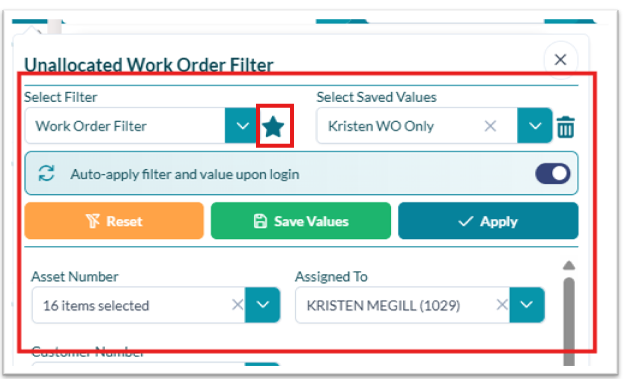
To configure and apply filters:
-
Open the applicable MEP view, such as Resource Planning or Scheduling.
-
Select the filter type you want to use, such as Work Orders, Available Resources, or Assignable Resources.
-
Choose a saved filter, or define the filter values needed for the current task.
-
Select Apply to narrow the displayed results.
-
If the filter should be reused, select Save Values or set the filter as the default, when available.
-
Use Reset to clear the selected values or return filter selections to the saved state.
Outcome
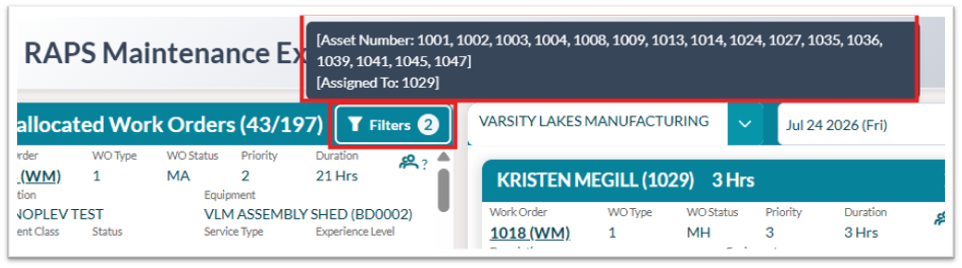
The selected view displays only the work orders, resources, templates, or scheduling records that match the applied filter values. Saved values are available for reuse based on the user’s permissions and configuration.
Tips
-
Use saved filter values for frequently repeated planning or scheduling views.
-
Confirm the applied-filter indicator before assuming records are missing.
-
Use Reset before troubleshooting unexpected results.
-
Keep filter names clear and descriptive so users can identify the correct filter quickly.