
Purpose
This guide provides instructions for configuring a generic OAuth 2.0 Identity Provider (IdP) to enable Single Sign-On (SSO) for Cantara. It applies to any OAuth 2.0 compatible provider.
This guide covers two steps: registering an application in your Identity Provider, then configuring OAuth 2.0 in Cantara.
Optionally, SCIM can be used to automatically provision users and groups from your Identity Provider into Cantara. For details, see Configure SCIM Provisioning.
For a Microsoft Entra ID–specific example, see: Configure OAuth 2.0 Authentication with Microsoft Entra ID
Before you begin
-
Permission to create an application for your IdP.
-
Administration access to Cantara Administration Console
Tip: You may need to coordinate with the administrator who manages your Identity Provider to complete Step 1. They will need to register the application, generate the Client ID and Client Secret, and configure the redirect URL on your behalf.
Step 1: Register an Application in Your Identity Provider
Purpose
To register an application in your Identity Provider that allows Cantara to connect with your IdP for user authentication. This process will generate the necessary credentials, such as the Client ID and Client Secret, which are essential for configuring OAuth 2.0 in Cantara.
Procedure
Note: For exact steps on how to register an application in your Identity Provider, see your Identity Provider’s documentation.
-
Register a new application in your Identity Provider.
-
Provide a name for the application.
-
Set the redirect URL to:
https://console.cantara.cloud/oauth -
Save the application. This will generate a Client ID.
-
Create a Client Secret and store it securely
Note: Copy and securely store the Client Secret immediately, as it may only be displayed once.
-
Enable refresh tokens.
Step 2: Configure OAuth 2.0 in Cantara
Purpose
To configure OAuth 2.0 in Cantara, enabling authentication via your Identity Provider.
Procedure
-
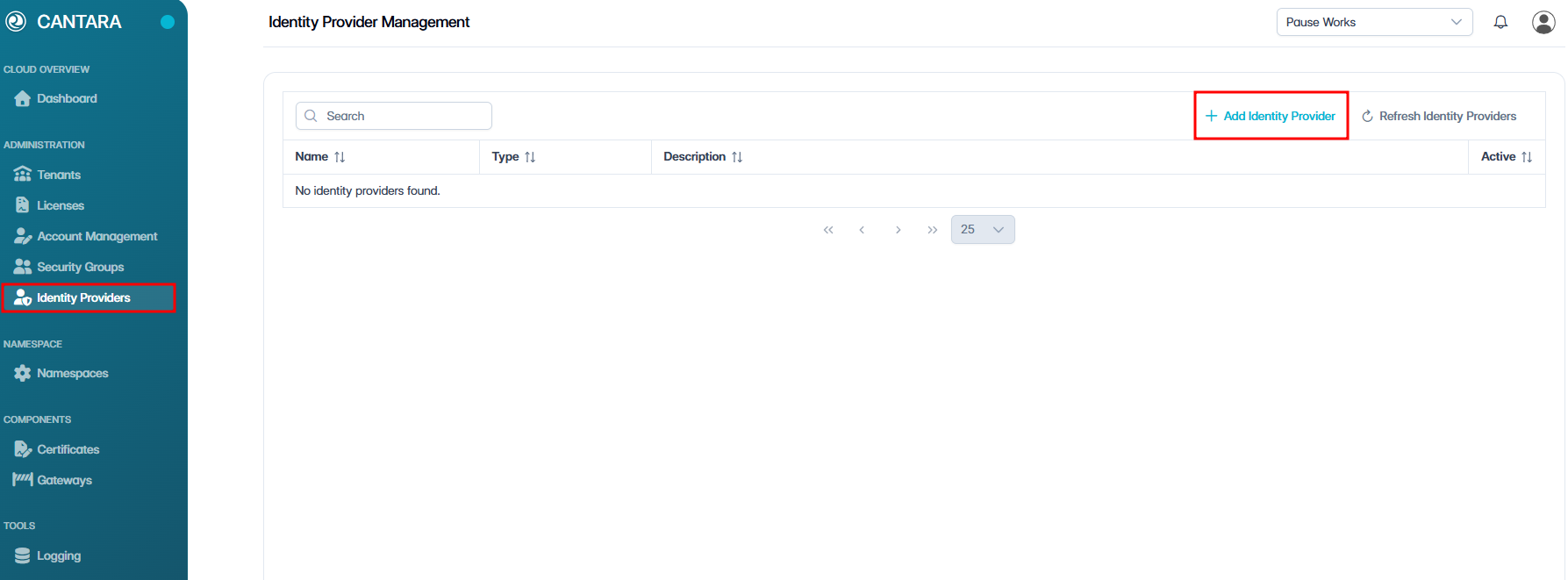
In Cantara, navigate to Identity Providers.
-
Click + Add Identity Provider at the top right.
-
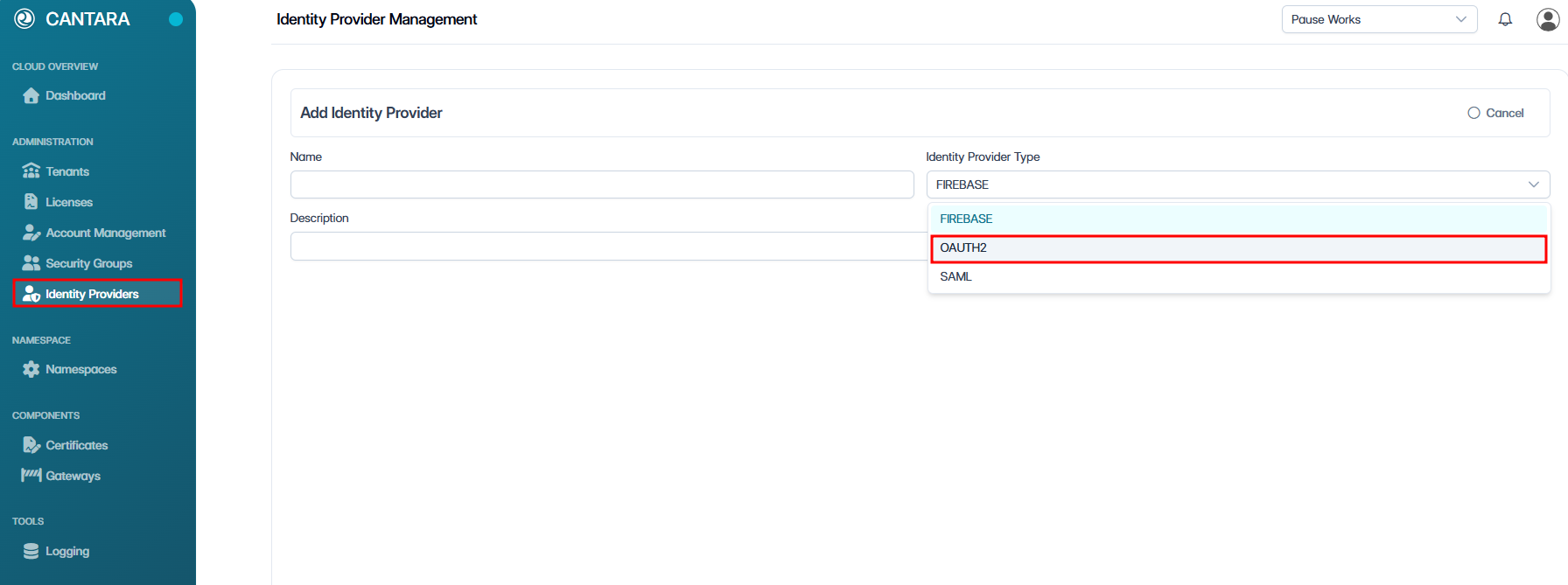
Select OAuth2 as the Identity Provider Type.
-
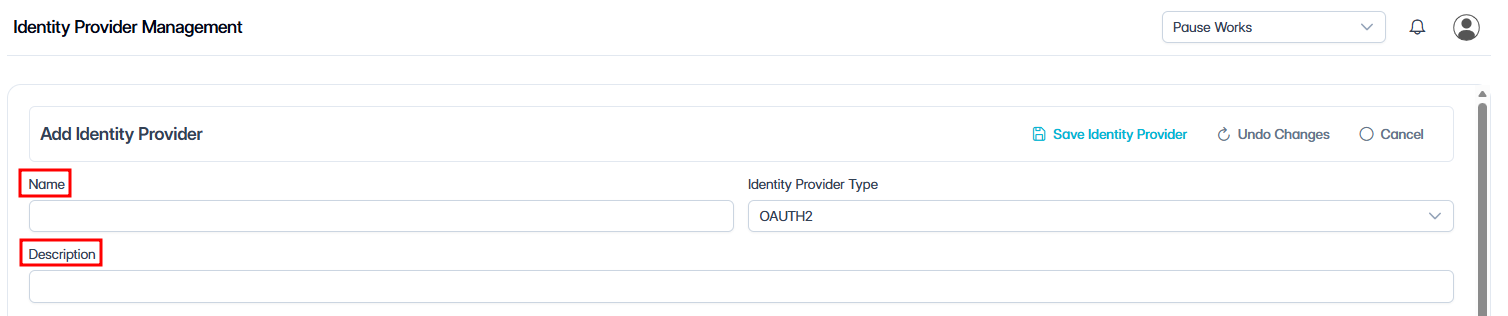
Enter a name and description for your identity provider.
-
Enter the following OAuth 2.0 Configuration details:
Required OAuth 2.0 fields
|
Field |
Value / Setting |
|---|---|
|
Authentication Method |
Select the authentication method that matches your IdP configuration. Defaults to |
|
Client ID |
Copy the client identifier generated by your IdP when the application is registered. |
|
Client Secret |
Copy the client secret generated by your IdP. Store it securely, as it may only be displayed once. |
|
Authentication URL |
Copy the authorisation endpoint URL from your IdP. |
|
Access Token URL |
Copy the token endpoint URL from your IdP. |
|
Redirect URL |
|
|
JSON Web Key Set URL |
Copy the JWKS endpoint URL from your IdP. |
|
Username Attribute |
|
Additional OAuth 2.0 fields
The following fields are supported by Cantara and may be required depending on your Identity Provider (IdP) configuration. Refer to your IdP settings to determine which fields apply to your setup.
|
Field |
Value / Setting |
|---|---|
|
Issuer URI |
The issuer URI for the OAuth 2.0 provider. |
|
User Info URL |
The URL used to retrieve user information from the provider. |
|
Secure JWKS URL |
Enables the secure URL for the provider's JSON Web Key Set. |
|
Logout URL |
The URL used to log users out of the provider. |
|
Resource |
The resource identifier requested from the provider. |
|
Audience |
The intended audience for issued tokens. |
|
Display Name Attribute |
The attribute used to populate the user's display name in Cantara. |
|
Authorisation Grant Type |
The OAuth 2.0 authorisation grant type used by the provider. |
|
Scopes (spaces or comma separated) |
The scopes requested from the provider, separated by spaces or commas. |
|
Provider Display Name |
The display name shown for this identity provider. |
|
PKCE Enabled |
Enables Proof Key for Code Exchange (PKCE) for additional security. |
Enable Refresh Tokens
If refresh tokens are required for your authentication flow, enable the Refresh Token setting in your IdP application configuration.
-
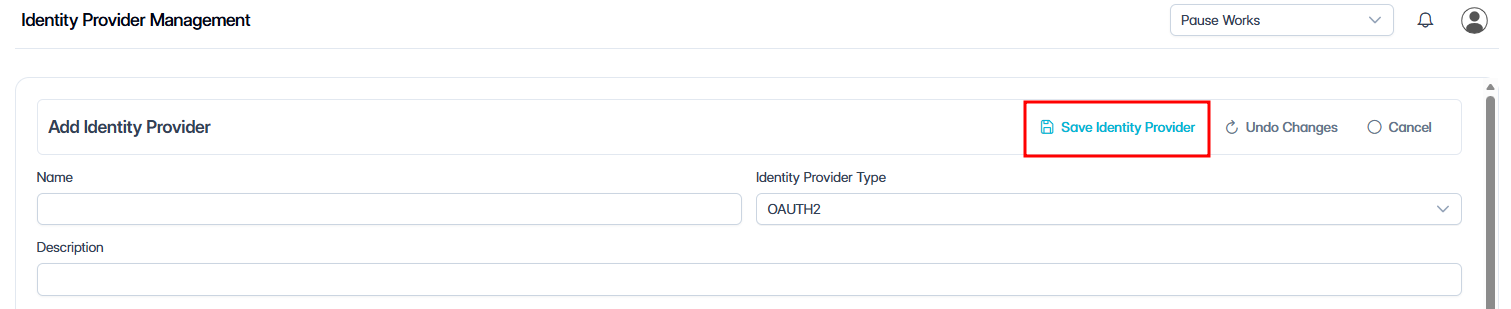
Click Save Identity Provider.

A confirmation dialog appears: “Identity Provider saved”.
-
Click Activate.
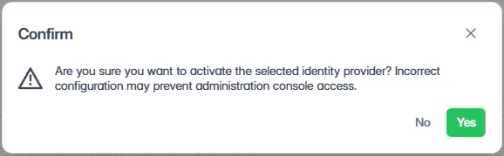
A confirmation dialog appears:
“Are you sure you want to activate the selected identity provider? Incorrect configuration may prevent administration console access.”
-
Click Yes to confirm the activation.
Once active, users can log in via your identity provider.
Outcome
Once configured and activated, users can sign in to Cantara using SSO. Cantara validates their identity using the OAuth 2.0 protocol via the configured IdP.
Note: First-Time User Prompt
Users may be prompted to consent to sharing basic profile information during their first login. In some Identity Providers, administrators can grant consent on behalf of users. This behaviour varies depending on configuration.
What’s next?
With OAuth 2.0 configured, users can now sign in to Cantara using SSO.
-
To automatically provision users and groups from your Identity Provider, see User Provisioning.
-
To assign access permissions without user provisioning, see User Permissions.