
Overview
You can use the Cantara Administration Console as a tool to run an orchestration.
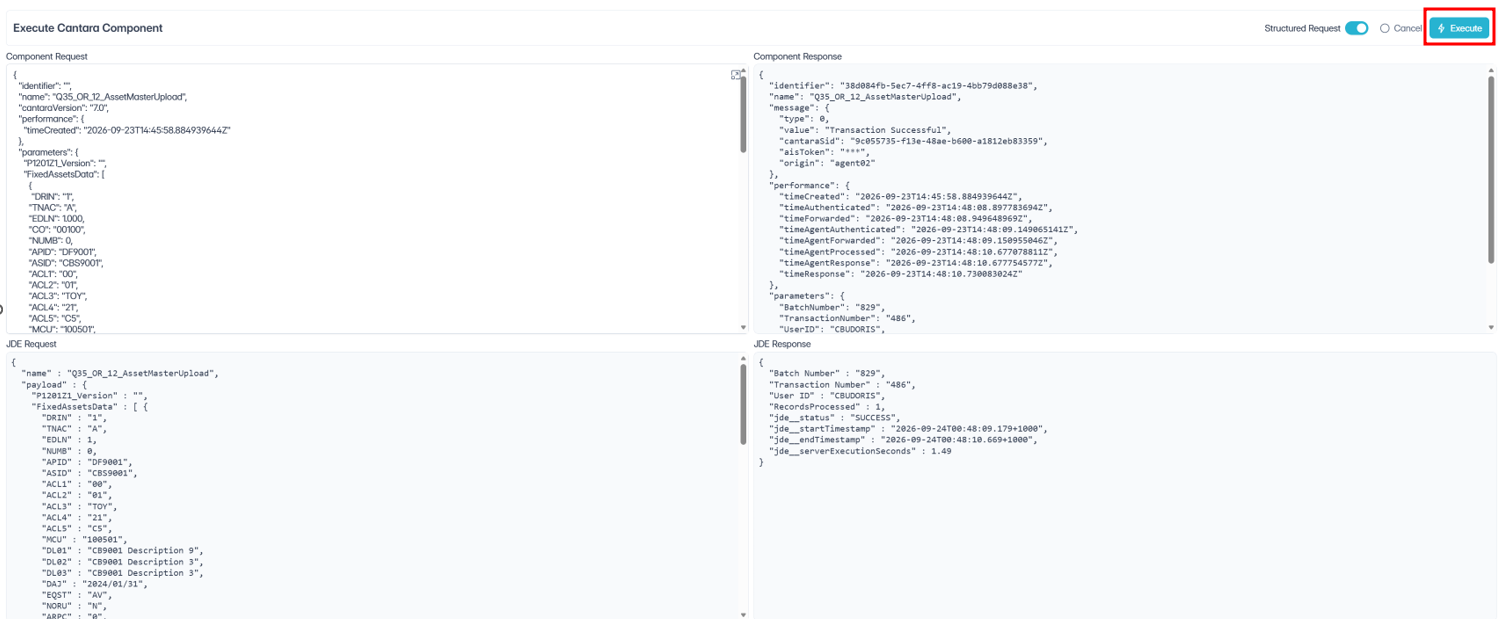
The following details are returned when you run an orchestration:
-
Component Request: The request payload used to run the orchestration. You can use this information as a template for your own service client.
-
Component Response: The response returned by Cantara after the orchestration is executed.
-
JDE Response: The response received from the JD Edwards EnterpriseOne AIS server.
The result is displayed in JSON format.
Procedure
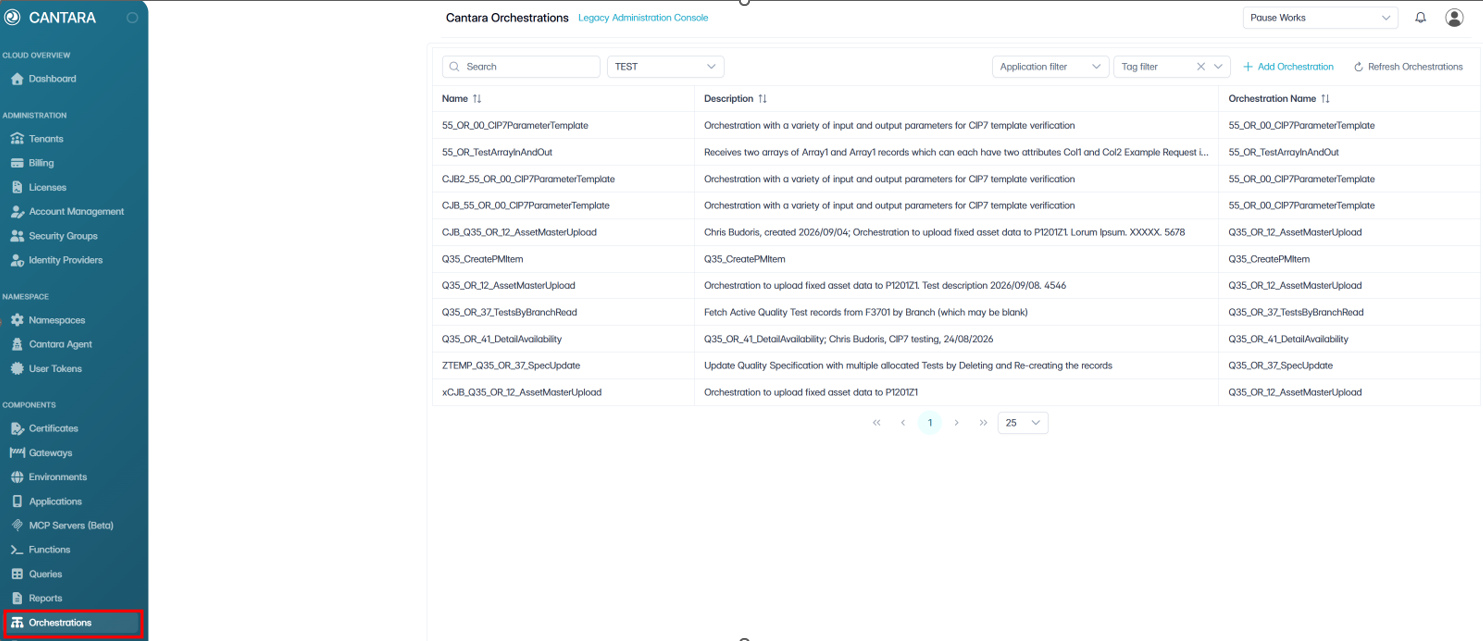
To run an orchestration:
-
Navigate to Orchestrations.
A list of available orchestrations is displayed.
-
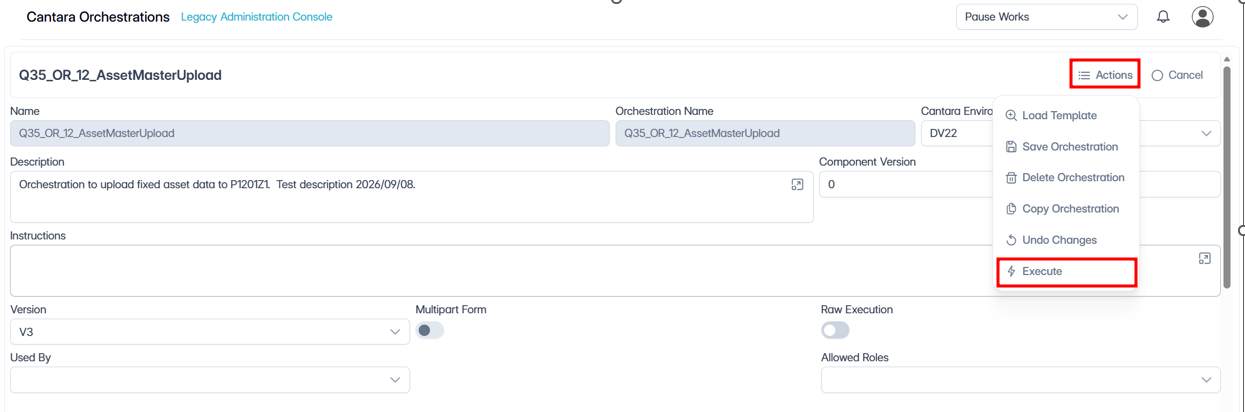
Select the orchestration you want to run.
-
You can accept the default Cantara Environment, or choose a different one.
-
Click Actions, and select Execute.
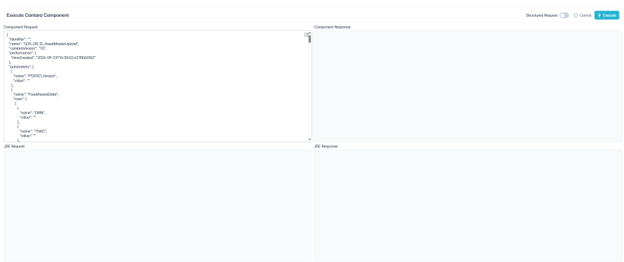
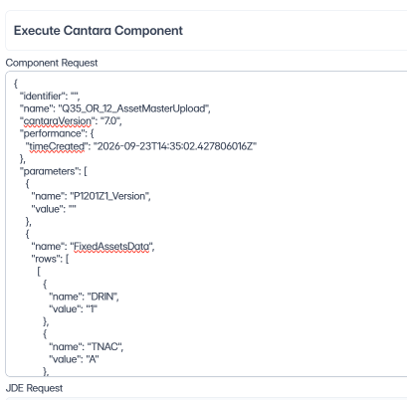
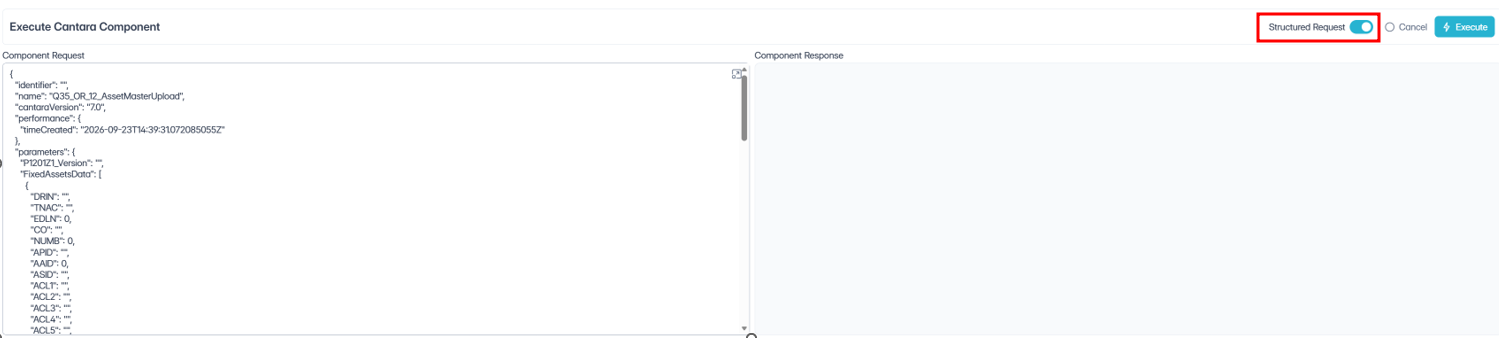
The Execute Cantara Component screen will appear. The Component Request window is preloaded with the input parameters in JSON format.
-
You can click in the Component Request window to enter in parameter values.
-
You can also enable Structured Request, to display the parameters in an “object/property” based JSON. This format makes it easier to copy/paste input data to run the orch.
-
Click Execute to run the orchestration. The window on the right displays the Component and JDE Response received from the AIS server.