
Overview
The Cantara Administration Console provides a convenient way run a JDE batch report. Running a report from the console allows you to verify that the report parameters are configured correctly, confirm that the request is successfully submitted to JDE, and review the data exchanged throughout the transaction.
When a report is run, Cantara provides the following diagnostic information:
-
Report Request: Displays the request payload consumed by the Cantara Access Server RESTful service. This payload can also serve as a useful template when developing a service client that will submit the report.
-
Report Response: Displays the response returned by the Cantara Access Server after processing the report request.
-
JDE Transaction: Displays the transaction data exchanged between the Cantara Access Server and the JDE server, which can be useful for troubleshooting report submission and processing issues.
The request, response, and transaction details are displayed in JSON format, making it easier to inspect individual parameters and understand how the report is processed from the initial request through JDE execution.
Procedure
To run a report:
-
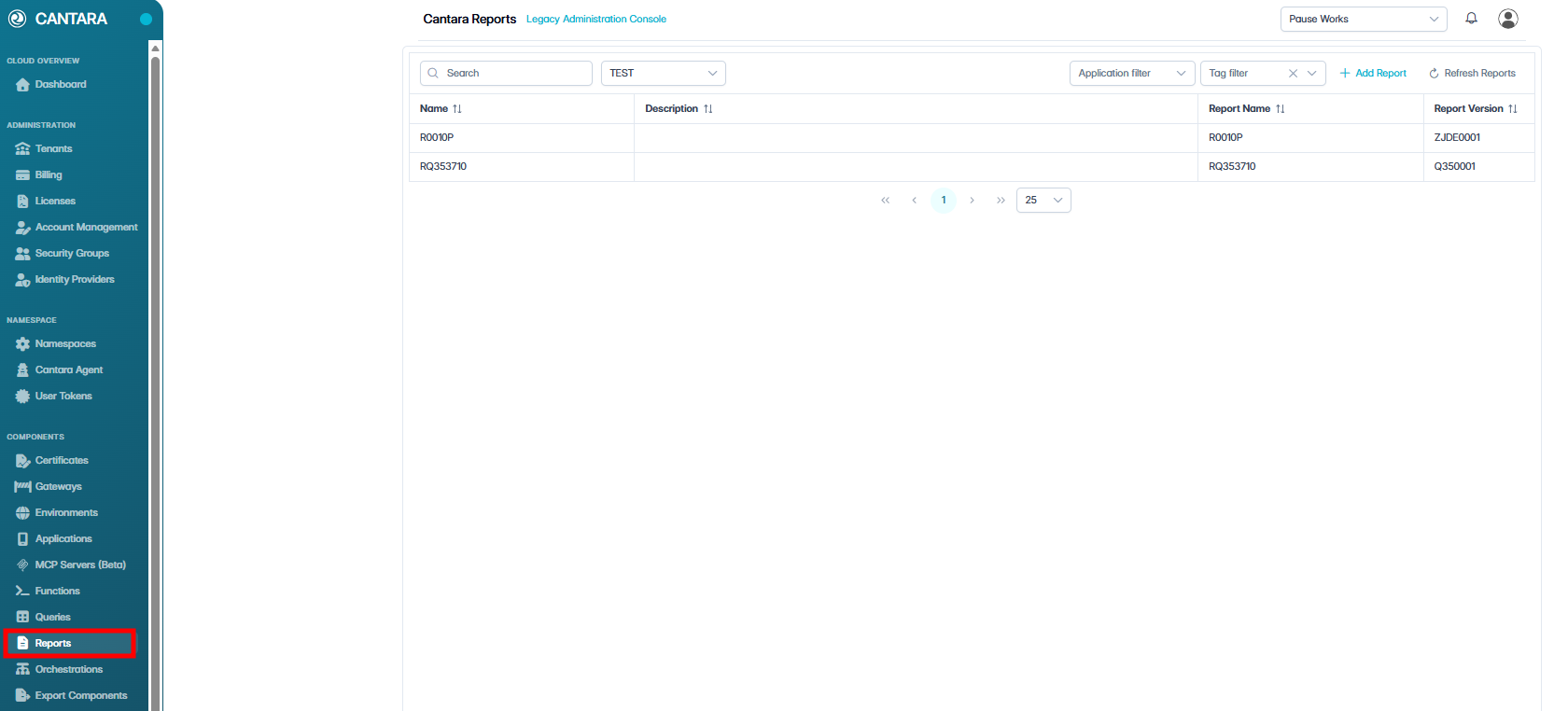
Navigate to Reports.
A list of available reports is displayed.
-
Select the report you wish to run.
-
If your report contains Processing Options or Report Filters, verify those are set to your desired values.
-
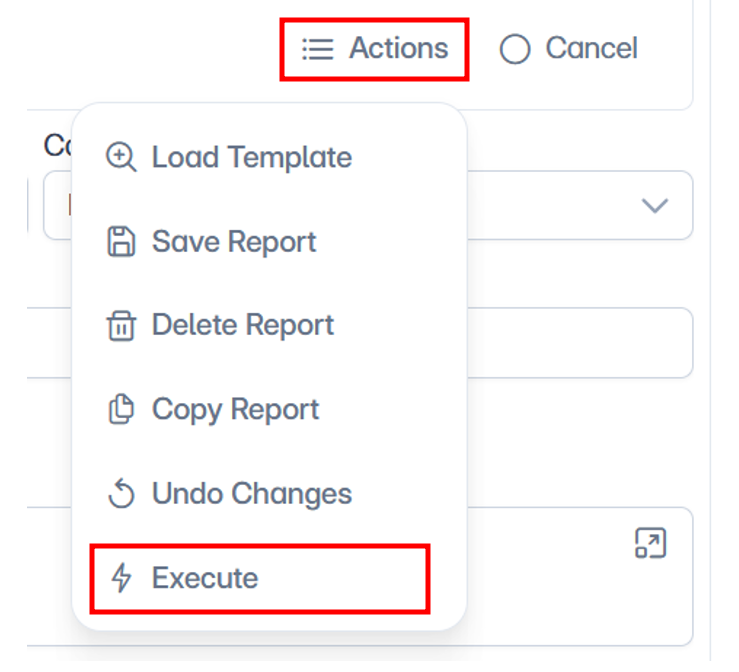
Click Actions, then select Execute.
The Execute Cantara Component screen will appear.
-
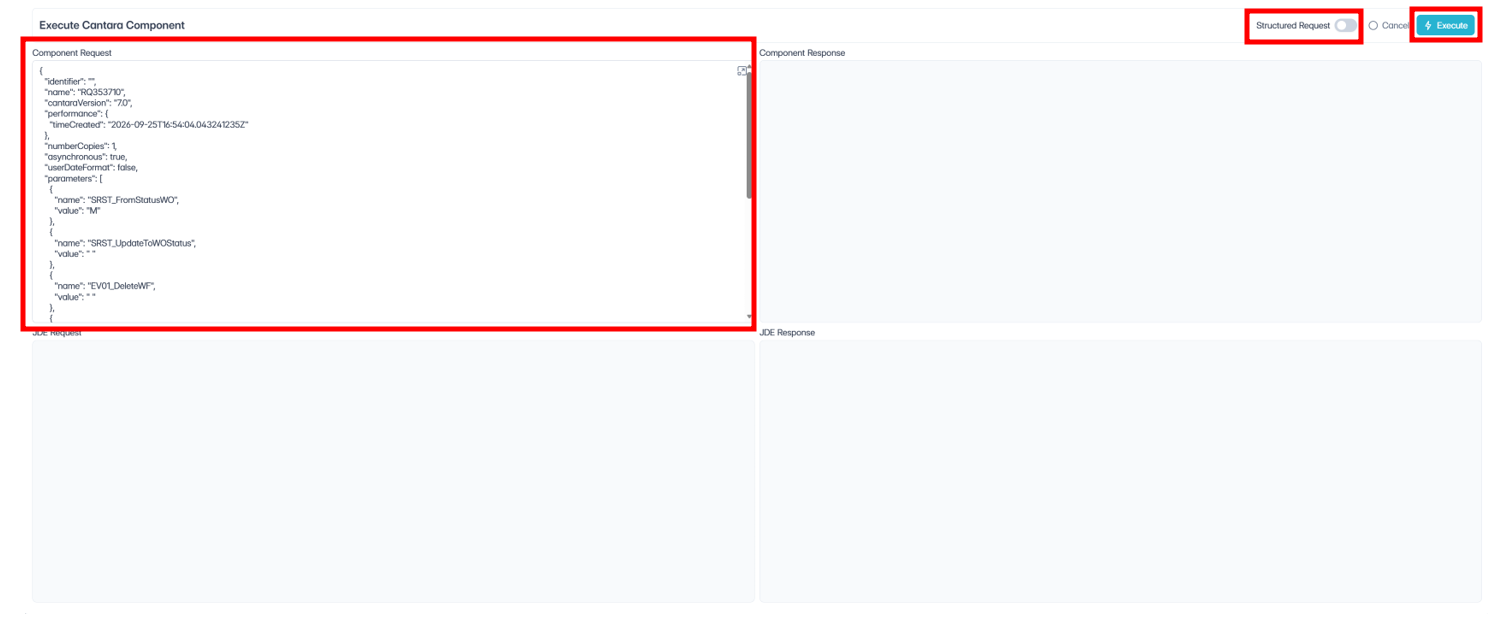
Review the Component Request, which displays the report parameters and other settings that Cantara will use to construct the report submission.
-
Use the Structured Request option to change how the component request is presented or entered, then select Execute to initiate the report submission.
-
Select Execute to submit the report. During and after execution, the screen displays information in four areas:
-
Component Request – Displays the request being submitted to the Cantara component, including report parameters, execution settings, and other input values.
-
Component Response – Displays the result returned by Cantara after the component has been executed, including status and output information.
-
JDE Request – Displays the request Cantara sends to the JDE server to submit and execute the batch report.
-
JDE Response – Displays the response received from JDE, providing information about the result of the report submission.
Together, these sections provide visibility into the complete report transaction and are particularly useful for testing, troubleshooting, and verifying that Cantara is passing the expected values to JDE.
After the report is executed, the screen displays the complete transaction details for the submission. The Component Response shows Cantara’s processing result and confirms whether the transaction was successful, while the JDE Request shows the report information, processing options, and data selection sent to JDE. The JDE Response confirms the JDE submission and returns key information such as the job number, queue name, report name, and report version.
This screen is useful for confirming that the report was successfully submitted and for troubleshooting the values passed between Cantara and JDE.