
Overview
Add Report is used to define a JDE EnterpriseOne batch report (UBE) as a Cantara component. The report definition identifies the JDE report and version to execute and allows report-specific settings such as processing options, data selection, sequencing, printing, and output options to be configured for execution through Cantara.
Procedure
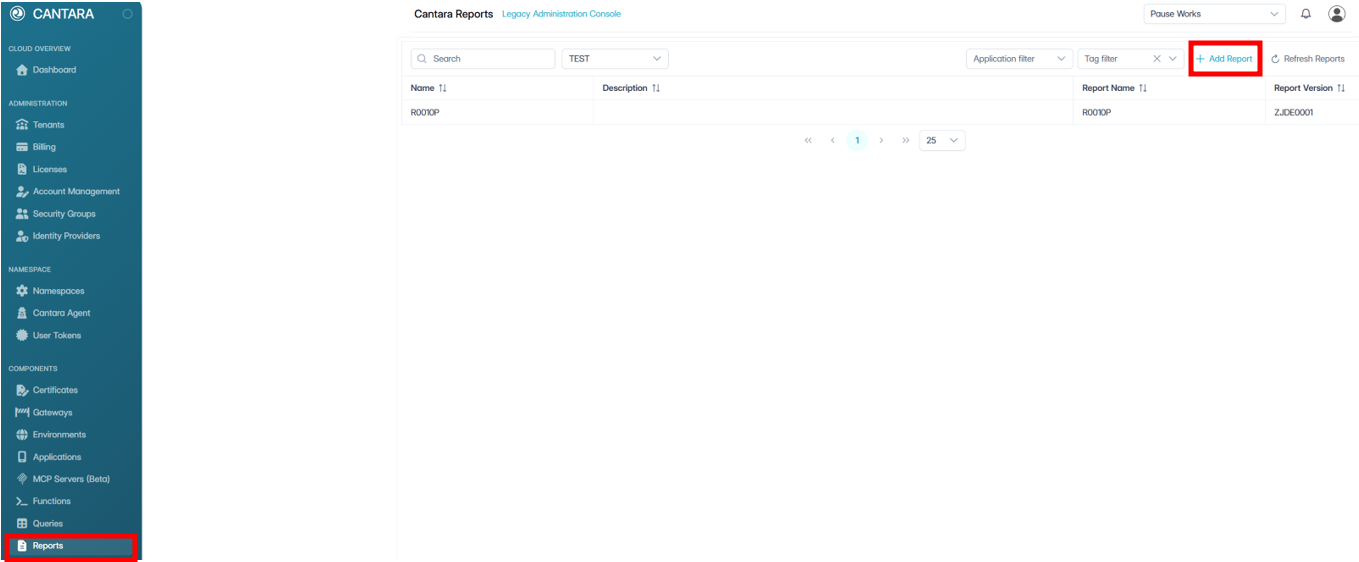
To create a report:
-
Navigate to Reports.
A list of available reports is displayed.
-
Click + Add Report.
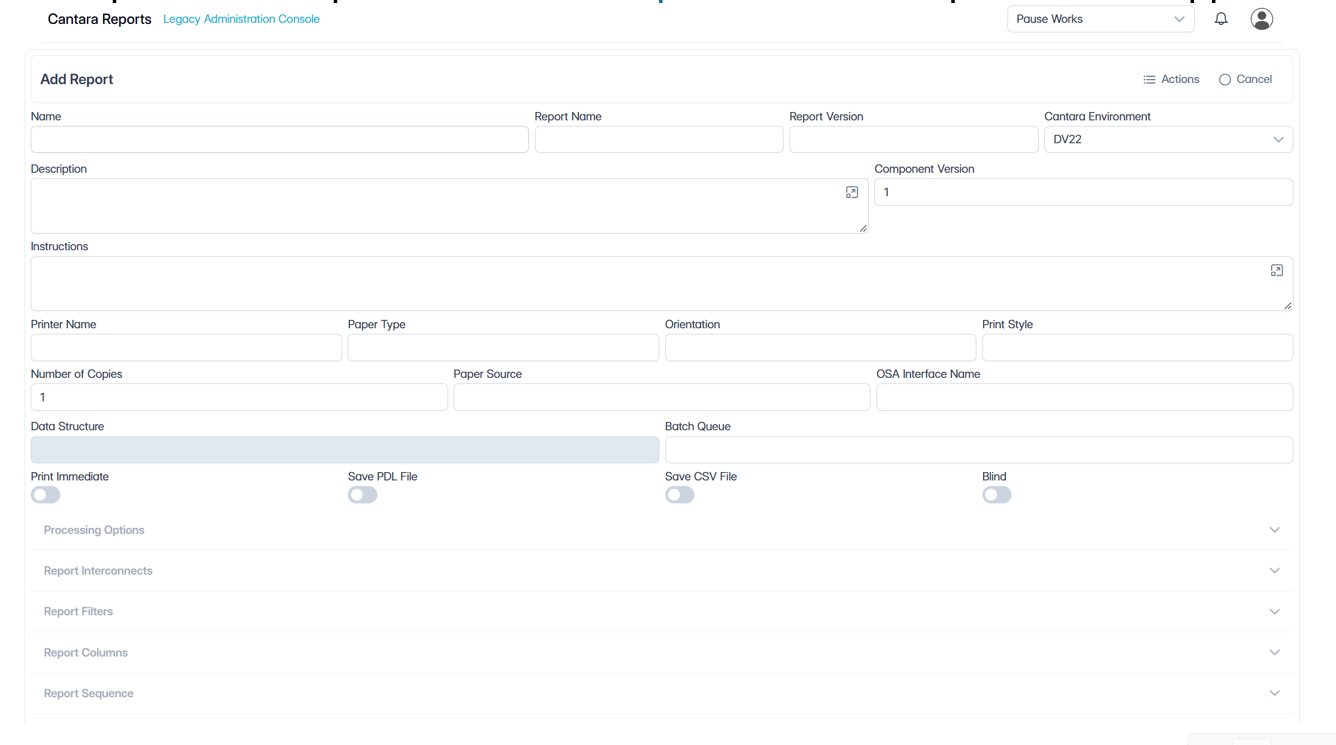
The Add Report window appears.

-
To import a new report, enter a valid Report Name and Report Version.
-
Click Actions, then select Load Template.
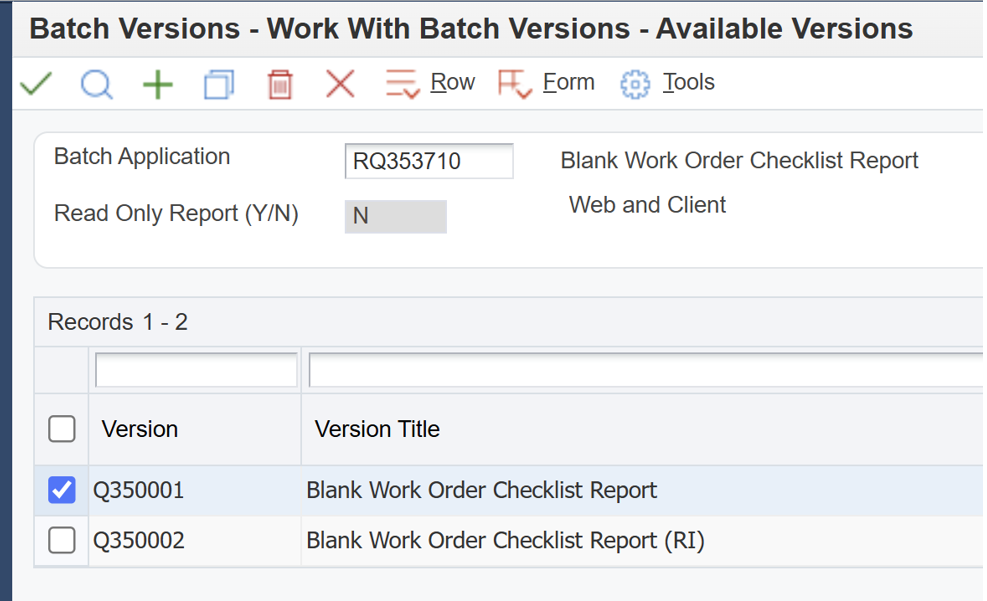
-
The report must already exist in your JDE environment.
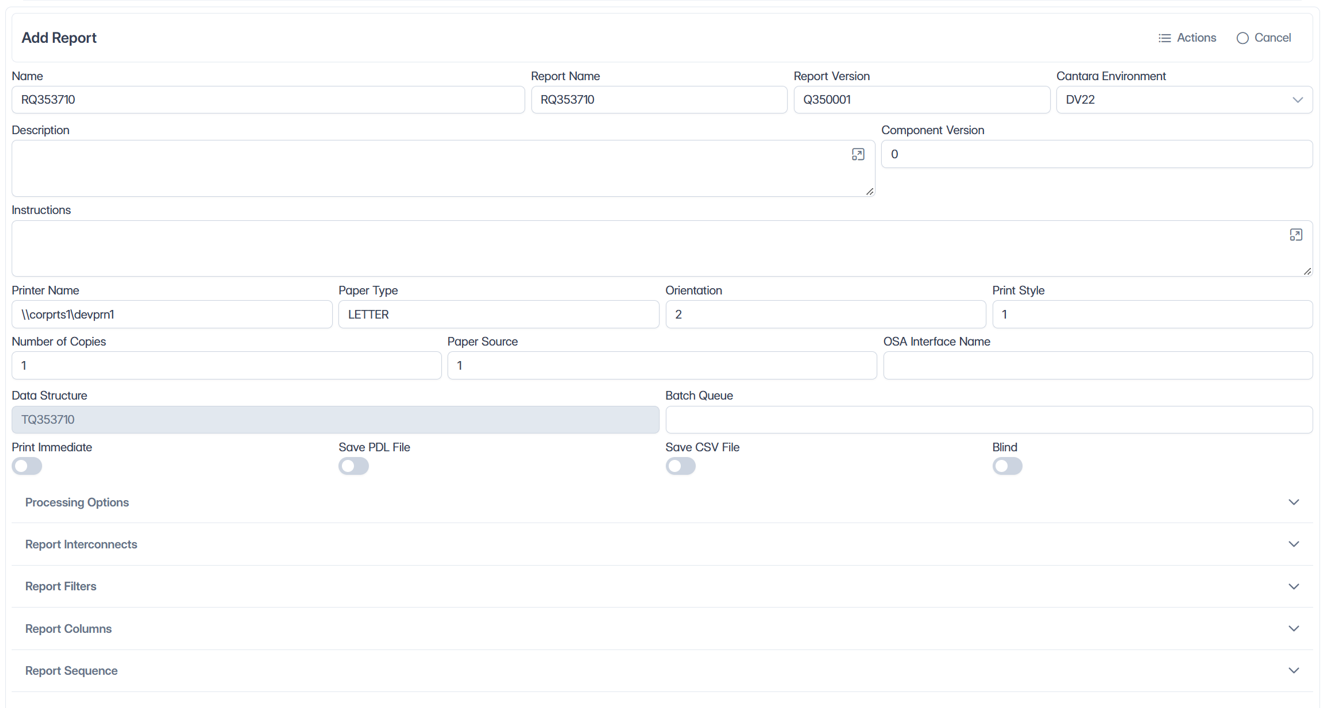
-
The report properties will be imported into Cantara.
The following is a description of the report properties:
|
Option |
Description |
|
Name |
Defines the name used to identify the report component within Cantara. |
|
Report Name |
Specifies the JDE EnterpriseOne batch application (UBE) to be executed, such as RQ353710. |
|
Report Version |
Specifies the JDE version of the batch application that Cantara will execute, such as Q350001. |
|
Cantara Environment |
Selects the configured Cantara/JDE environment in which the report will run. |
|
Description |
Provides a descriptive summary of the report component and its intended purpose. |
|
Component Version |
Identifies the Cantara component version for this report definition. This is separate from the JDE Report Version. |
|
Instructions |
Provides additional instructions or usage information describing how the report component should be used. |
|
Printer Name |
Specifies the JDE printer or network printer definition to use when generating printed report output. |
|
Paper Type |
Specifies the paper size or type to use for report output, such as LETTER. |
|
Orientation |
Specifies the page orientation used when generating the report output. |
|
Print Style |
Specifies the JDE print style to use when producing the report. |
|
Number of Copies |
Specifies how many copies of the report should be produced when printing. |
|
Paper Source |
Specifies the printer paper source or tray to use for the report. |
|
OSA Interface Name |
Specifies an Output Stream Access (OSA) interface when the report output is to be processed by an external OSA application. |
|
Data Structure |
Displays the JDE data structure associated with the batch report, such as TQ353710. This is typically derived from the selected JDE report. |
|
Batch Queue |
Specifies the JDE batch queue to which the report job should be submitted for processing. |
|
Print Immediate |
Determines whether the report should be sent for printing immediately after it is generated. |
|
Save PDL File |
Determines whether the report’s Page Description Language (PDL) output file should be retained. |
|
Save CSV File |
Determines whether CSV output generated by the report should be retained. |
|
Blind |
Controls whether the report is submitted in blind mode, without normal interactive report submission behavior. |
|
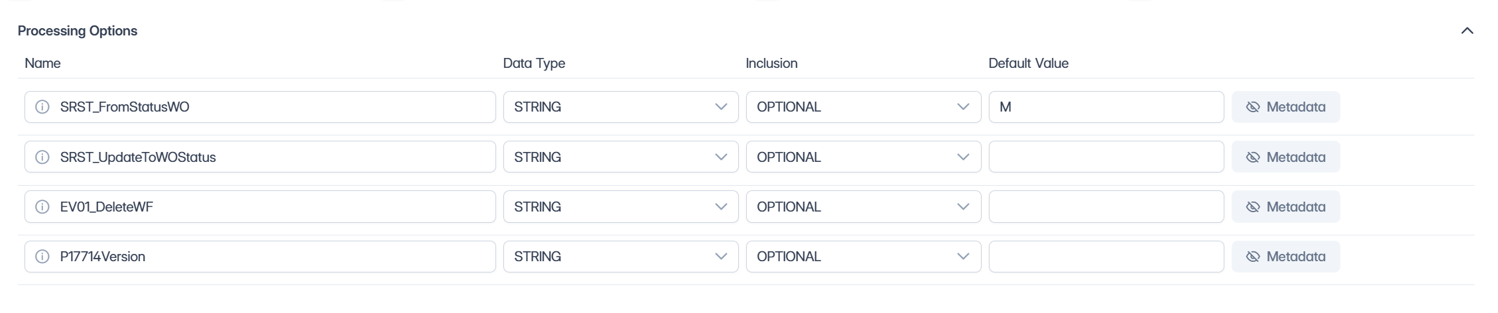
Processing Options |
Defines or exposes the JDE processing-option values that can be supplied when the selected report version is executed. |
|
Report Interconnects |
Defines values passed to or used by report interconnects associated with the batch application. |
|
Report Filters |
Defines data-selection criteria used to restrict which JDE records are processed by the report. |
|
Report Columns |
Defines report column-related selections or configuration available to the report execution. |
|
Report Sequence |
Defines the sequencing or sorting criteria used to determine the order in which selected report data is processed or presented. |
-
You can make changes to the report criteria, including processing options.

-
If your report contains data selection, you can add or adjust those via the Report Filters. Report Filters define the data-selection criteria used when executing a JDE batch report through Cantara. Each filter identifies a JDE field, the comparison operator to apply, whether the parameter is required or optional, and any default values to use when the report is submitted.
-
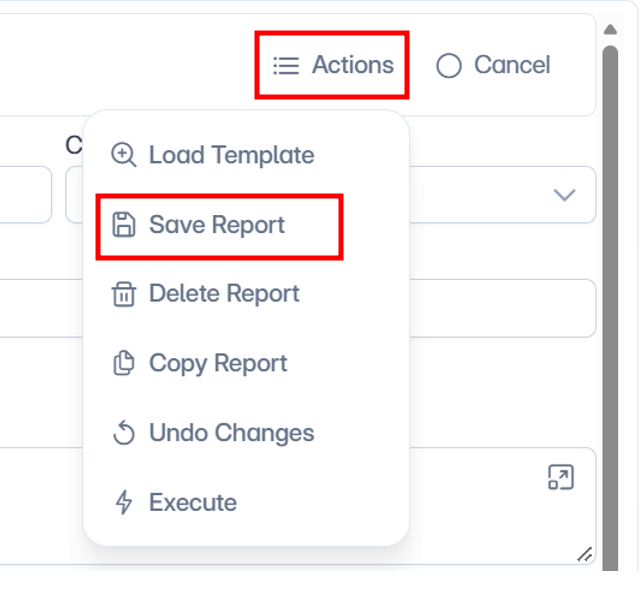
When you have finished configuring the report options, save the report definition.