
Overview
You can use the Cantara Administration Console as a tool to design and run queries against JDE tables and views.
Procedure
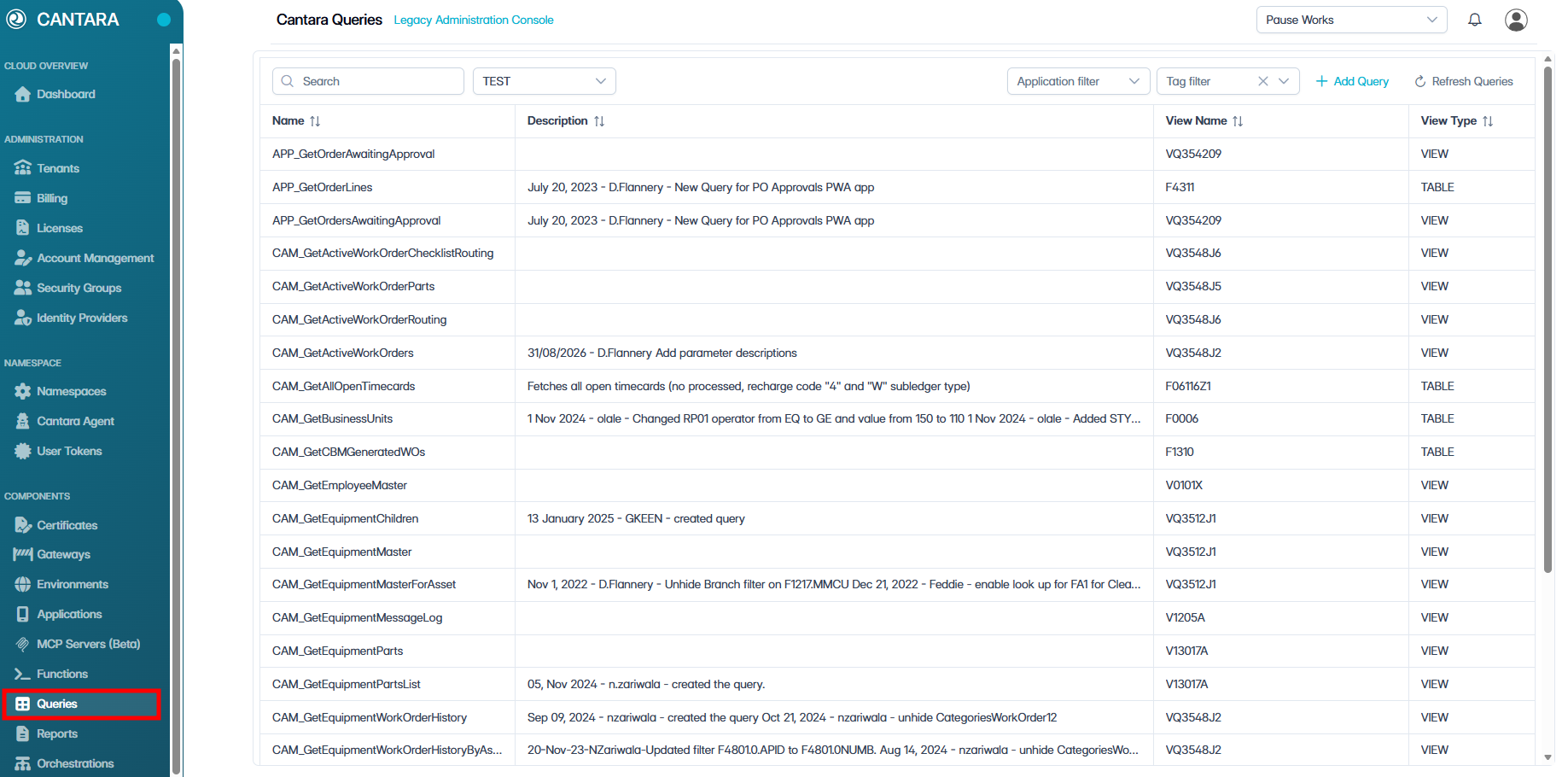
To run a query:
-
Navigate to Queries.
-
Select the query you want to run.
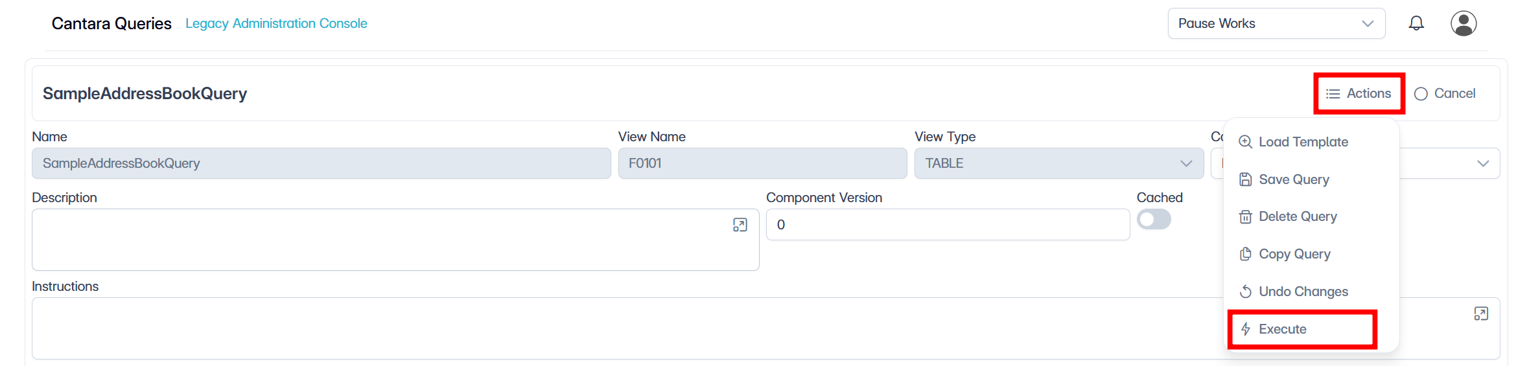
-
Click Actions, then select Execute.
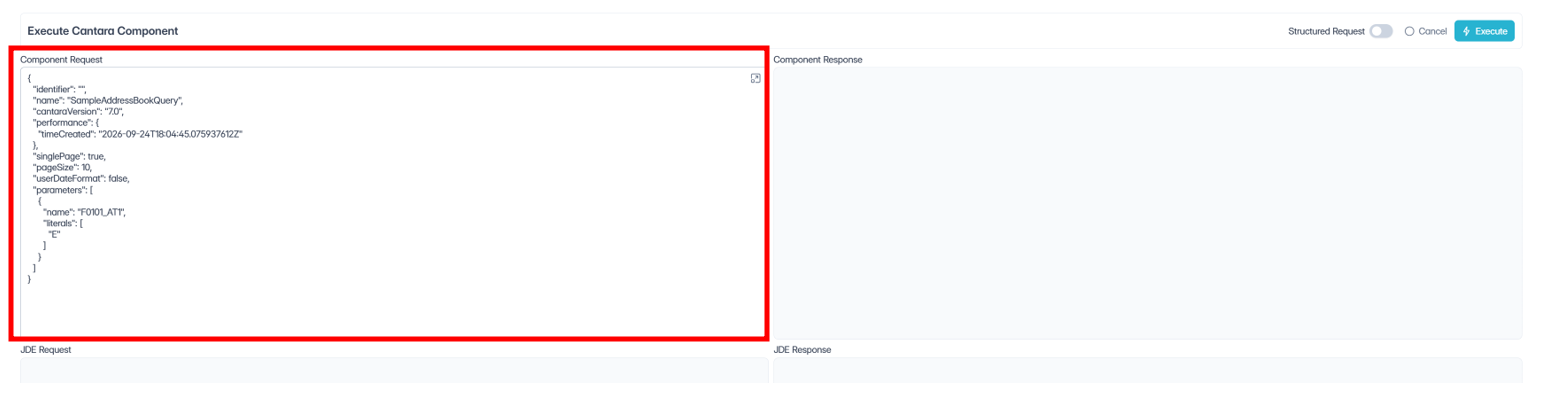
-
The Execute Cantara Component window will appear, with the Component Request box pre-filled with your default filter criteria.
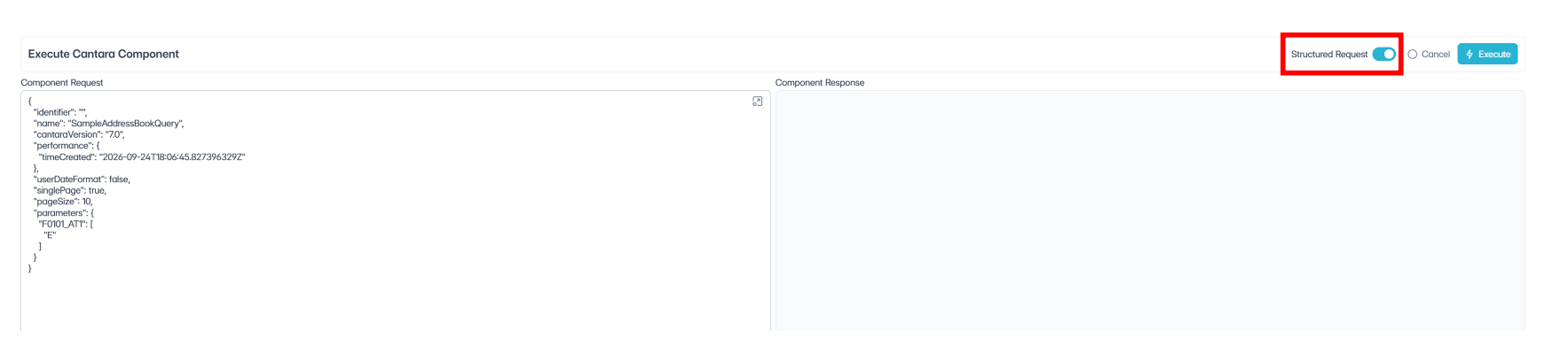
-
You can change the criteria here or enable Structured Request to display the parameters in an “object/property” based JSON. This format makes it easier to copy/paste input data.
-
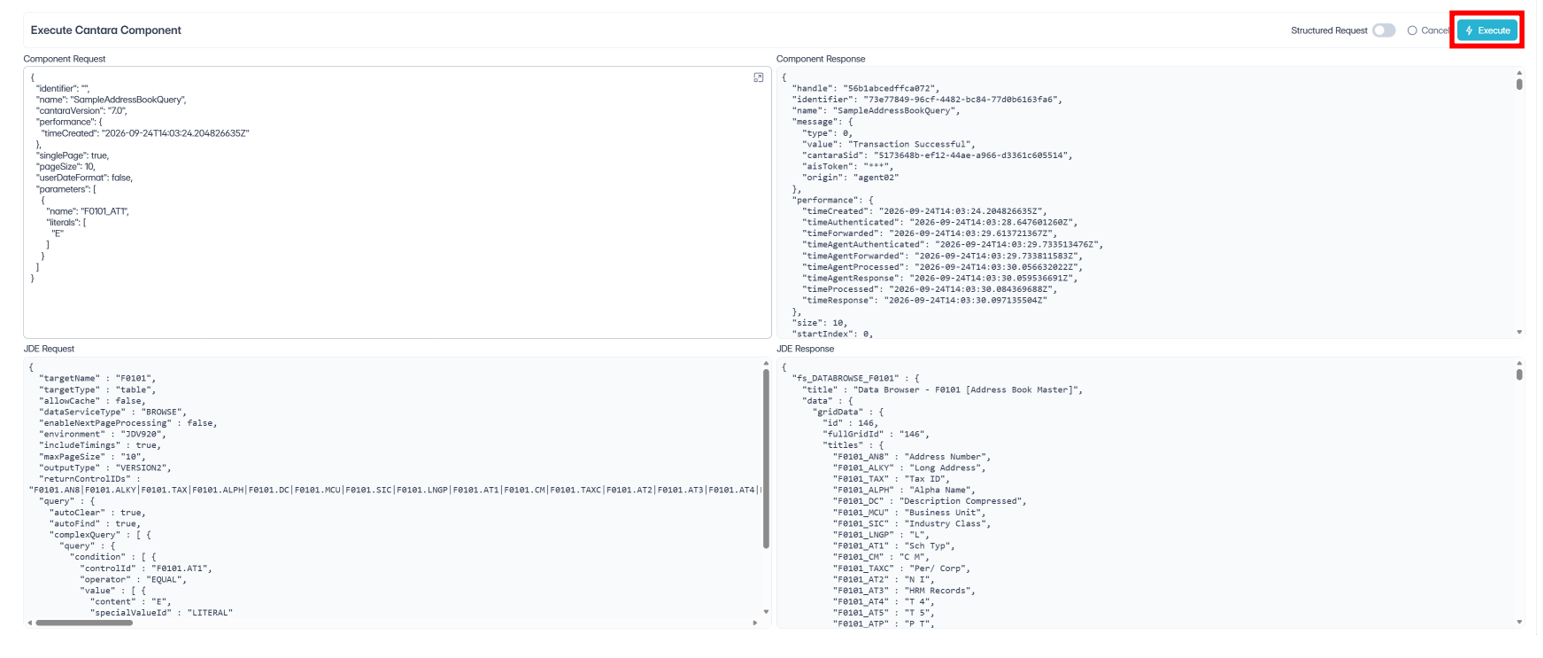
Click Execute:
The following information is returned when you run a query:
-
-
Component Request (upper left) – Shows the request being sent to Cantara, including the query name, execution settings, and any query parameter/filter values supplied by the user.
-
Component Response (upper right) – Shows Cantara’s response to the component execution, including execution status, identifiers, timing information, and other Cantara-level response details.
-
JDE Request (lower left) – Shows the underlying request that Cantara generates and sends to JDE, including the target table/view, fields requested, filtering criteria, and other JDE query options.
-
JDE Response (lower right) – Shows the raw response returned by JDE, including the records and field values retrieved by the query.
-
The results are returned in JSON format.