
Overview
A JDE Query in Cantara retrieves data directly from JD Edwards tables or business views based on defined selection criteria. The query specifies the data source, fields to return, and filters used to limit the records retrieved. When executed, Cantara submits the request to JDE and returns the matching data in a structured response for use by applications, integrations, or other Cantara components.
Note:
Cantara adheres to the JDE security model when using the XML List Kernel or data access driver to access data. The content that is displayed for tables, views, and queries is based on your security level in JDE.
Procedure
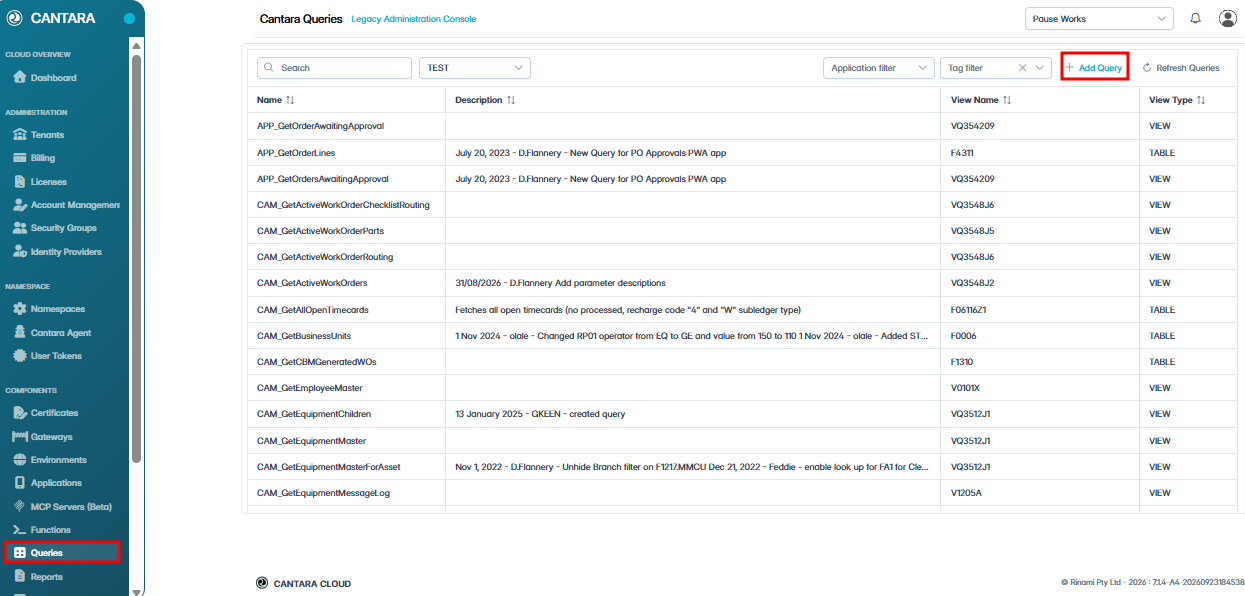
To create a query:
-
Navigate to Queries.
The Queries screen is displayed.
-
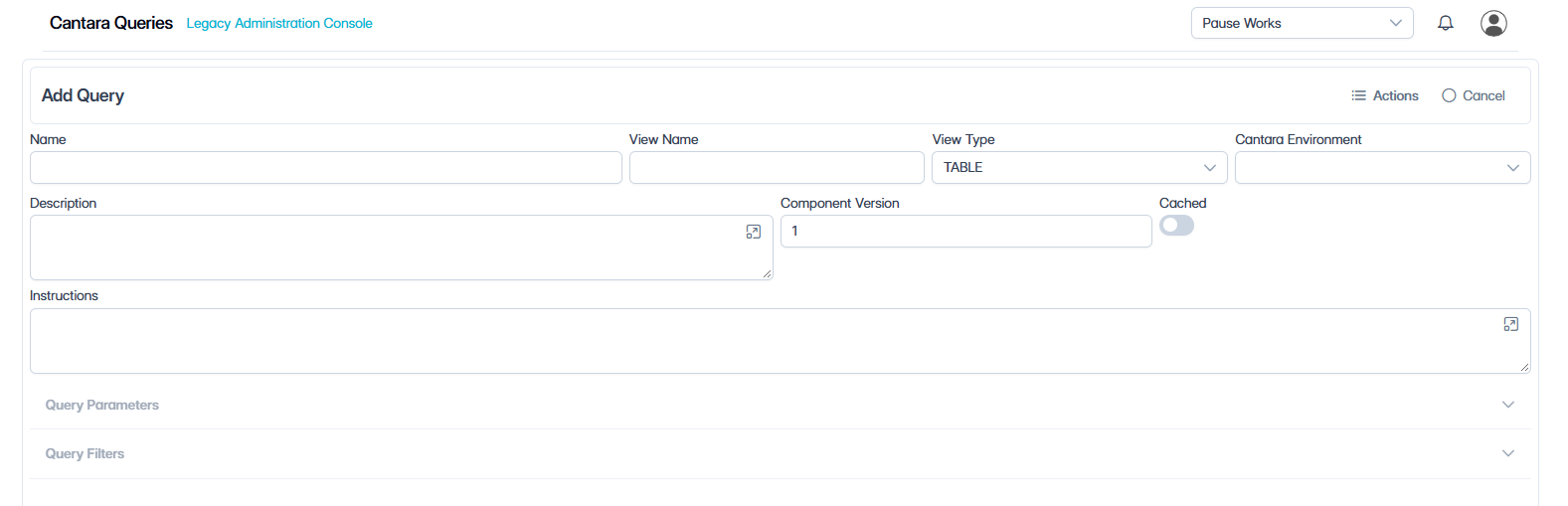
Click Add Query. The query settings screen is displayed.
-
Enter the required information to define the query:
-
Name – Enter a unique, descriptive name for the Cantara query. The name should clearly identify the purpose of the query and will be used to identify the component within Cantara.
-
View Name – Enter the name of the JDE object that will be queried, such as a table (Fxxxx) or business view (Vxxxx). The object entered here determines the JDE fields that will be available when configuring the query.
-
View Type – Select the type of JDE object specified in View Name. Choose TABLE when querying a JDE table, or select the appropriate view option when querying a JDE business view.
-
Description – Enter a brief description explaining the purpose of the query and the information it is intended to retrieve. A clear description makes the query easier for other users to identify and maintain later. This field is frequently used to add audit information, such as the query author and date created.
-
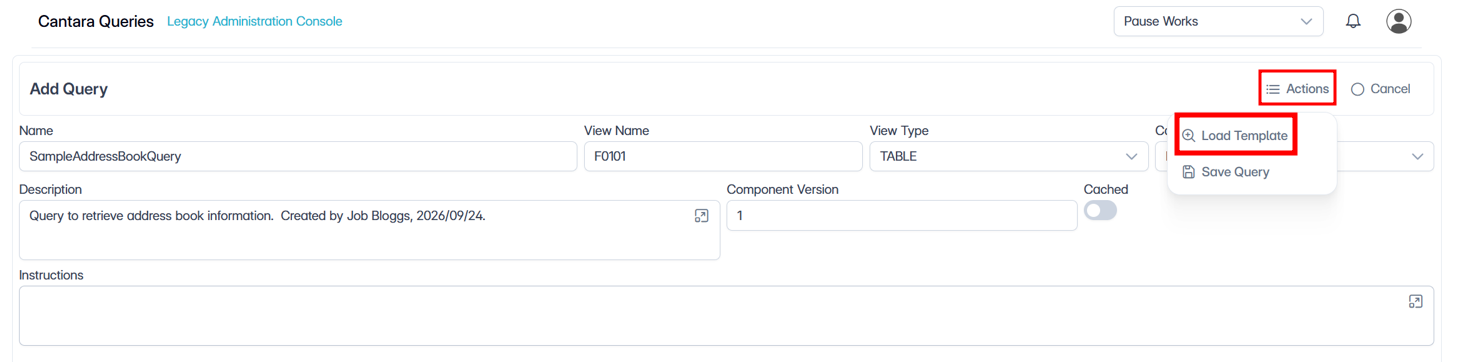
Click Actions, then select Load Template.
-
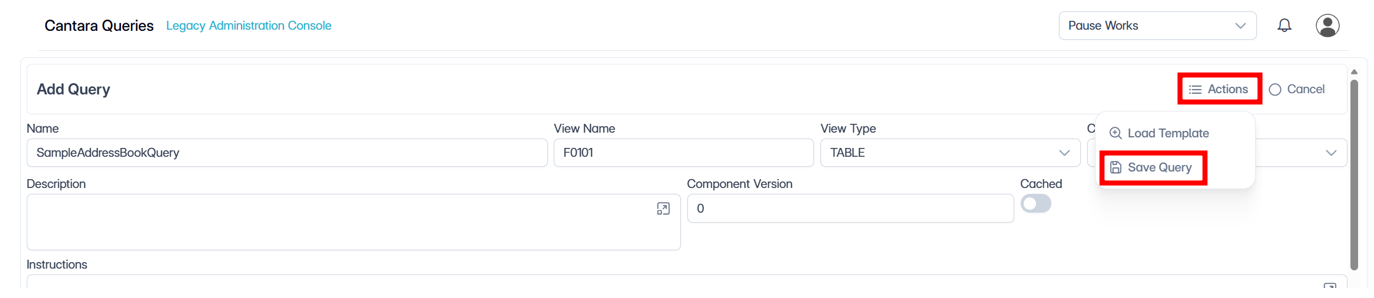
Once the template loads to save the query, click Actions, then select Save Query.
-
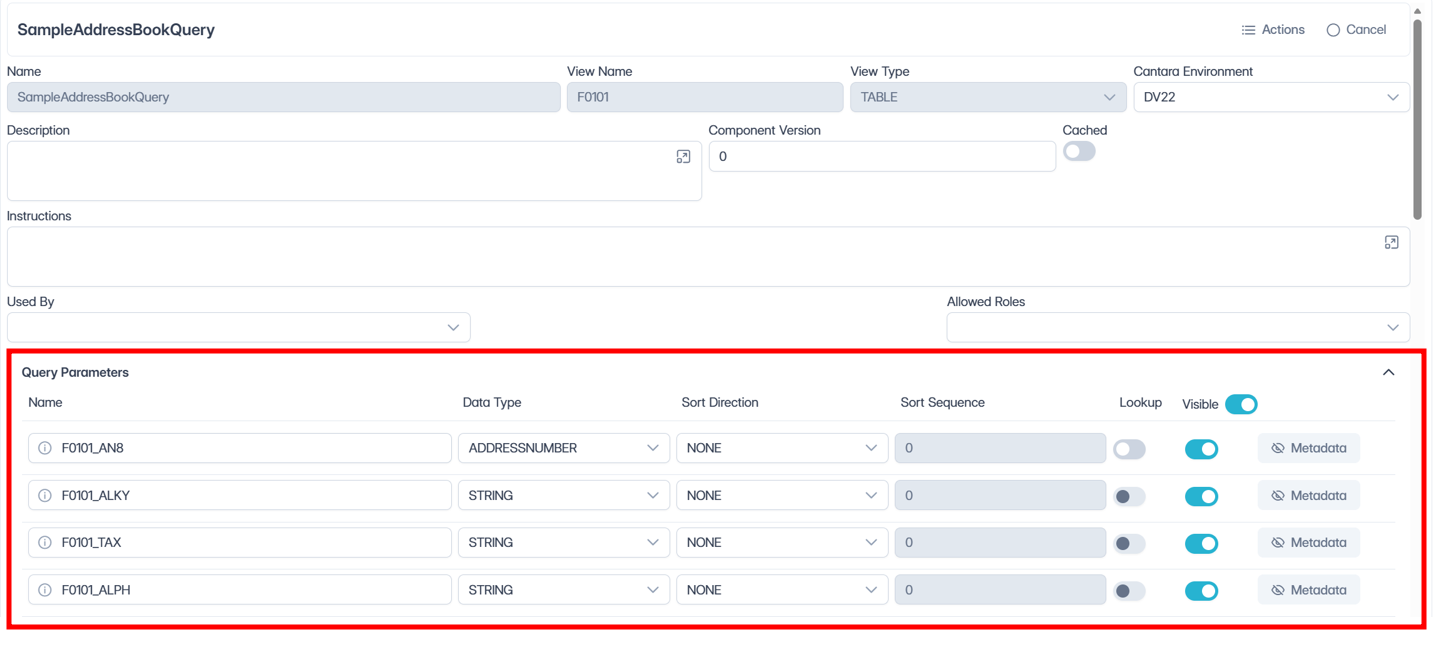
You should now be able to expand the Query Parameters and Query Filters options.
-
Fill in the Query Parameters, as needed:
-
Name – Descriptive name of the field or query parameter.
-
Data Type – Data type of the field, such as String, Date, Integer, or Character.
-
Sort Direction – Specifies whether results are sorted by the field and whether its Ascending or Descending.
-
Sort Sequence – Defines the order in which multiple sort fields are applied; lower sequence values are evaluated first.
-
Lookup – Enables lookup functionality for the field when supported.
-
Visibility – Determines whether the field is included in the query results.
-
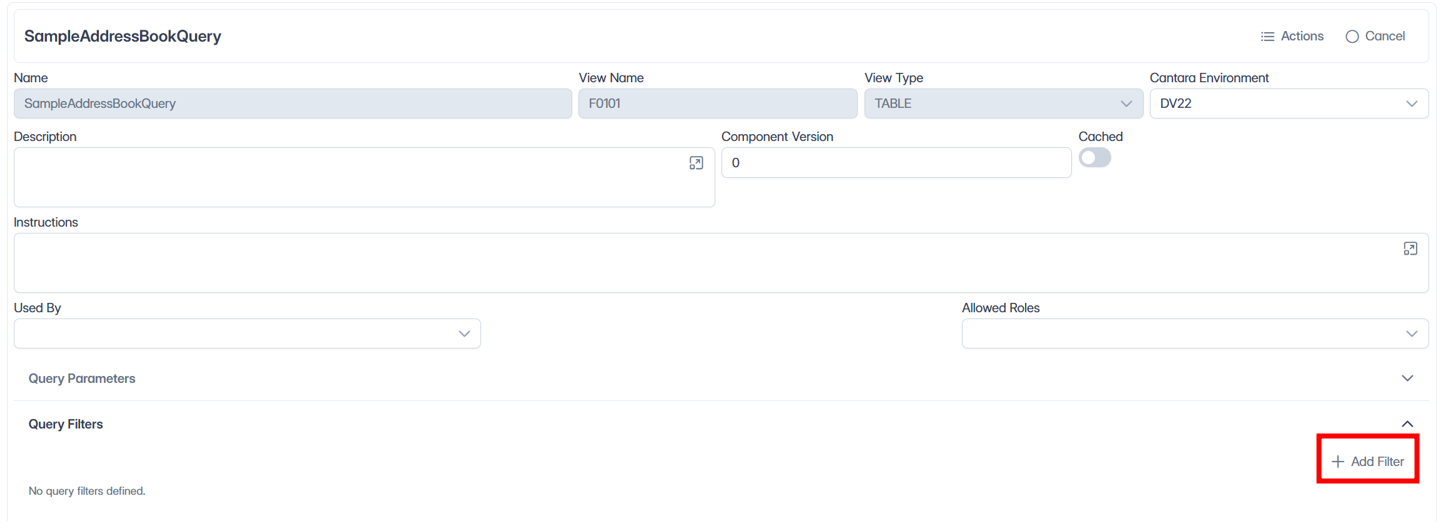
To enter a filter, hit the + Add Filter button:

-
A Filter dialogue box will show, where you may define the filter criteria:
-
Filter Type – Defines how the filter is applied to the query, such as a WHERE condition used to restrict the records returned.
-
Column Name – Specifies the JDE table or business view column to which the filter is applied.
-
Name – Defines the parameter name used to identify the filter when the query is executed. This is the name exposed to the caller when supplying a filter value.
-
Operator – Specifies how the column value is compared to the filter value, such as EQUALS, greater than, less than, or other supported comparison operators.
-
Inclusion – Determines whether the filter parameter is required, optional or hidden when the query is executed.
-
Default Values – Specifies one or more values to use when a value is not supplied at execution time.
-
If necessary, you can configure additional conditions for the filter. For example, after the first WHERE condition, you could use an AND or OR condition to refine the results.
-
If you need to delete a specific condition, click the “X” Delete button on its right. The condition is immediately removed.
TIP
To create multiple queries for the same JDE table or view, select Copy Query under the Actions drop-down:
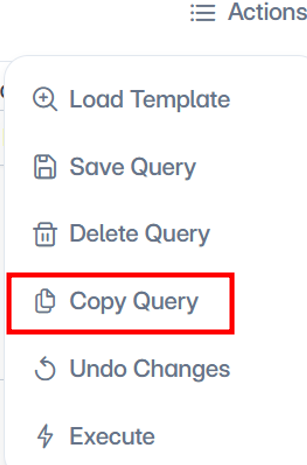
Enter a name for the new query and click the Save button. Repeat this process for each additional definition required.