Rinami is pleased to announce the RAPS Maintenance Execution Planner (MEP) version 1.6.0.
This release incorporates valuable feedback and enhancement requests from you and other MEP customers, delivering significant improvements to security management and filtering across the platform. These changes are designed to provide a more intuitive, user-friendly experience that simplifies workflows and accelerates your planning process. By making the platform easier to navigate and configure access controls, we aim to help you work more efficiently and securely. Security management has been simplified to make access control configuration straightforward.
Filtering
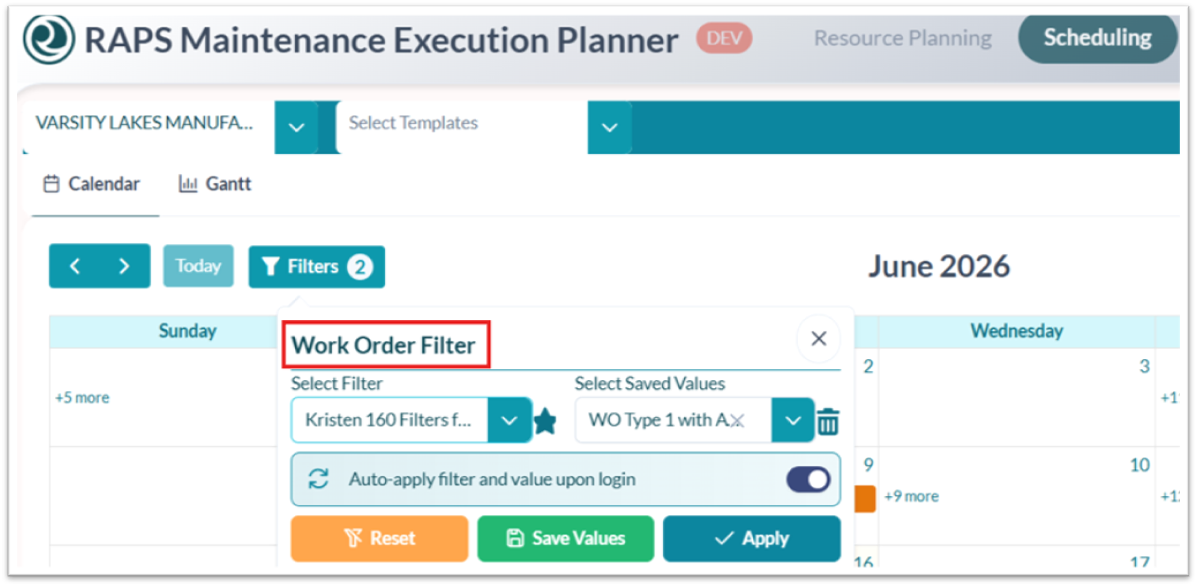
FEATURE 36536: Automatically apply saved filter values on login (for all filtering options).
Users can now save their selected filter values for all filters, and these values will be automatically applied upon logout and subsequent login, eliminating the need to recreate filtering preferences each time. The auto-apply and value persistence features are now available for every filter, not just specific ones, ensuring consistency across the platform. Filtering is now available for Unallocated WOs, Available Resources, and Assignable resources in both Resource planning and scheduling.
.png?cb=bdc7fd719626ee27ae0fc1d98b8d5ed7)
FEATURE 36555: Improvement to all filters, making it more intuitive and user-friendly.
(This is consistent for all filtering options now).
The reset, save values, and apply buttons have been moved to the top of the filter interface for better accessibility.
.png?cb=08a08b491d500595199814f262025f1e)
-
Work Order Filtering has been included in the Scheduling view for both the Calendar and Gantt views.
In the Scheduling Gantt View, the 'Available Resource Filter' has been replaced with the new 'Work Order Filter.'
-
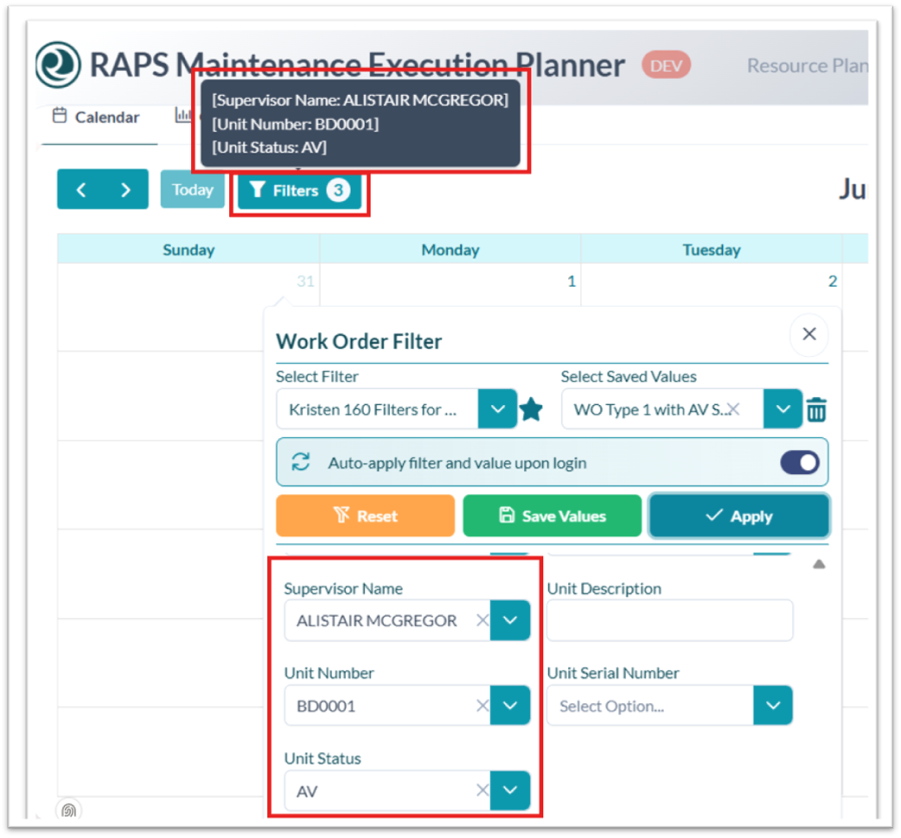
Enhance Assignable Resource Filtered View with Clear Applied-Filter Indicators. Added the ability to hover over filters to see their status, improving transparency and ease of use.
Security
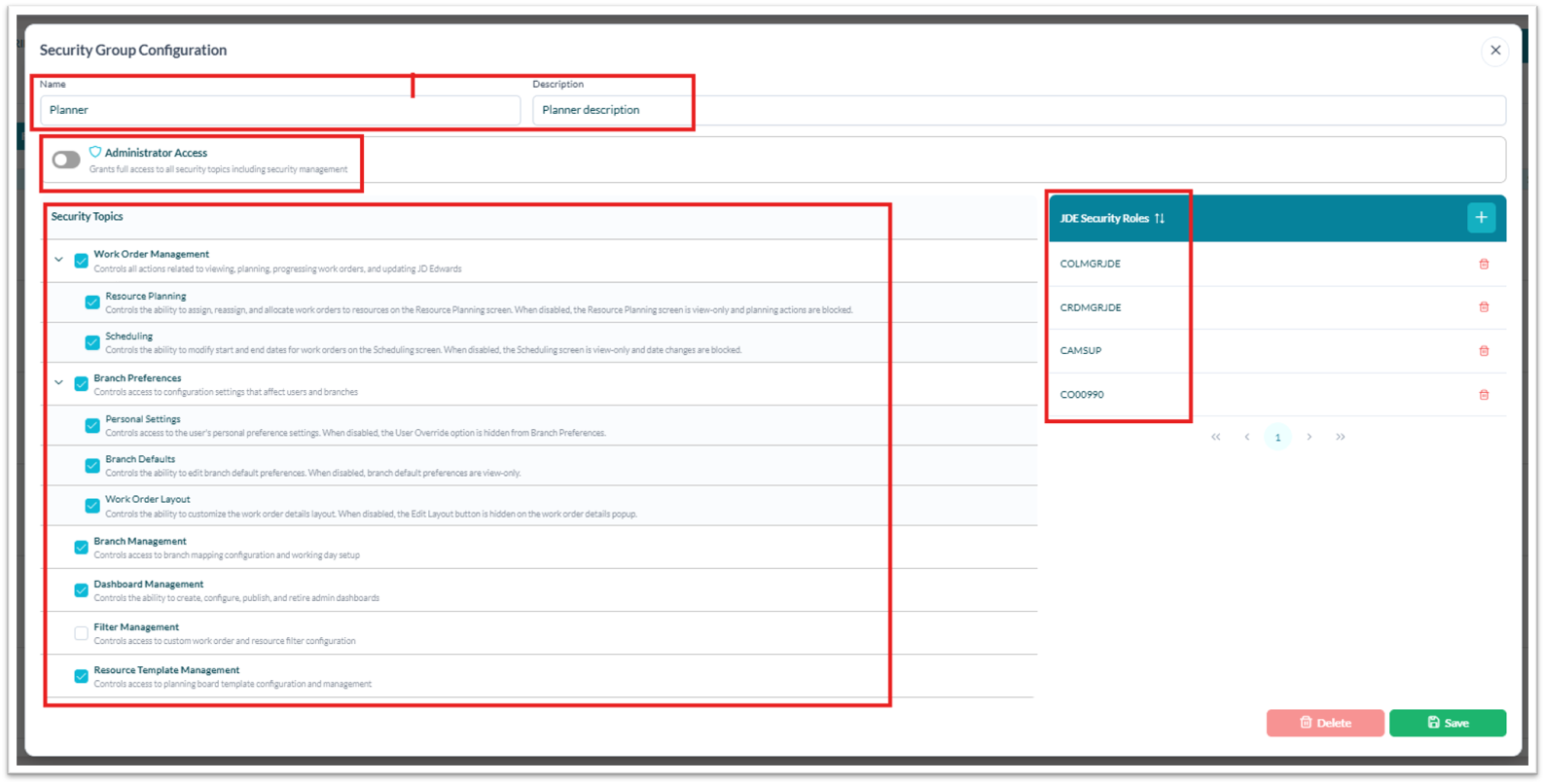
FEATURE 27909: Security Group Management - major improvements to the security management screen to make it more intuitive and user-friendly.
FEATURE 37749: Display Super Admin role in the security management screen. The Super Admin role is configured within the Cantara portal with configuration based on JD Edwards roles.
-
The Super Admin role has always existed but was previously not visible to users; with the new changes, only Super Admins can see the Super Admin role in the security management screen.
-
Super Admin role is non-editable and only viewable for security reasons.
-
These roles are automatically created during a migration based on existing administrator roles in the old system, which Prakash will address later on.
-
Super Admin and Administrator roles are indicated by a shield icon next to their name as having ADMINISTRATOR access.

-
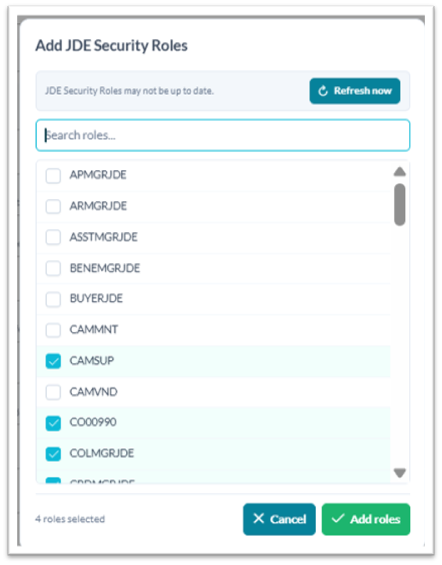
On the right-hand side, click on the + sign next to JDE Security Roles: Users can now refresh and import JD Edwards security roles directly into the system, search for specific roles, and assign them to security groups, with the ability to add, delete, and edit these roles as needed.
-
On the left-hand side is all of the security topics. We have reconfigured the security group configuration and added descriptions for each area.
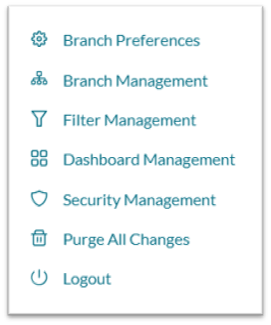
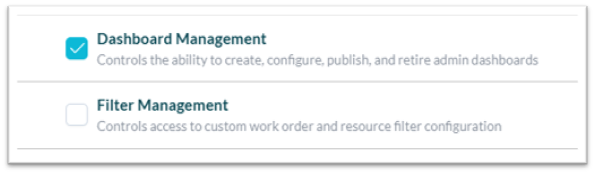
FEATURE 26621: Show/Hide menu options based on the user's access rights
-
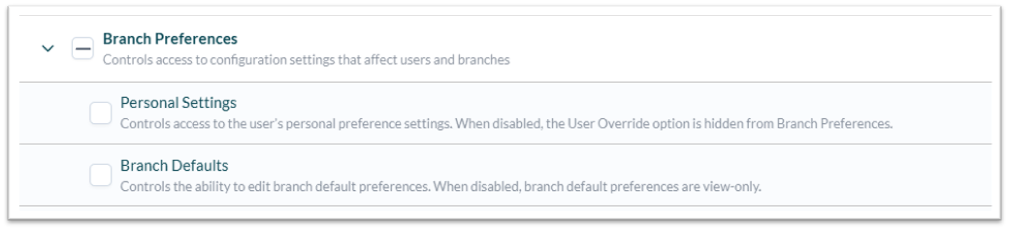
Only 2 options in security - show or hide menu options
-
Checked box means it will be visible
-
Non-checked box means it will be hidden
-
Branch default & Personal Settings: If these are unchecked and a branch default already exists, then they have VIEW ONLY for that branch default. If no default is setup, then they will not be able to view any data on resource planning and scheduling screens.