
Overview
This topic explains how to configure a Cantara environment for API key authentication and generate an API key that can be used to send requests to Cantara.
Before you begin
Confirm the following details are available before you start:
-
Administrative access to manage Cantara environments.
-
The target JD Edwards (JDE) environment details, such as the environment name, time zone, date format, and access methods.
Procedure
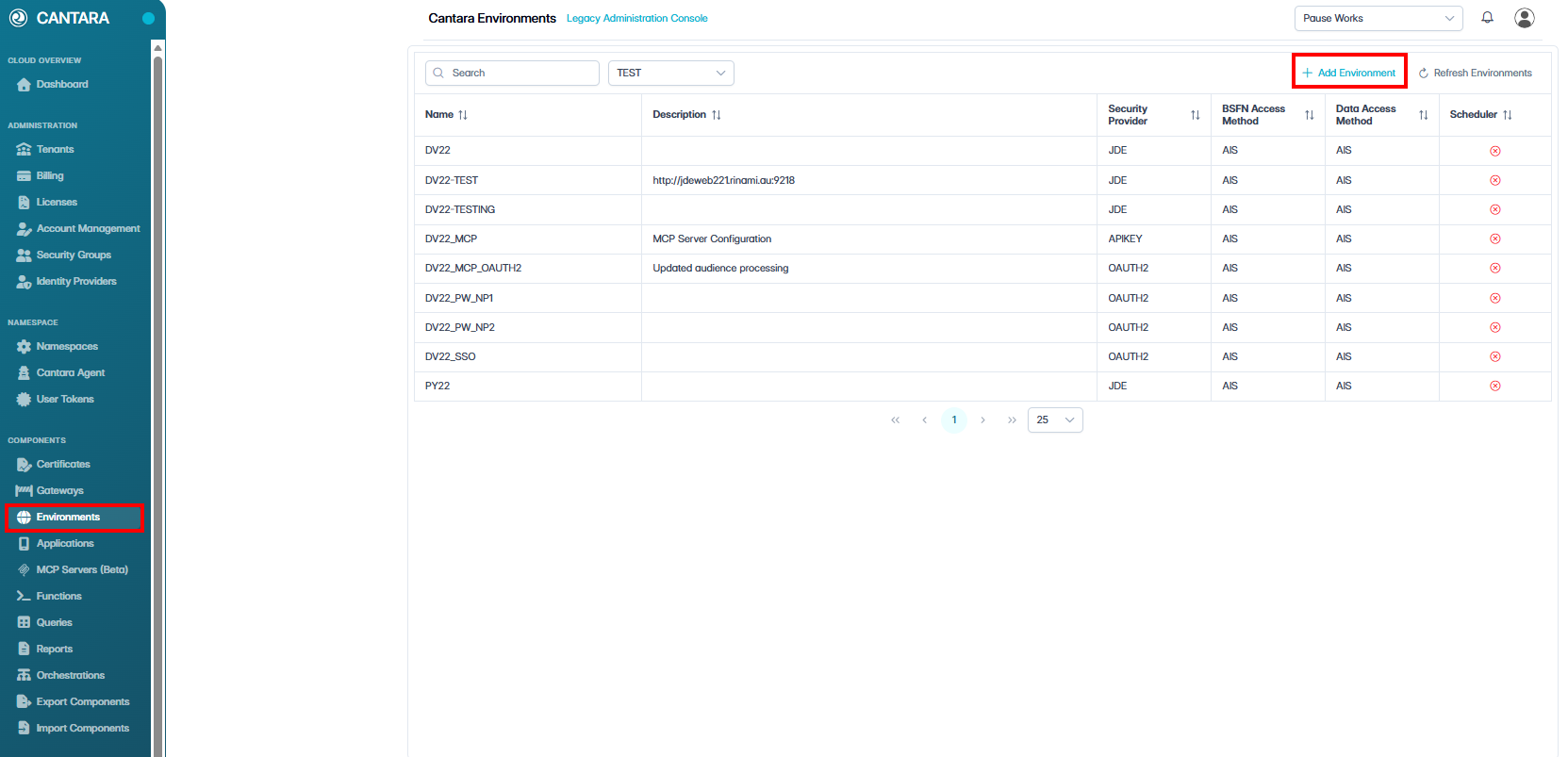
To create an environment:
-
In Cantara, navigate to Environments.
-
Click + Add Environment, or select an existing environment if you are adding API key authentication to an existing configuration.
-
In the Security Provider field, select APIKEY.
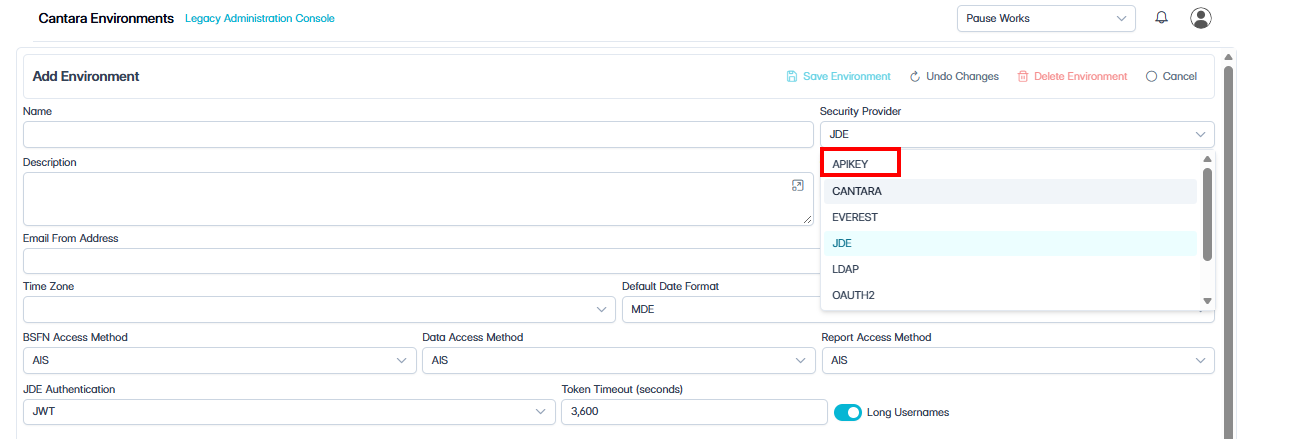
Complete the following environment fields as required:
|
Field |
Description |
|---|---|
|
Name |
Enter a unique name for the environment, for example |
|
Security Provider |
Select APIKEY. |
|
Description |
Optional description of the environment or integration. |
|
Component Version |
Select or enter the required component version for the environment. |
|
Email From Address |
Optional sender email address for system-generated messages. |
|
Time Zone |
Select the time zone for the target JDE environment. |
|
Default Date Format |
Select the default date format used by the target JDE environment. |
|
BSFN Access Method |
Select the access method used for Business Function calls. |
|
Data Access Method |
Select the access method used for data requests. |
|
Report Access Method |
Select the access method used for report requests. |
|
JDE Authentication |
Select Password for standard credential authentication, or JWT for token/certificate-based group authentication. |
|
Token Timeout (seconds) |
Enter the token timeout in seconds. |
|
Long Usernames |
Enable if the target JDE environment supports long usernames. |
JWT Authentication

This section only displays when JDE Authentication is set to JWT.
Complete the following fields:
|
Field |
Description |
|---|---|
|
Node Name |
The JDE AIS node name configured for JWT authentication. |
|
Node Password |
The password associated with the AIS node. |
|
Certificate Name |
The name of the SSL/signing certificate configured in Cantara. |
Configure API Key Security
-
Scroll down to the API Key Security section on the same environment screen.

-
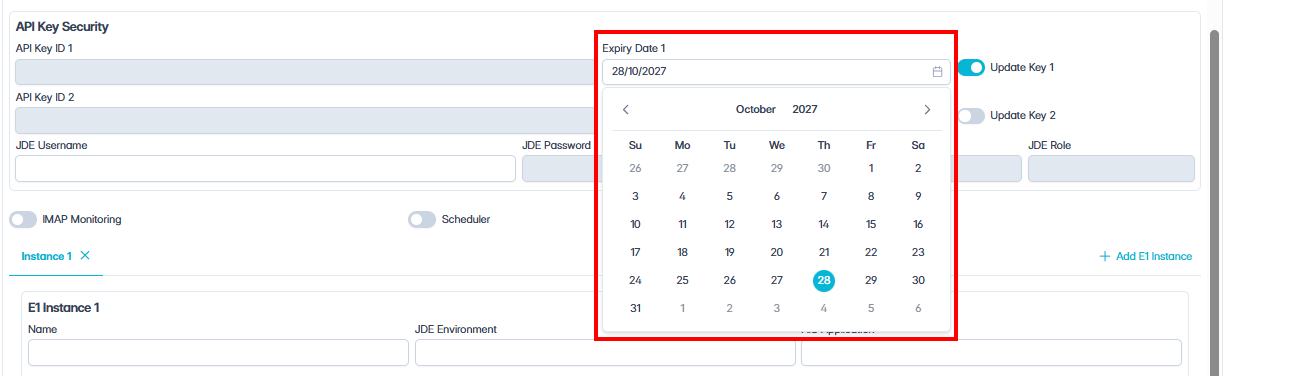
Enable Update Key 1.
-
Set Expiry Date 1 (defaults to one year from the date the key is generated or updated).
-
Complete one of the following actions:
-
If JWT was selected: Enter the JDE Username.
-
If Password was selected: Enter the JDE Username, JDE Password, and JDE Role.
-
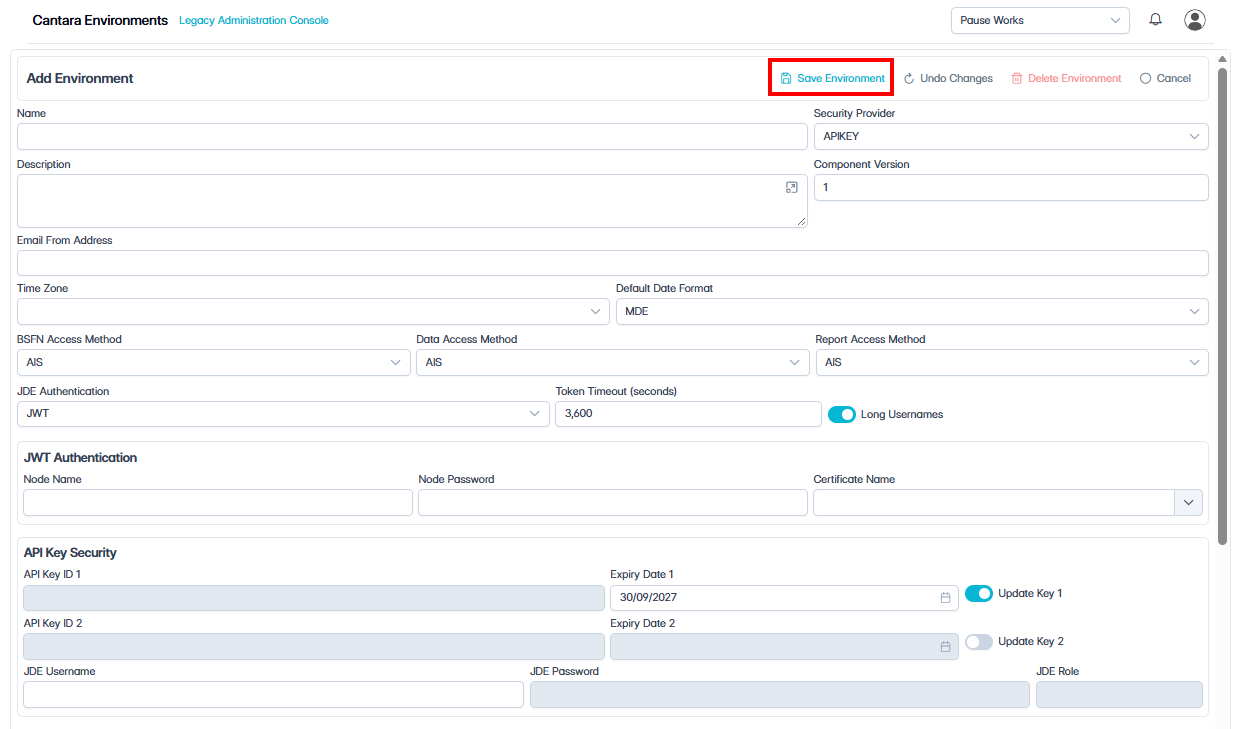
Using different credentials
If another integration needs different JDE credentials, create a separate Cantara environment for it and enter those credentials there.
-
Click Save Environment.
-
Next to API Key ID 1, select Get API key to generate the API Key.
-
Copy and securely store the API key.
API Key Security Fields
|
Field |
Description |
|---|---|
|
API Key ID 1 |
Displays the ID for the first API key. Note: This is the key ID, not the secret API key value. |
|
Expiry Date 1 |
Displays or sets the expiry date for the first API key. By default, the expiry date is set to 1 year from the date the key is generated or updated. |
|
Update Key 1 |
Select this option to update or generate the first API key. |
|
API Key ID 2 |
Displays the ID for the second API key. Use the second key when rotating credentials or maintaining two active keys during a transition. Note: This is the key ID, not the secret API key value. |
|
Expiry Date 2 |
Displays or sets the expiry date for the second API key. By default, the expiry date is set to 1 year from the date the key is generated or updated. |
|
Update Key 2 |
Select this option to update or generate the second API key. |
|
JDE Username |
Enter the JDE user account that requests using this API key will run as. For JWT authentication, this is the only editable API Key Security authentication field. |
|
JDE Password |
Enter the password for the JDE user account. Only used when JDE Authentication is set to Password. |
|
JDE Role |
Enter the JDE role for the account. |