
You can manage the user accounts that have access to the console.
Adding a New User
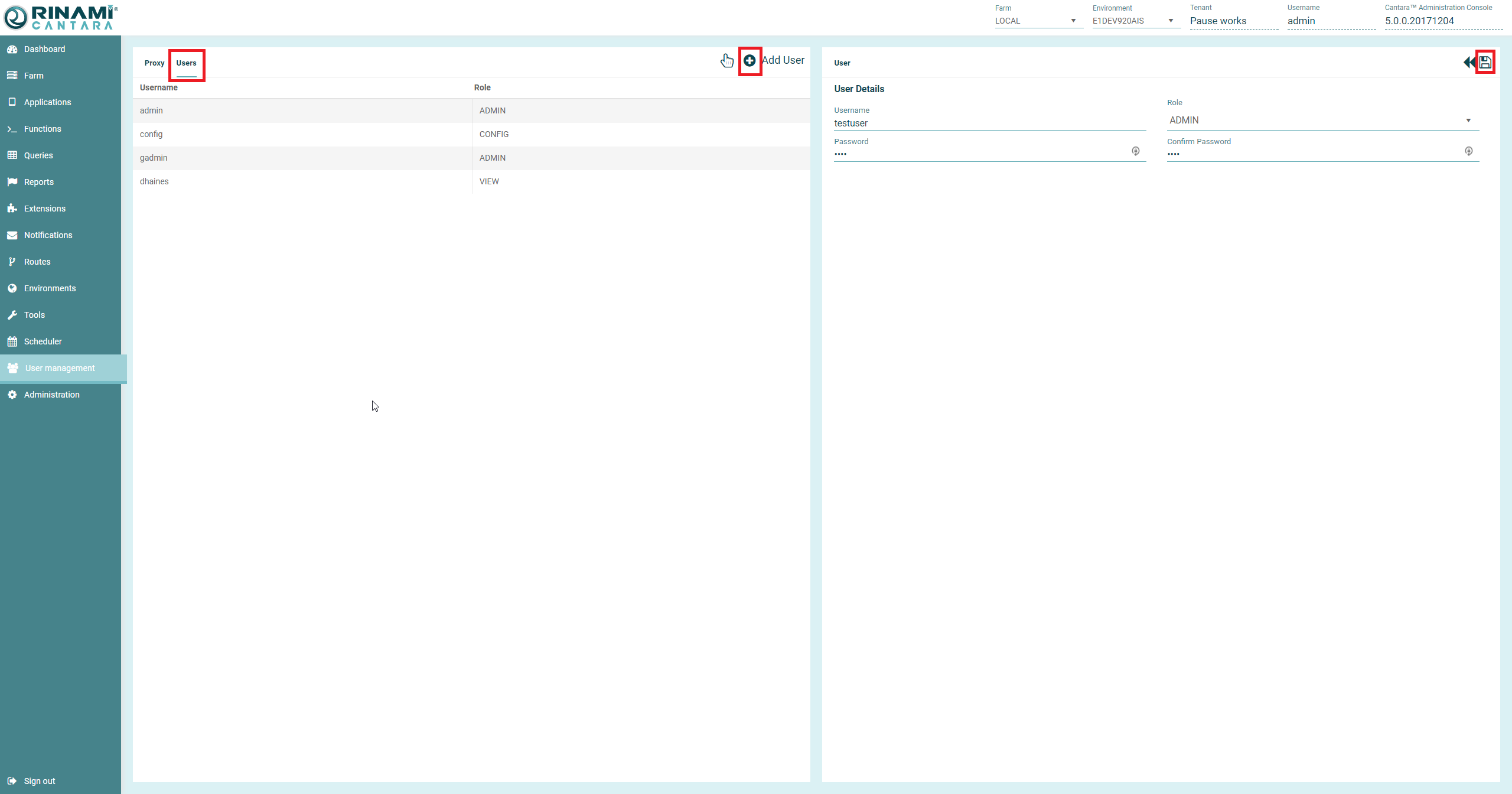
To add a new user
-
Select the User Management node in the navigation panel, and select Users.
-
Click the Add User (plus) icon.
-
Enter the Username.
-
Select a User Role:
-
Enter the Password and Confirm the password, and then click the Save User icon.
Deleting a User
To delete a user
-
Select the User Management node in the navigation panel, and select Users.
-
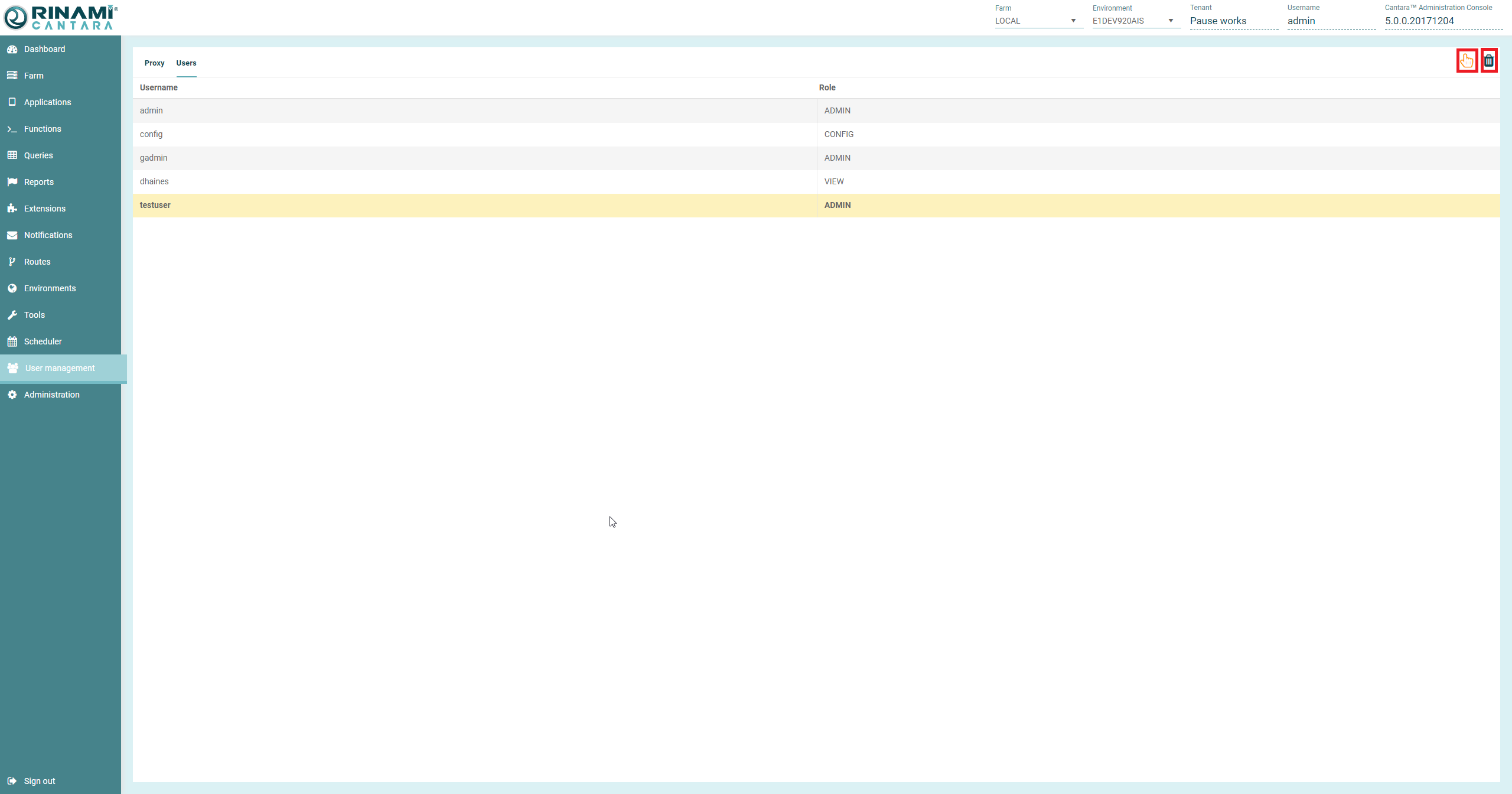
Click the Select List Item button (Hand) icon in the top right corner of the pane.
-
Select the line(s) that you wish to delete, they will highlight in yellow.
-
Click the (Trash Can) icon in the top right corner of the screen.
-
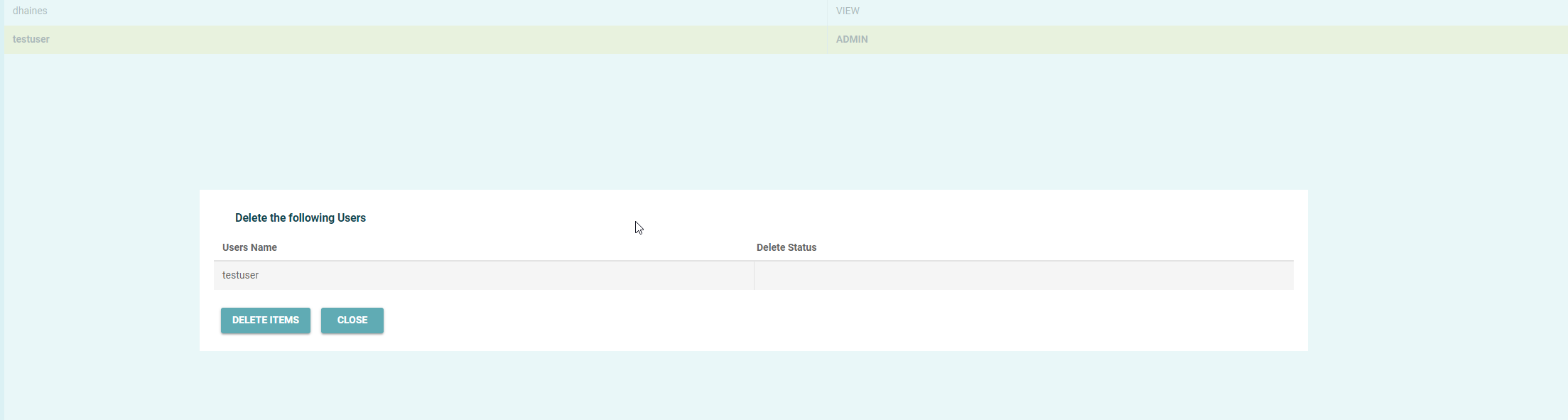
The Delete user dialog box will appear.
-
Press Delete Items to confirm the deletion.
-
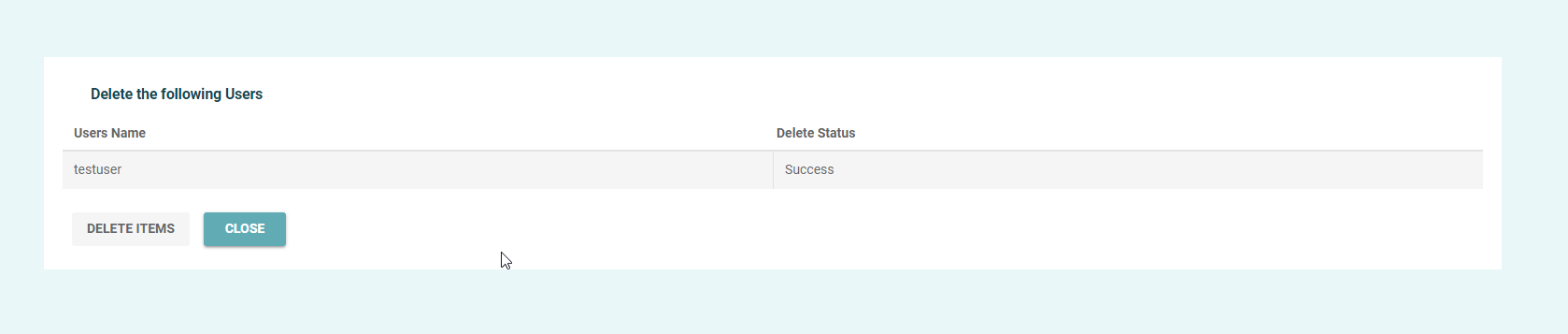
Once deleted the delete status will read as "Success"
-
Click the Close button to return to the User list.