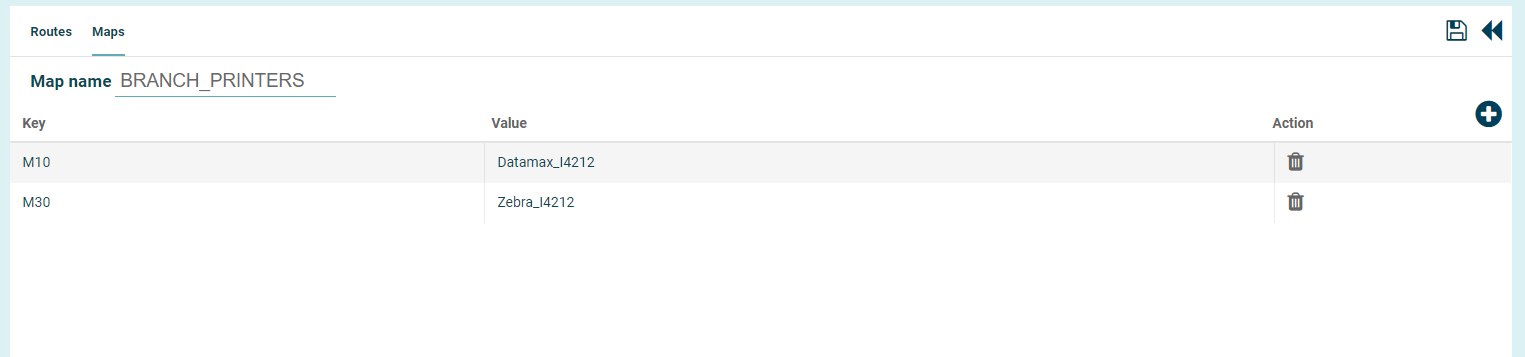
A map enables control of the file routing based on metadata provided in the service definition or service request. An example would be to map parameter values to a printer name or file path.
Creating Maps
To create a map
-
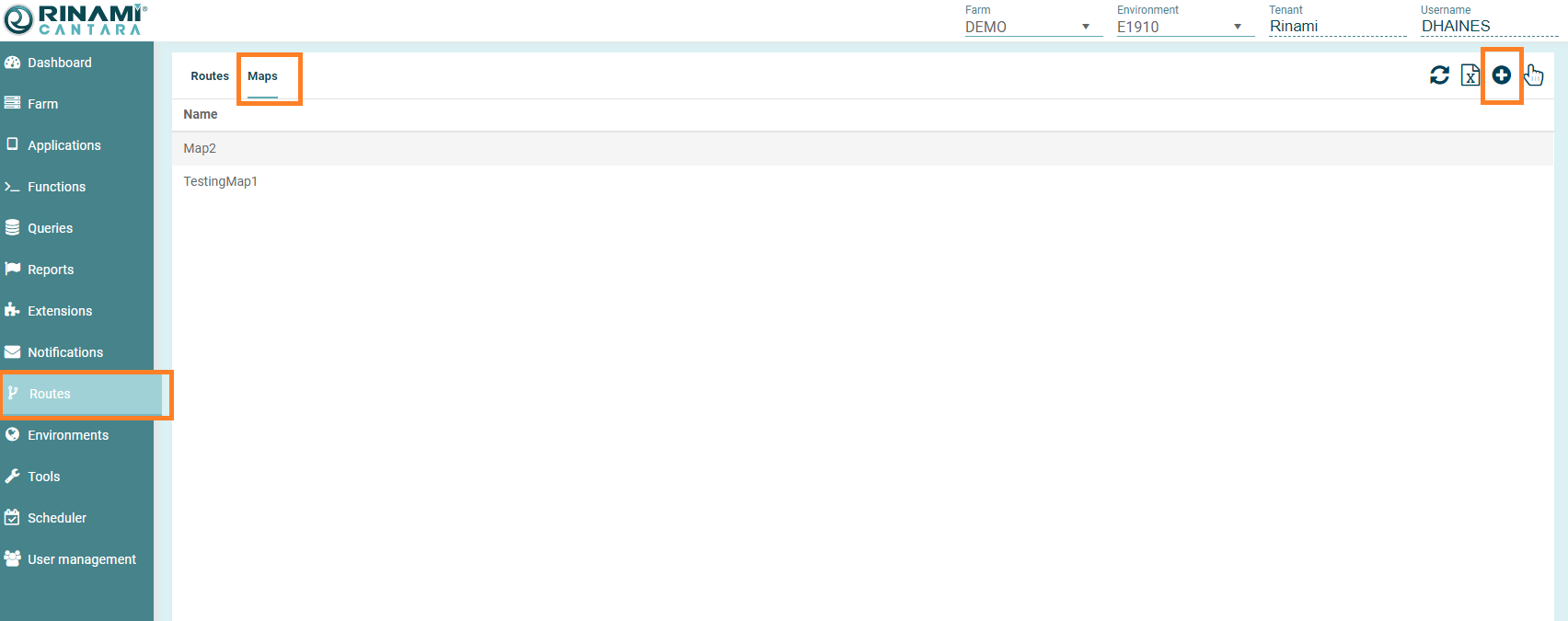
Select the Maps tab in the navigation panel under the Routes node. A list of available maps are displayed
-
Click the Add button. The Create Map screen is displayed:
-
Enter the following details:
-
Name: The name you want to assign to the map. The value for this field can be a maximum of 40 characters (no spaces). Valid characters include numbers, letters, and a dash (-).
-
-
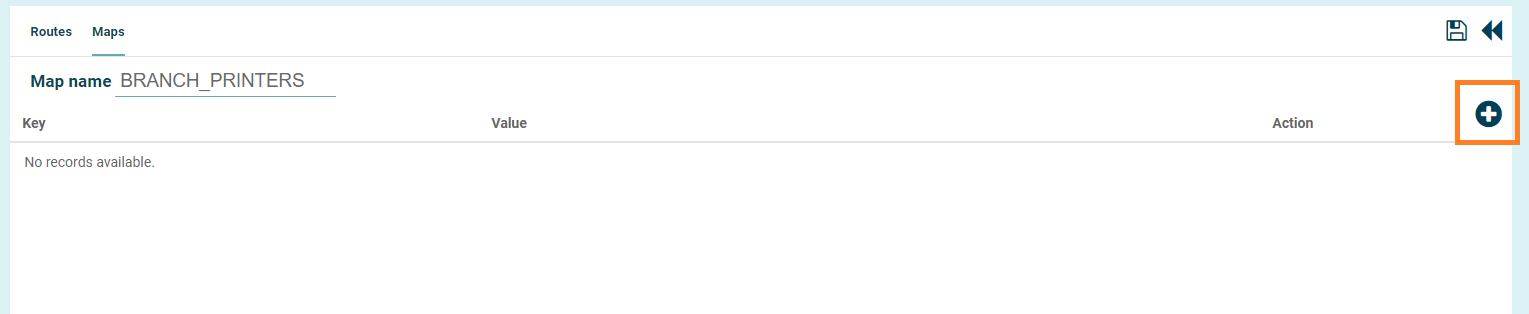
To add a map element to the map click the Add button on the top right of the grid.
-
Provide the key value for the map element followed by the value to be returned. You can add as many elements as required in a single map. Each key must be unique and blanks are not allowed.
-
You can remove an element by clicking the trash can icon on the appropriate row.
-
Click the Save button. The map is added to the list of maps available.