
Overview
User Tokens enable a pre-authenticated user or external application to connect to JD Edwards without re-entering a username and password. A user token has a limited lifetime, which is configured in Environments.
Whenever a user logs into JD Edwards with their username and password, a new user token is generated automatically. A user token can also be generated manually by an administrator to provide pre-authenticated access to JD Edwards.
Before you begin
Before creating a user token, verify that:
-
The target Environment is active and reachable.
-
The associated Cantara Application or Cantara MCP Server has been created in Components.
-
You have a valid JDE Username, Password, and Role with the appropriate permissions to execute the target components.
Procedure
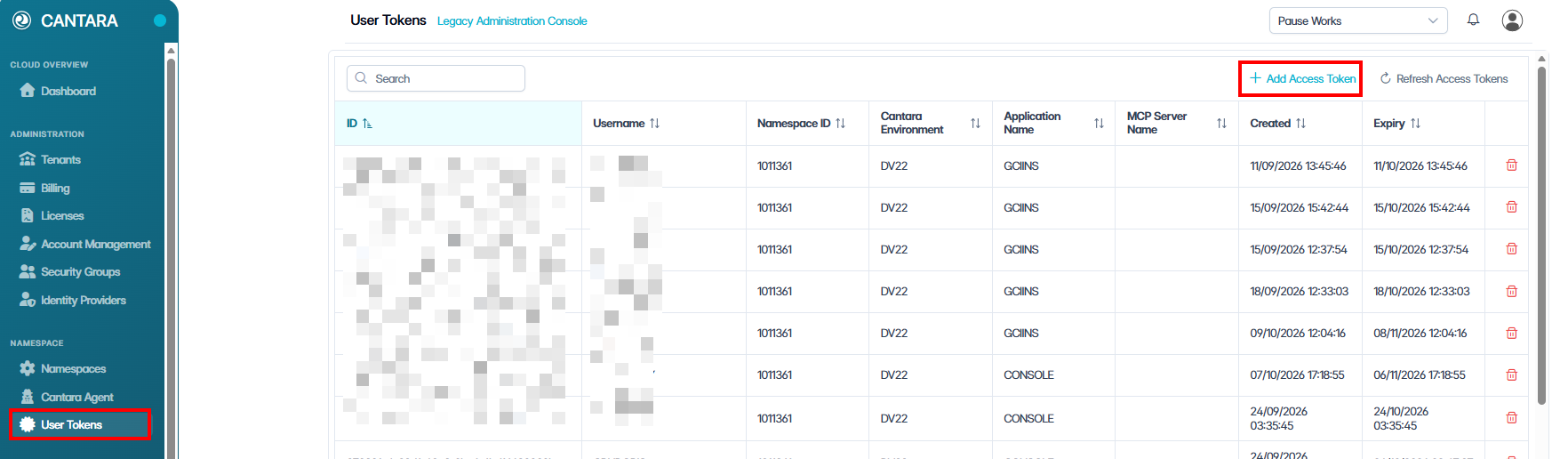
To generate a user token:
-
Navigate to User Tokens.
-
Click + Add Access Token.
-
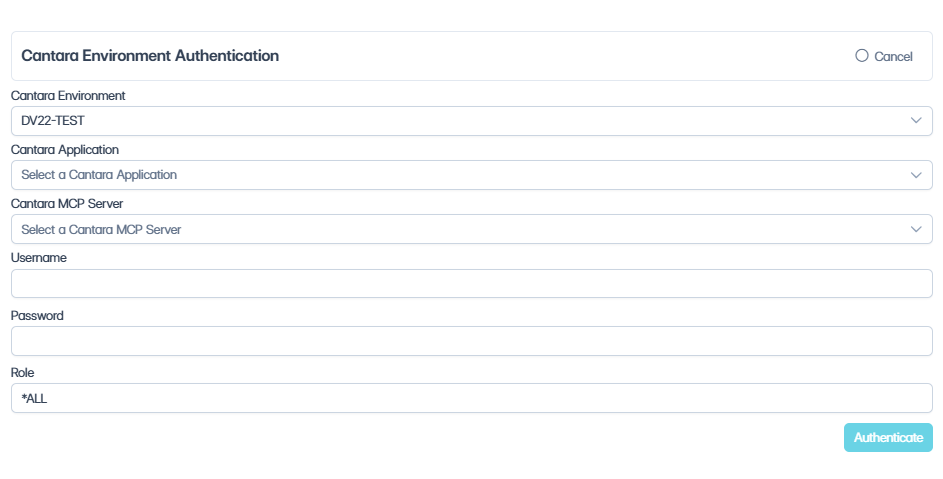
In the popup dialogue, select the required Environment from the dropdown list.
-
Complete the following fields:
|
Field |
Description |
|---|---|
|
Cantara Application |
Select or specify the Cantara Application that routes requests for this token. |
|
Cantara MCP Server |
Select the Cantara MCP Server that uses this token for agent-based tool execution. |
|
Username |
Enter the JD Edwards username for the account authenticating through the token. |
|
Password |
Enter the password for the specified user account. |
|
Role |
Enter or select the JD Edwards role defining the execution permissions for the token. |
-
Review the details and click Authenticate.
-
Copy and store the generated token securely. The token lifespan is governed by the Token Timeout setting on the selected Environment.
Deleting tokens
Existing tokens cannot be edited or modified after they are created. All active tokens generated for the namespace are listed on the User Tokens screen.
Procedure

To delete a user token:
-
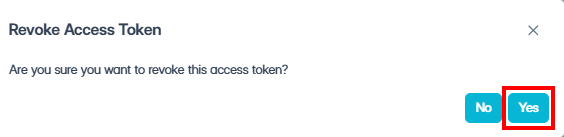
To revoke access, locate the token in the list and select Delete.
-
In the confirmation dialog, click Yes to confirm the deletion.