
To create a new Xcode project for Cantara Client
-
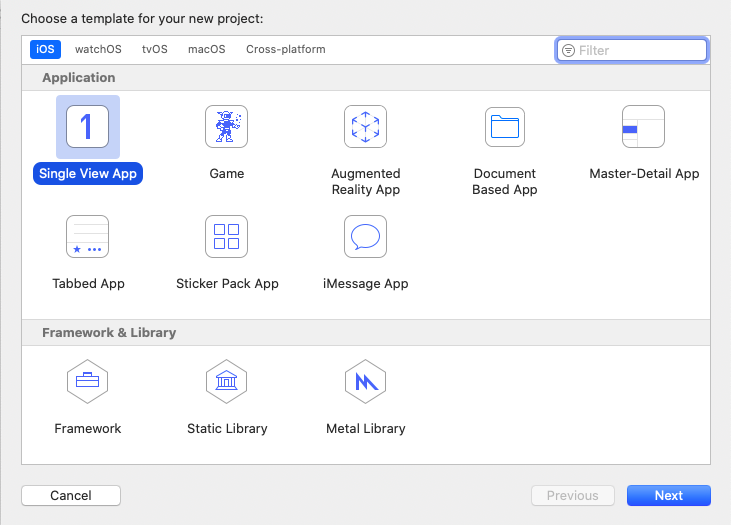
Create a new Xcode project and select Single View App:
-
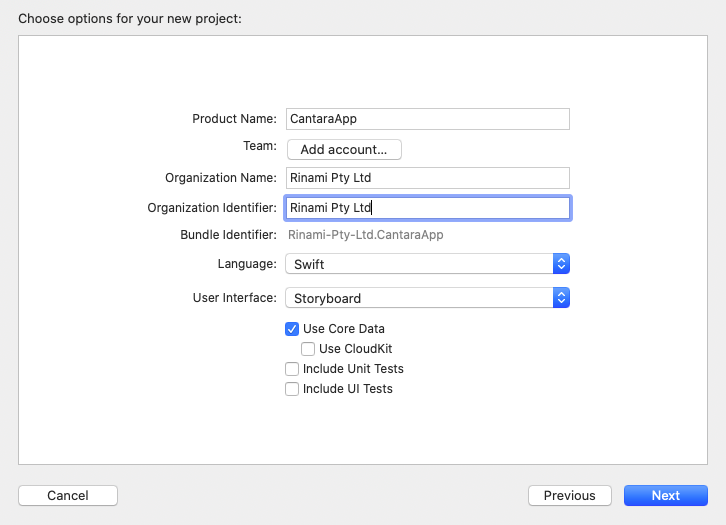
Configure the project options shown below, specifying your organization and product:
-
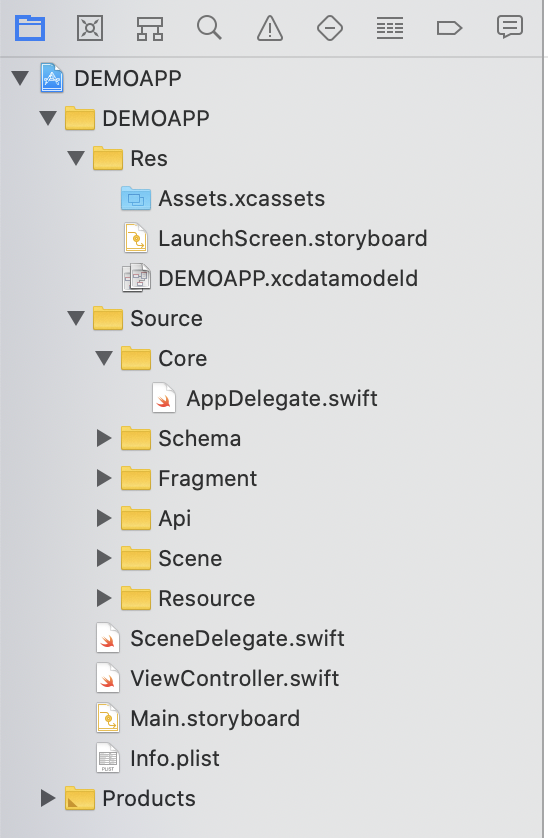
Create groups to match the following project structure:
-
The Res folder will contain the project resources, like the Assets bundle and the configuration files.
-
The Source folder will contain the code for our app, divided under the Core, Schema, Fragment, Api, Scene and Resource folders.
-
Move the AppDelegate file to the Core folder, and the Assets, LaunchScreen and the Core Data file to the Res folder.
-
-
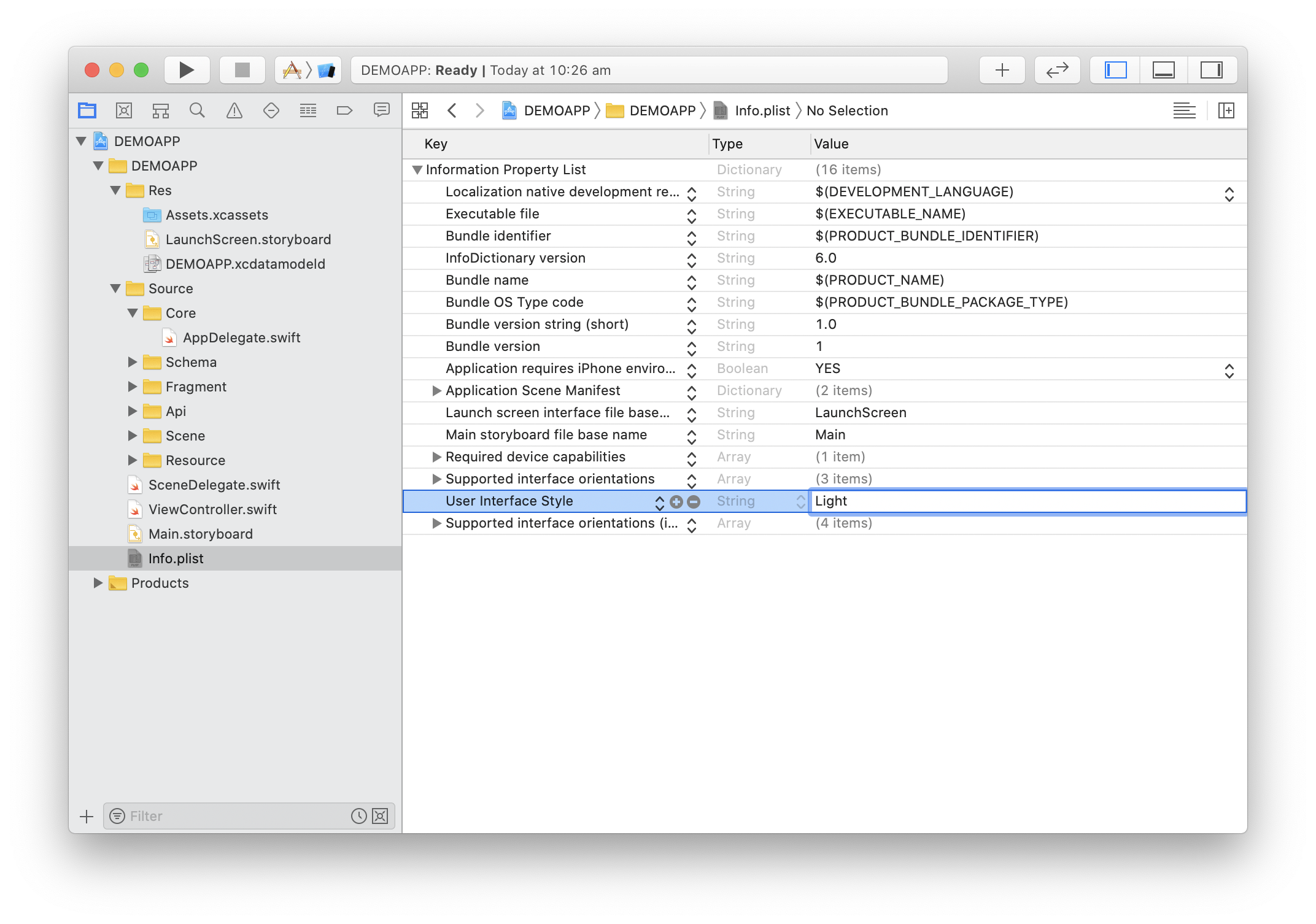
Dark Mode must be disabled, as it is not currently supported.
This is done by adding User Interface Style to the info.plist file, and setting it to "Light":
-
Configure the Carthage import settings according to Carthage Configuration (iOS). This procedure defines the CC6 (iOS) SDK and required frameworks.
-
Refer to the procedure Entity Generation (iOS) to generate project entity classes and the core data model.