
-
To install Carthage on your development host, open a terminal and use the Homebrew command:
$ brew install carthage -
Create a new folder named CC6 to store the Cantara Client SDK.
-
In the CC6 folder, create a new text file named _Cartfile containing your git repository and application details (specifying the server, directory, app and branch for your project). For example:
git "git@example.com/CC6/CC6-app" "master" -
Also create a file named _Cartfile.resolved containing the same content.
The underscore prefix prevents a build occurring in the AppCenter.
To save time, applications should be built locally and the Carthage folder committed when necessary.
-
Create a subfolder named "Scripts" containing two files as shown below:
The first script will update the project to use the latest version of the Cantara Client (meaning the latest commit for the specified branch), and rebuild the dependencies.Bash#!/usr/bin/env bash # Executes carthage update # Use this script when you want to update the dependancies to the latest version cd ../ # To speed up appcenter builds we check in our dependancies. mv _Cartfile Cartfile mv _Cartfile.resolved Cartfile.resolved # perform carthage update # use the --no-user-binaries if the prebuilt framework was built with a diferent iOS version # carthage update --platform iOS --no-use-binaries --cache-builds # carthage update --platform iOS --cache-builds # move Cartfiles back mv Cartfile _Cartfile mv Cartfile.resolved _Cartfile.resolved
The second script will build the dependencies using the exact version specified in the Cartfile.resolved file.
Bash#!/usr/bin/env bash # Executes carthage bootstrap # Use this script when you want to pull down dep at the same version they where last built as. cd ../ # To speed up appcenter builds we check in our dependancies. mv _Cartfile Cartfile mv _Cartfile.resolved Cartfile.resolved # perform carthage bootstrap # use the --no-user-binaries if the prebuilt framework was built with a diferent iOS version # carthage update --platform iOS --no-use-binaries --cache-builds # carthage bootstrap --platform iOS --cache-builds # move Cartfiles back mv Cartfile _Cartfile mv Cartfile.resolved _Cartfile.resolved -
Run the carthage-update.sh script.
-
Open Finder and navigate to <YourProject>/Carthage/Build/iOS and observe the newly created framework builds.
-
Open your project in Xcode and drag/drop the .framework files into the Linked Frameworks and Libraries section of the general tab in the project menu, making sure not to embed any of the frameworks.
At a minimum, you will need:
-
API
-
Component
-
Core
-
Implementation
-
Schema
-
RxSwift
For a list of external frameworks used on each platform, refer to Third Party Frameworks.
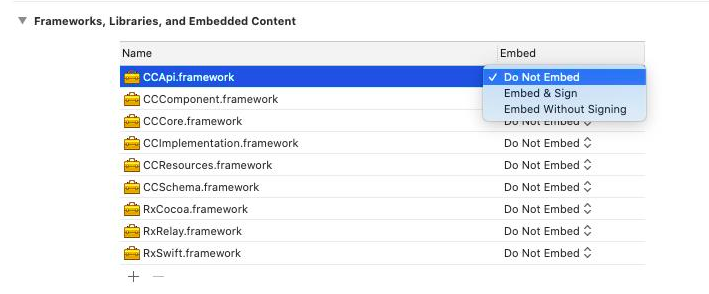
-
-
Go to the Build Phases tab of the project menu, add a new run script as shown below:
/usr/local/bin/carthage copy-frameworks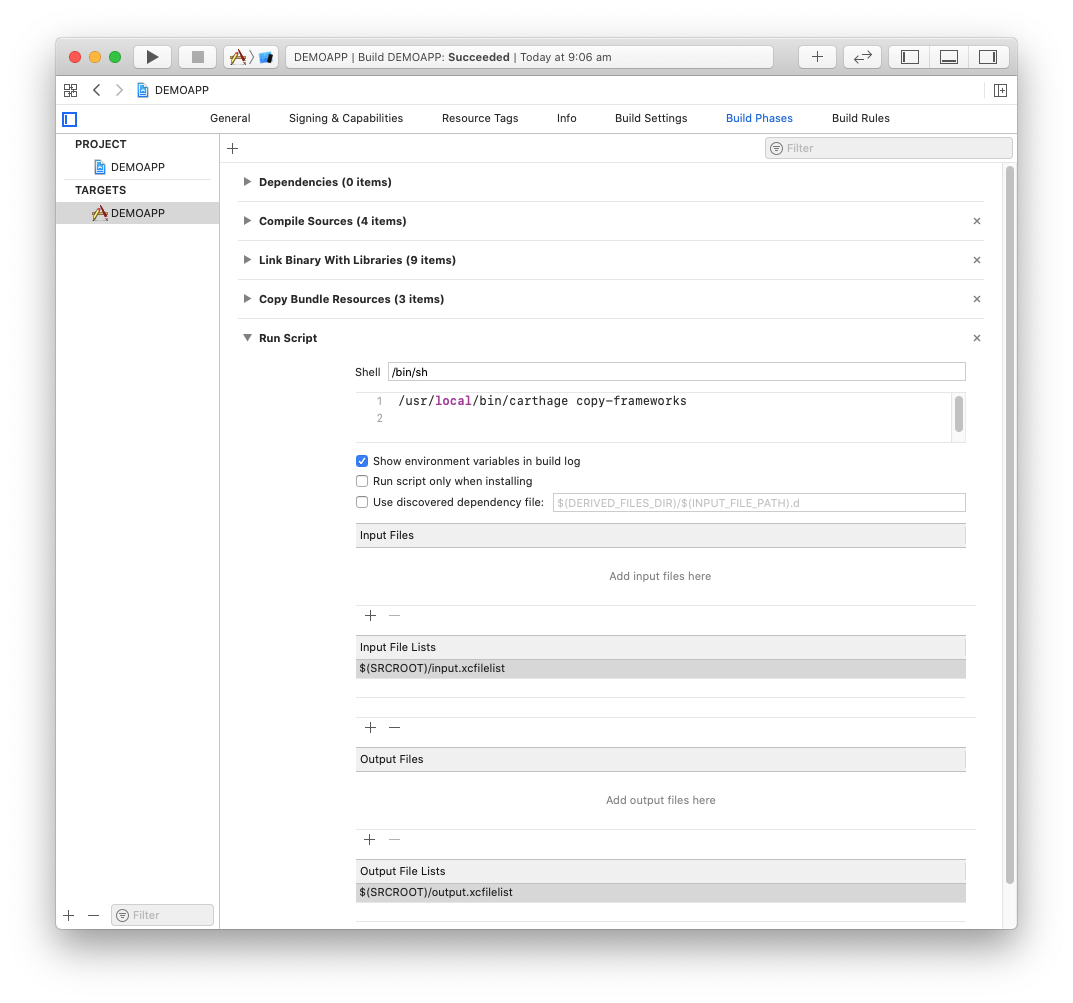
-
In the root directory of your Xcode project, create a new file input.xcfilelist listing the input files for each framework added, separated by new lines.
For example:
$(SRCROOT)/Carthage/Build/iOS/RxSwift.framework -
In the input files list section for the run script, add the path to the input.xcfilelist you have just created:
$(SRCROOT)/input.xcfilelist -
In the root directory of your Xcode project, create a new file output.xcfilelist listing the output files for each framework, separated by new lines.
For example:
$(BUILT_PRODUCTS_DIR)/$(FRAMEWORKS_FOLDER_PATH)/RxSwift.framework -
In the output files list section for the run script, add the path to the output.xcfilelist you have just created:
$(SRCROOT)/output.xcfilelist
You will now be able to use the frameworks in your project.