Overriding the application default color theme
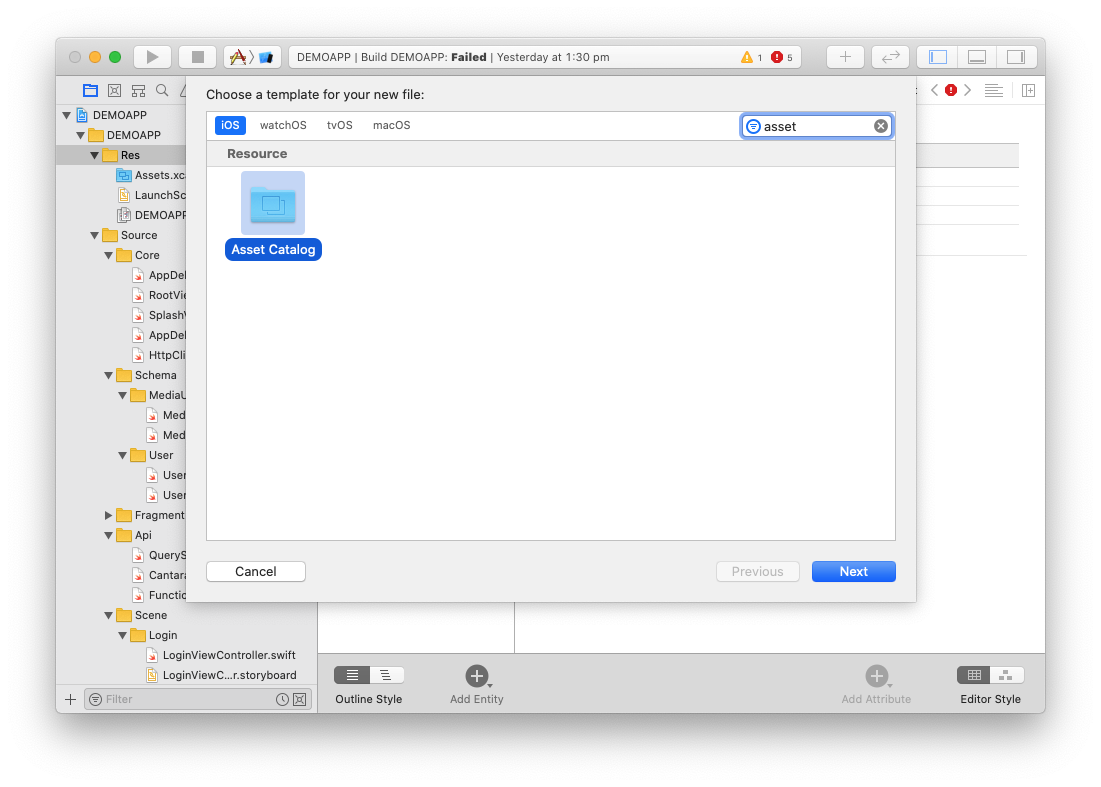
Create a new asset catalog called "Colors" under the project Res folder.
In this new asset catalog, create new color sets to override the existing color sets as needed.
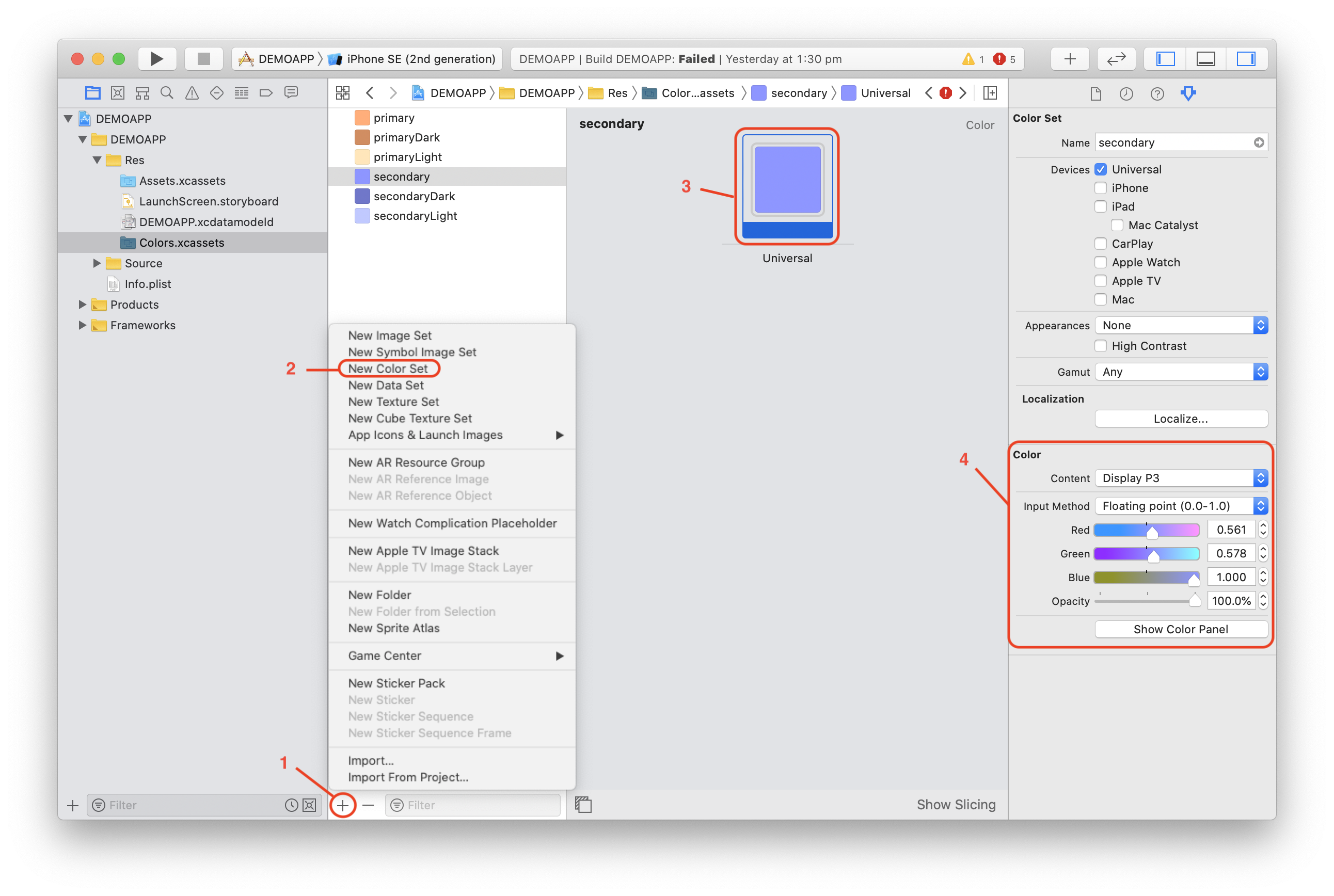
To create a new color set:
-
Click the + sign on the bottom left of the central panel
-
Select New Color Set
-
Click on the color rectangle in the central panel
-
Set the color in the right panel
-
Name the color as per the color set you want to override
The colors that can be overridden are as follow:
-
primary: The primary color
-
secondary: The secondary color
-
primaryLight: The light theme’s primary color
-
secondaryLight: The light theme’s secondary color
-
primaryDark: The dark theme’s primary color
-
secondaryDark: The dark theme’s secondary color