The component import and export tools support the following operations:
-
Export components - to generate a zip file containing selected components
-
Import components - to read in component data from a valid export file or a Cantara Source URL
-
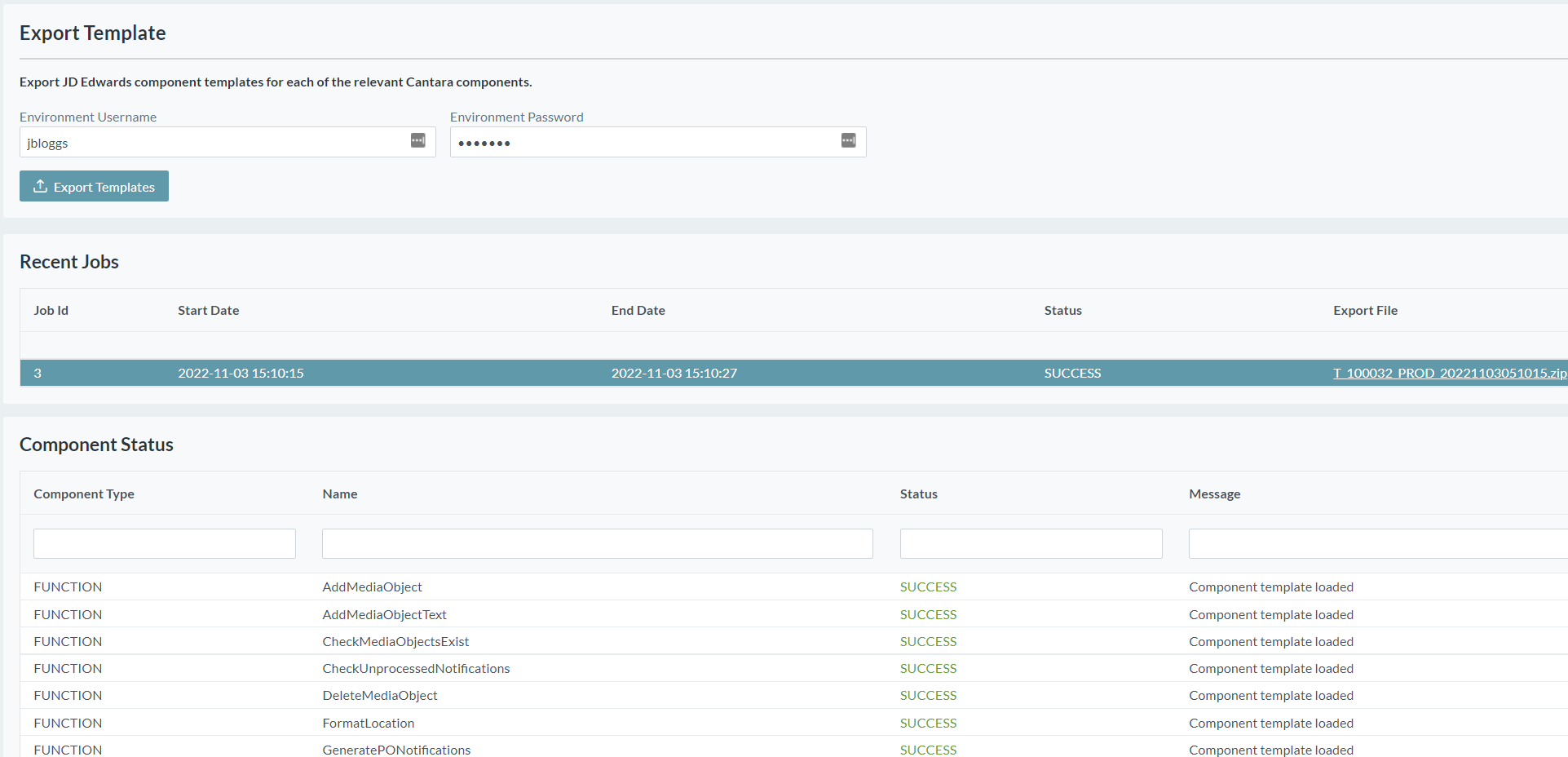
Export templates - to generate a zip file of template definitions from JDE, used for diagnostic purposes
To transfer components between environments, refer to Transferring Components.
To export components
-
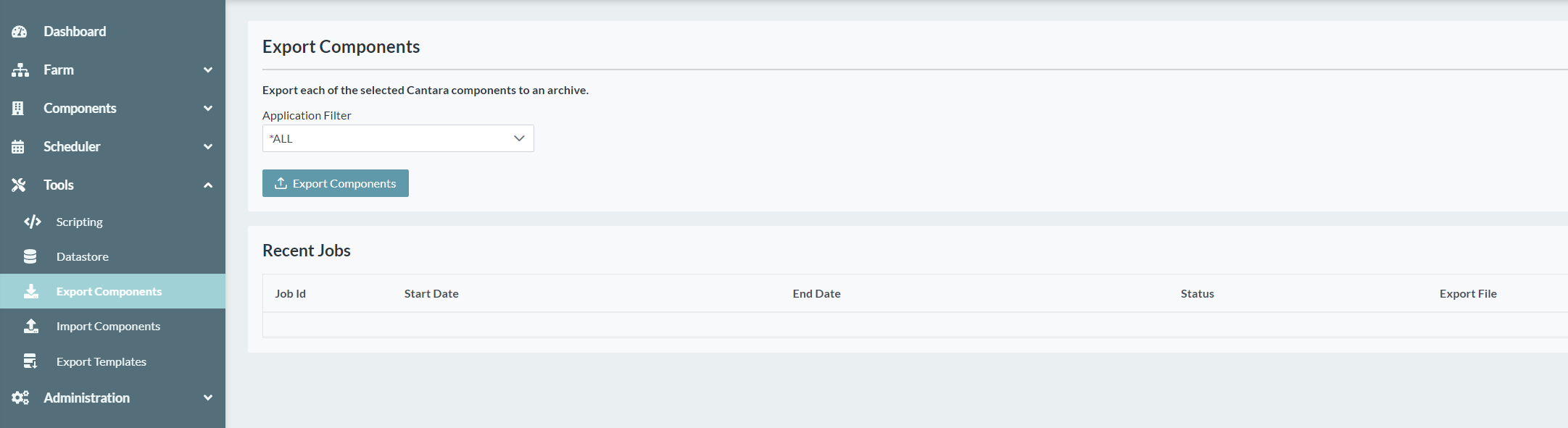
Open the Tools menu group from the navigation panel.
-
Select the Export Components node. The Export Components screen is displayed.
-
The list of components to be exported can optionally be filtered by application prior to exporting.
-
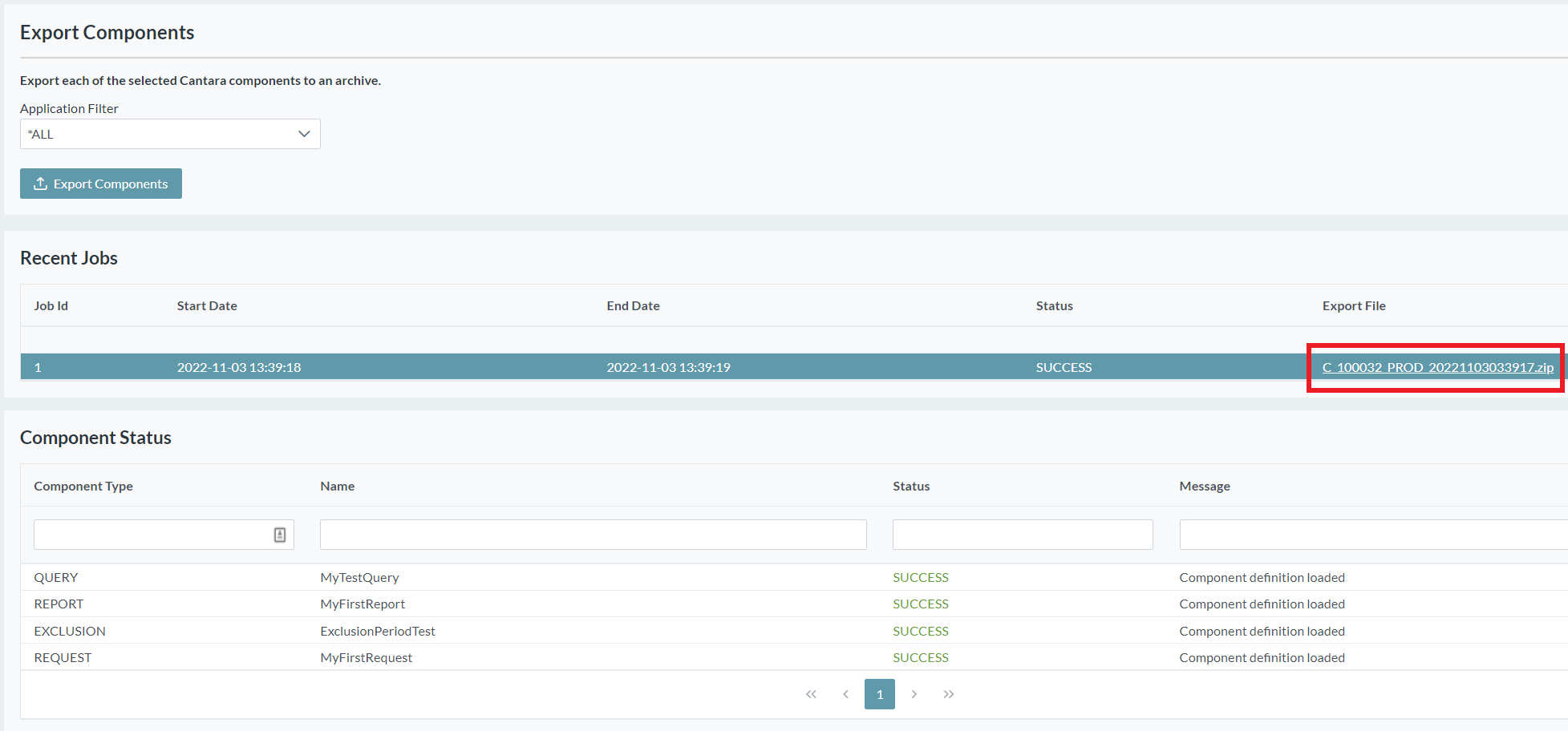
Click the Export Components button to export the required components. The export status for each component is displayed.
-
Click on the exported zipfile to download it.
To import components
-
Open the Tools menu group from the navigation panel.
-
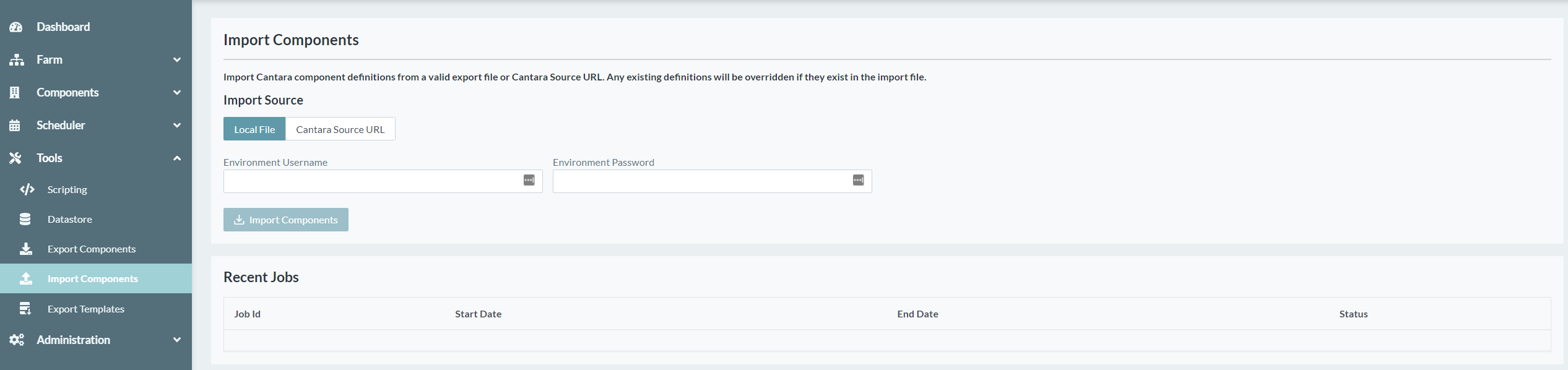
Select the Import Components node. The Import Components screen is displayed.
-
Select the source of the components to be imported:
Source
Comment
Local File
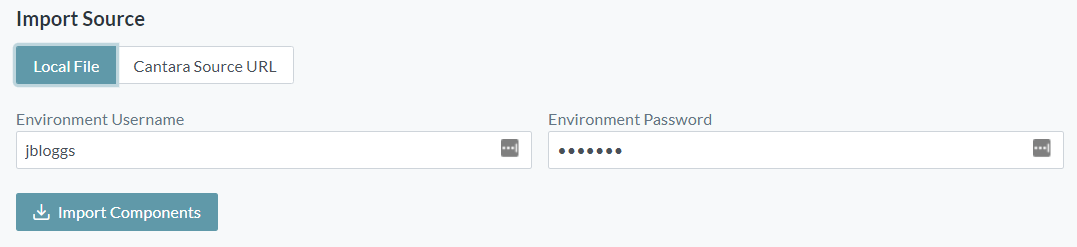
Import components from a zipfile, previously exported by Cantara
-
The components will be imported into the current farm and environment. Enter the Username and Password for the current environment.
-
Click Import Components to begin the import. A file browser will appear to enable file selection.
Cantara Source URL
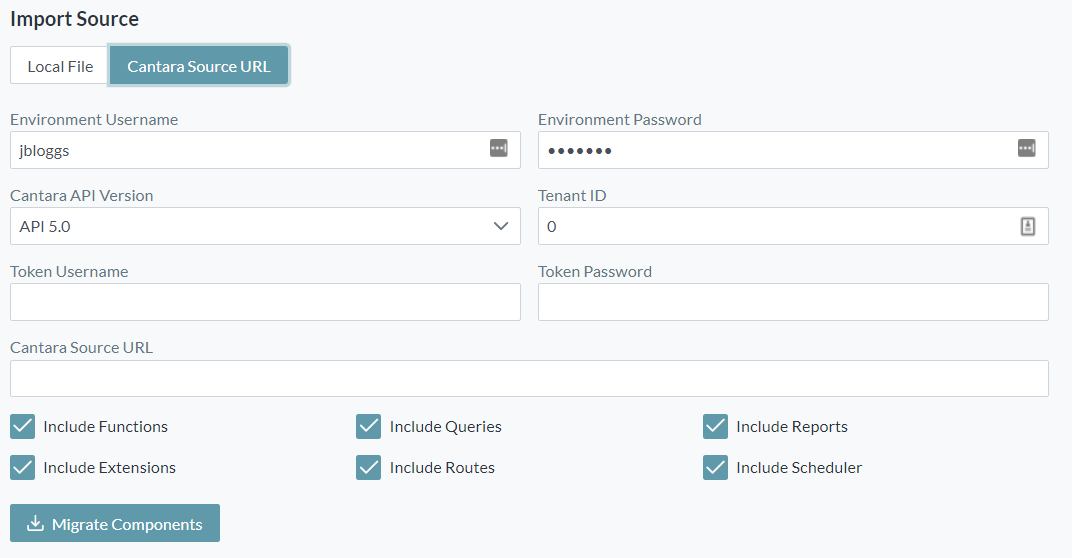
Import components from a Cantara server location.
-
The components will be imported into the current farm and environment. Enter the Username and Password for the current environment.
-
Enter the Cantara API Version, Tenant ID, Token Username/Password and Cantara Source URL for the server where the components are to be imported from
-
Choose which component types are to be imported
-
Click Migrate Components to begin the import
-
-
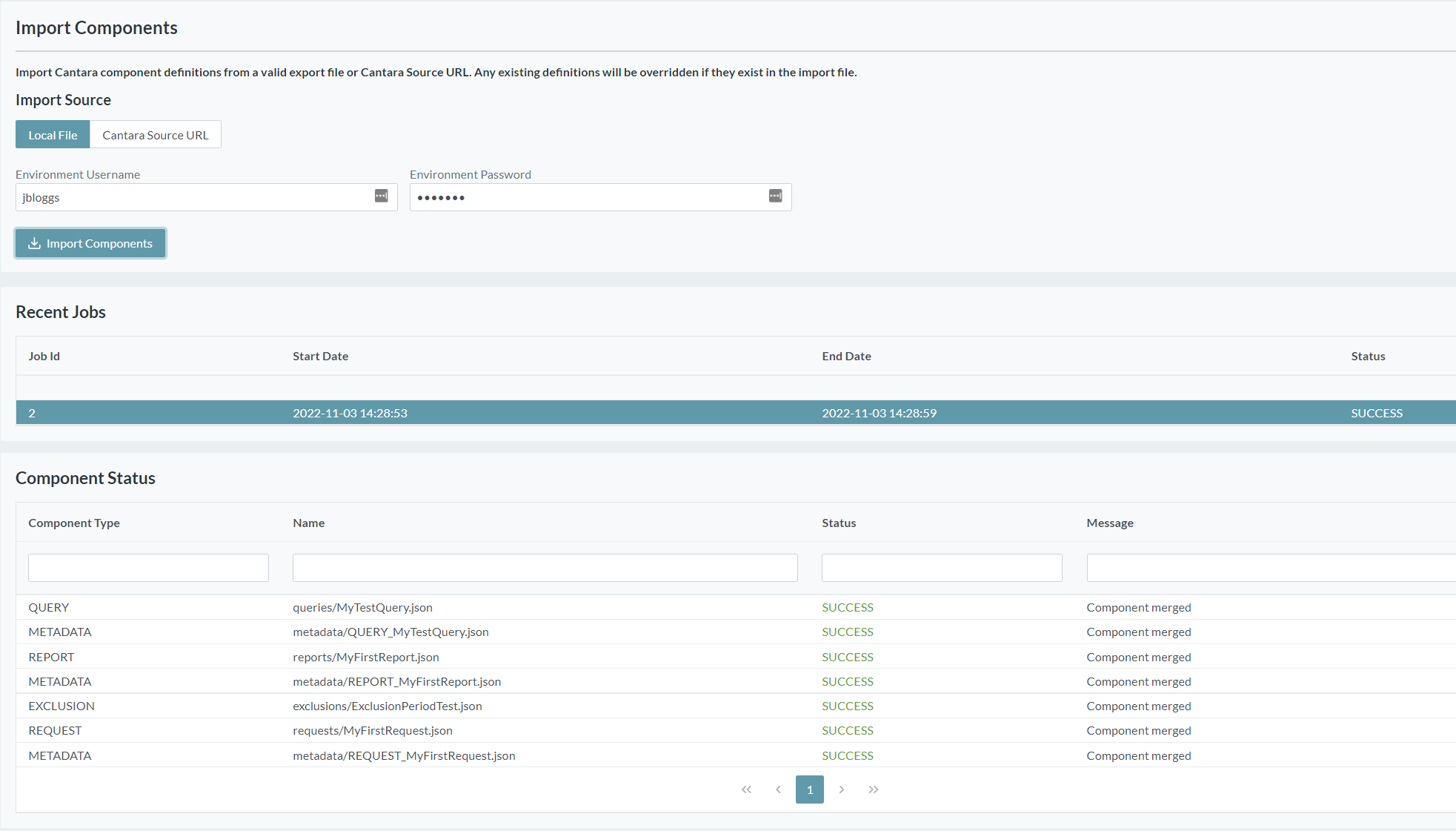
The component import status will be displayed at the bottom of the screen.
To export templates
-
Open the Tools menu group from the navigation panel.
-
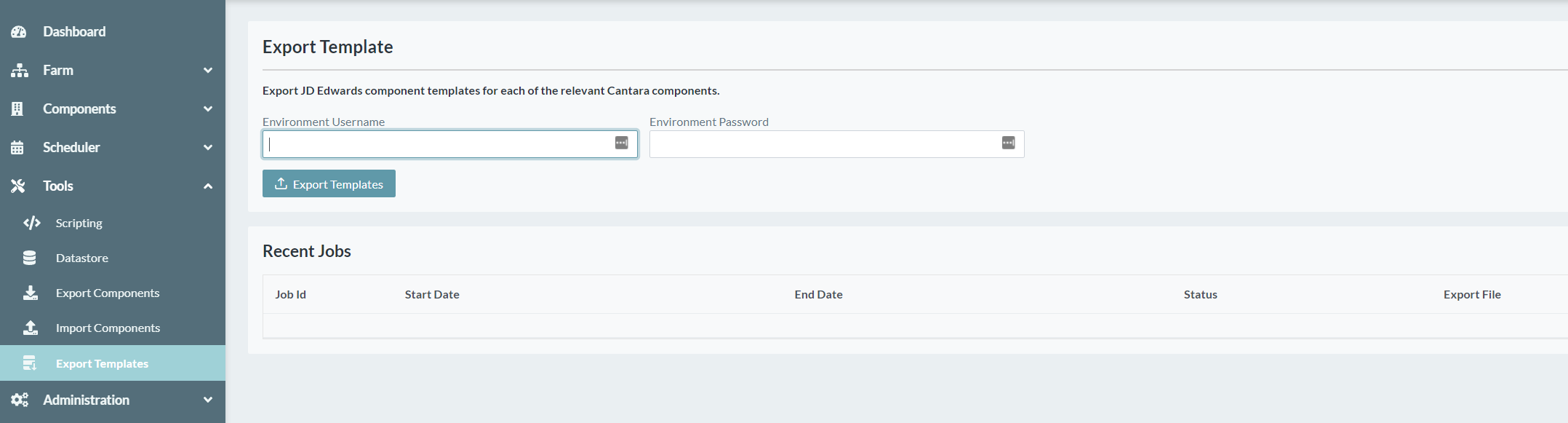
Select the Export Templates node. The Export Templates screen is displayed.
-
Enter the current environment Username and Password and click the Export Templates button.
-
The results of the export are displayed at the bottom of the screen, and the generated zipfile can be selected for download.