
Cantara Proxy Users are defined to identify the owner of each Cantara session interacting with JDE. The Proxy User configuration also specifies a JDE Service Account (credentials and role) used to interact with JDE. A Proxy User can optionally be a member of a Proxy Group, and both groups and users can be activated and deactivated as required.
Adding a Proxy User
-
Open the Farm menu group in the navigation panel.
-
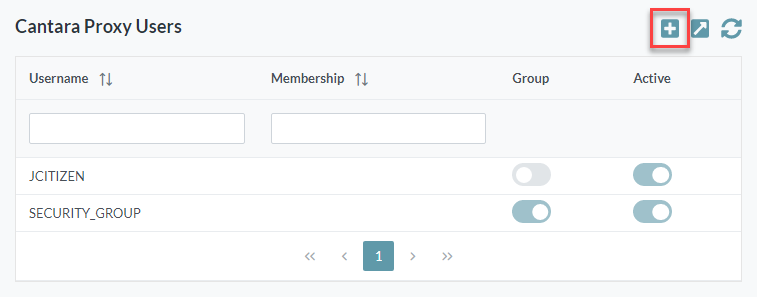
Select the Cantara Users node. The Cantara Proxy Users configuration screen is displayed.
-
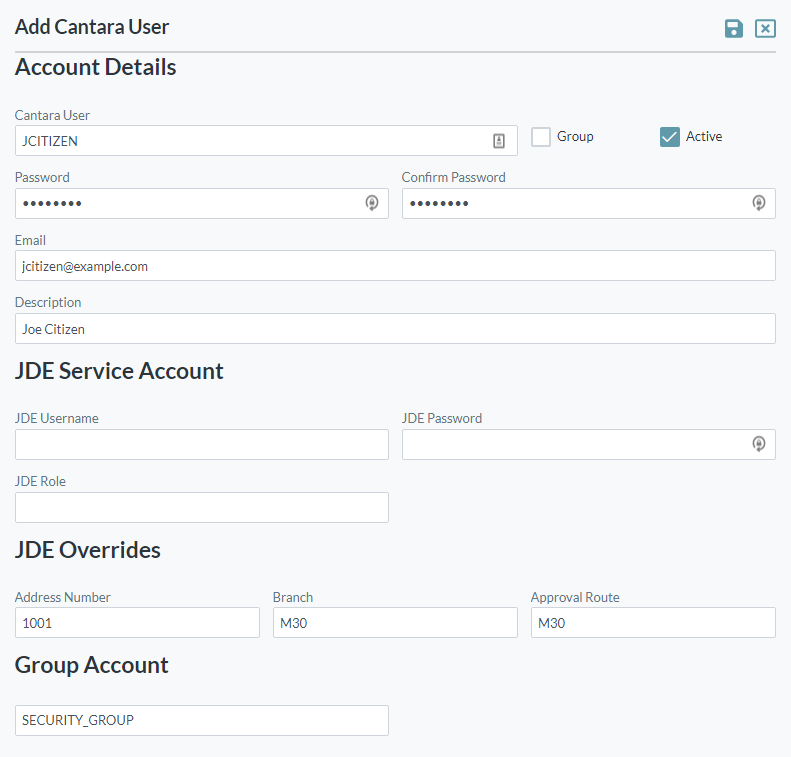
To add a new Cantara Proxy User, click the Add button. The Add Cantara User screen is displayed.
-
Configure settings as follows:
-
Cantara User: The unique name you want to assign to the user. The value for this field can be a maximum of 12 characters (no spaces). Valid characters include numbers, letters, underscore (_) and a dash (-).
-
Group: Select this option for Proxy Groups.
-
Active: Select this option to enable the user.
-
Password: Enter the password for the user
-
Confirm password: Re-enter the password for the user
-
Email: Enter the email address for the user
-
Description: Enter a user description
-
JDE Username: Enter the JDE username
-
JDE Password: Enter the password for the JDE user
-
JDE Role: Enter a JDE user role
-
Address Number: Enter the address number
-
Branch: Enter the branch
-
Approval Route: Enter the Approval Route code
-
Group Name: For group membership, enter the group name.
-
-
Click the Save button.
Adding a Proxy Group
-
Open the Farm menu group in the navigation panel.
-
Select the Cantara Users node. The Cantara Proxy Users configuration screen is displayed.
-
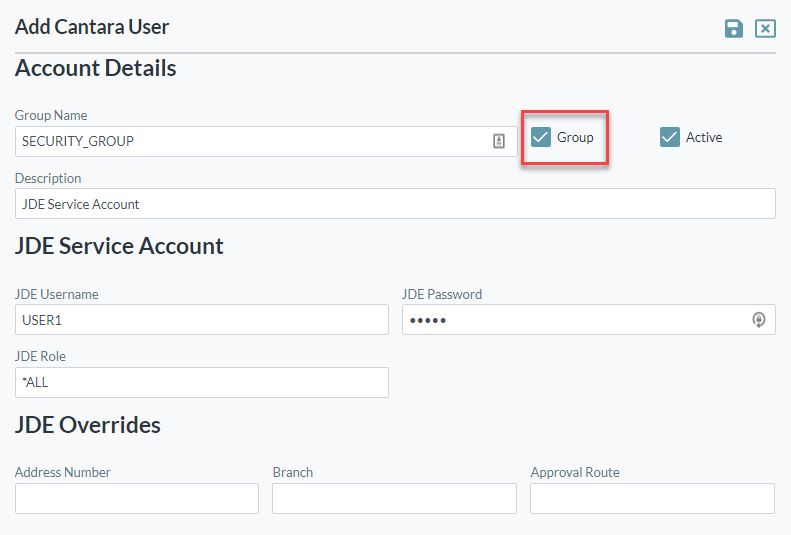
To add a new Cantara Proxy Group, click the Add button. The Add Cantara User screen is displayed.
-
Configure settings as follows:
-
Cantara User: The unique name you want to assign to the user. The value for this field can be a maximum of 12 characters (no spaces). Valid characters include numbers, letters, underscore (_) and a dash (-).
-
Group: Select this option for Proxy Groups.
-
Active: Select this option to enable the user.
-
Description: Enter a user description
-
JDE Username: Enter the JDE username
-
JDE Password: Enter the password for the JDE user
-
JDE Role: Enter a JDE user role
-
Address Number: Enter the address number
-
Branch: Enter the branch
-
Approval Route: Enter the Approval Route code
-
-
Click the Save button.
Deleting a Proxy User
-
Open the Farm menu group in the navigation panel.
-
Select the Cantara Users node. The Cantara Proxy Users screen is displayed.
-
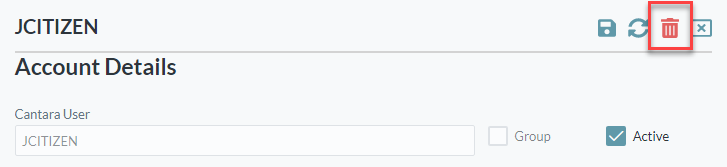
Select the user that is to be deleted. The Cantara User configuration screen is displayed.
-
Click the Delete button.