
Oracle Glassfish maintenance activities have significantly reduced. Rinami no longer recommends that Glassfish be used and a deployment platform for Cantara.
Make sure you have done the following before deploying the Cantara Server:
-
Have an existing Glassfish Server Instance or have created a server instance that meets the Cantara Server Technical Requirements.
-
Set up the file system folders and confirmed that the user the Glassfish Server is running as has read and write permissions to these folders.
-
Extracted the Cantara Server application .ZIP archive file into the installation folder according to the Installing the Cantara Access Server Web Application instructions.
-
Configured JD Edwards logging.
To deploy an instance of the Cantara Server
-
Log in to the Glassfish Server Administration Console.
-
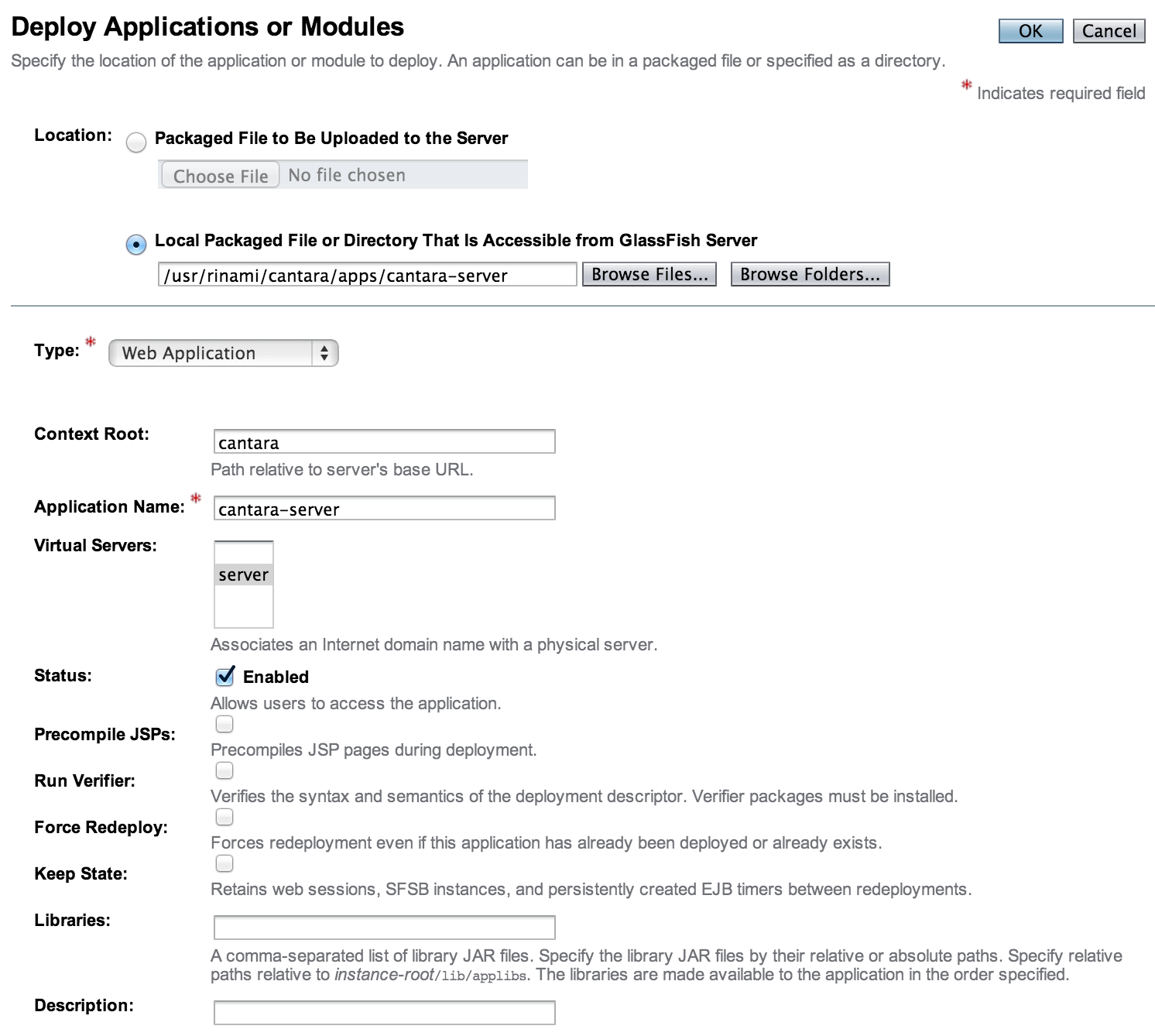
Go to the Applications page and select Deploy.
-
Select the Locate Packaged File or Directory That Is Accessible from Glassfish Server option.
-
Click Browse Folders... and browse to the Cantara Access Server installation folder.
-
Choose Web Application as the application Type and check that the Context Root is acceptable.
-
Click OK to deploy the application.
-
If the deployment is successful, you will see the Cantara Access Server in the list of deployments with the Enabled column ticked. If the deployment fails to start, check the appropriate Glassfish logs for deployment errors.
If you open a browser window to the base URL of the Cantara Access Server deployment, you can confirm that the deployment has completed successfully.